
Learn to record an expense manually on the Web app
How to manually add expense on the Web app
Here are the simple steps to manually add an expense using the web app.
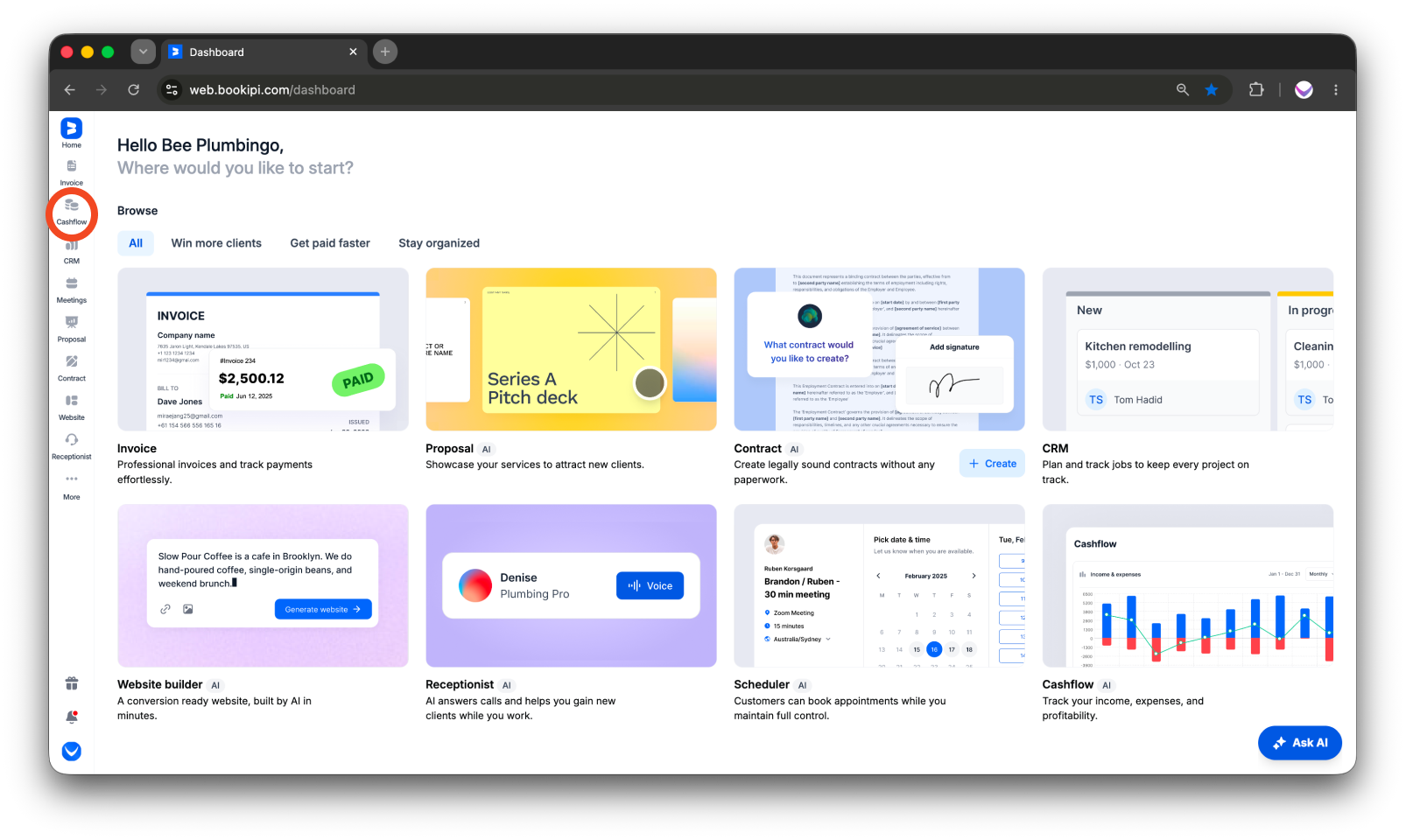
Step 1: Select ‘Cashflow’
From the left-hand sidebar menu, click on ‘Cashflow’ to open the Cashflow section.
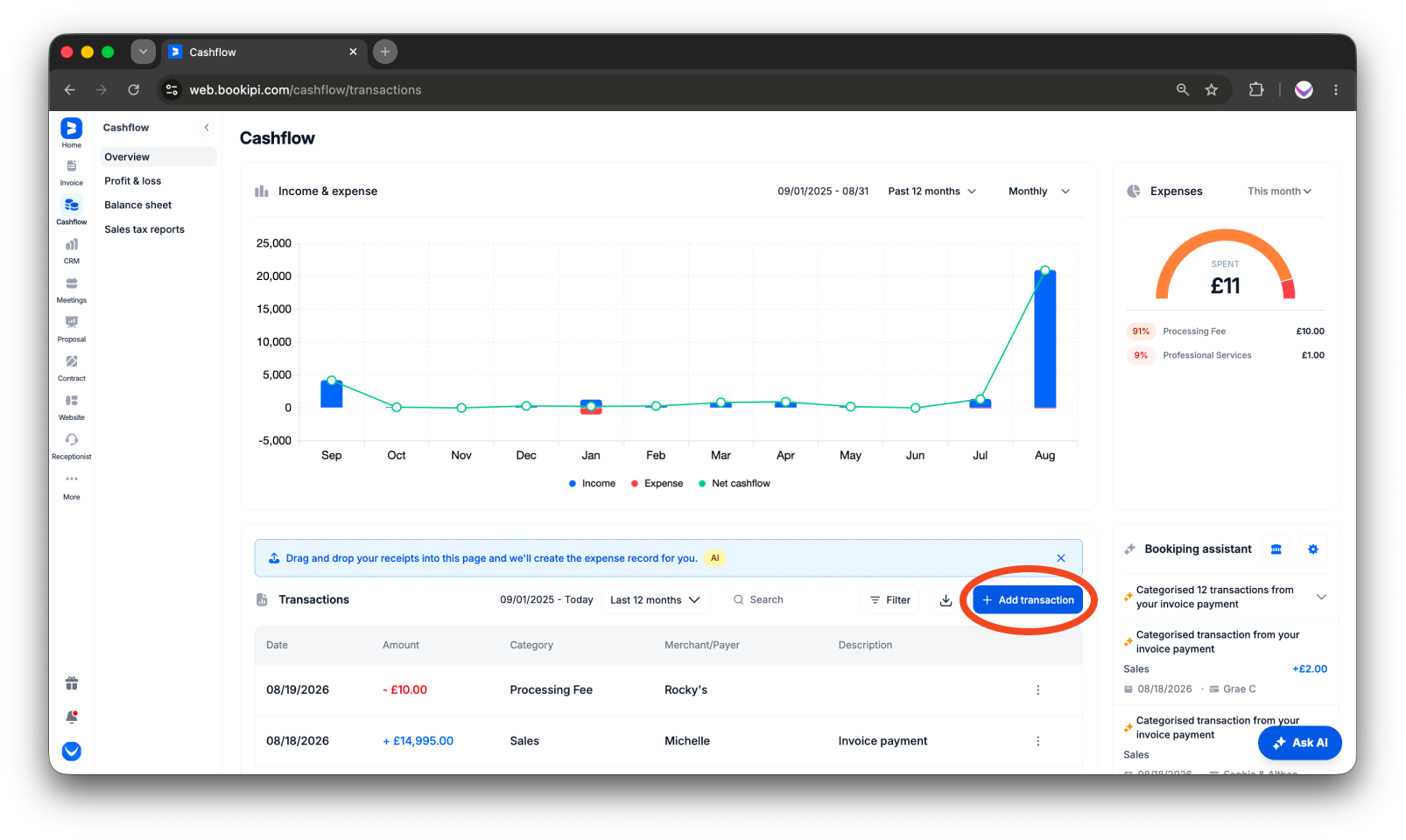
Step 2: Click the ‘+ Add transaction’ button
Click the ‘+ Add transaction’ button to begin adding a new expense.
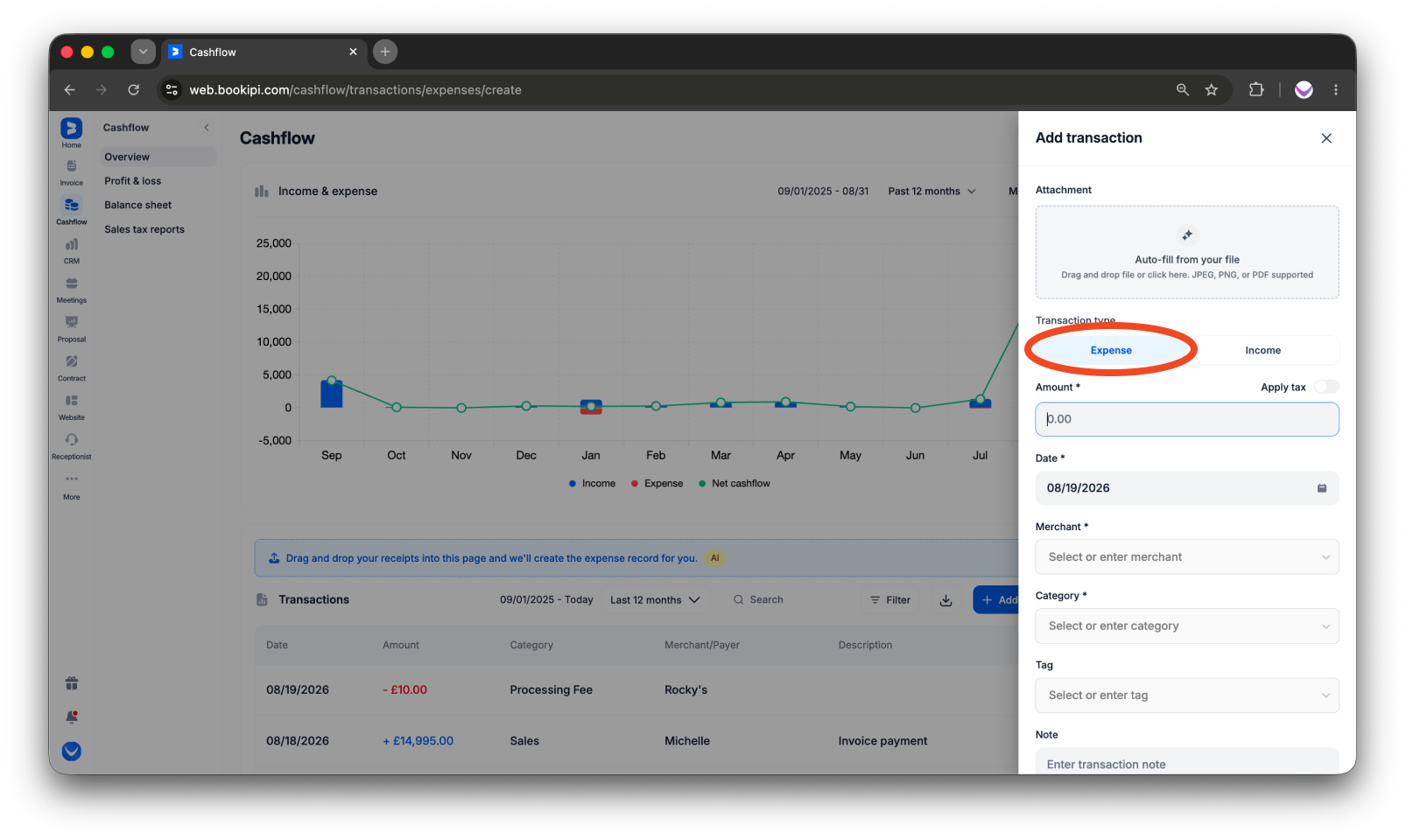
Step 3: Select ‘Expense’
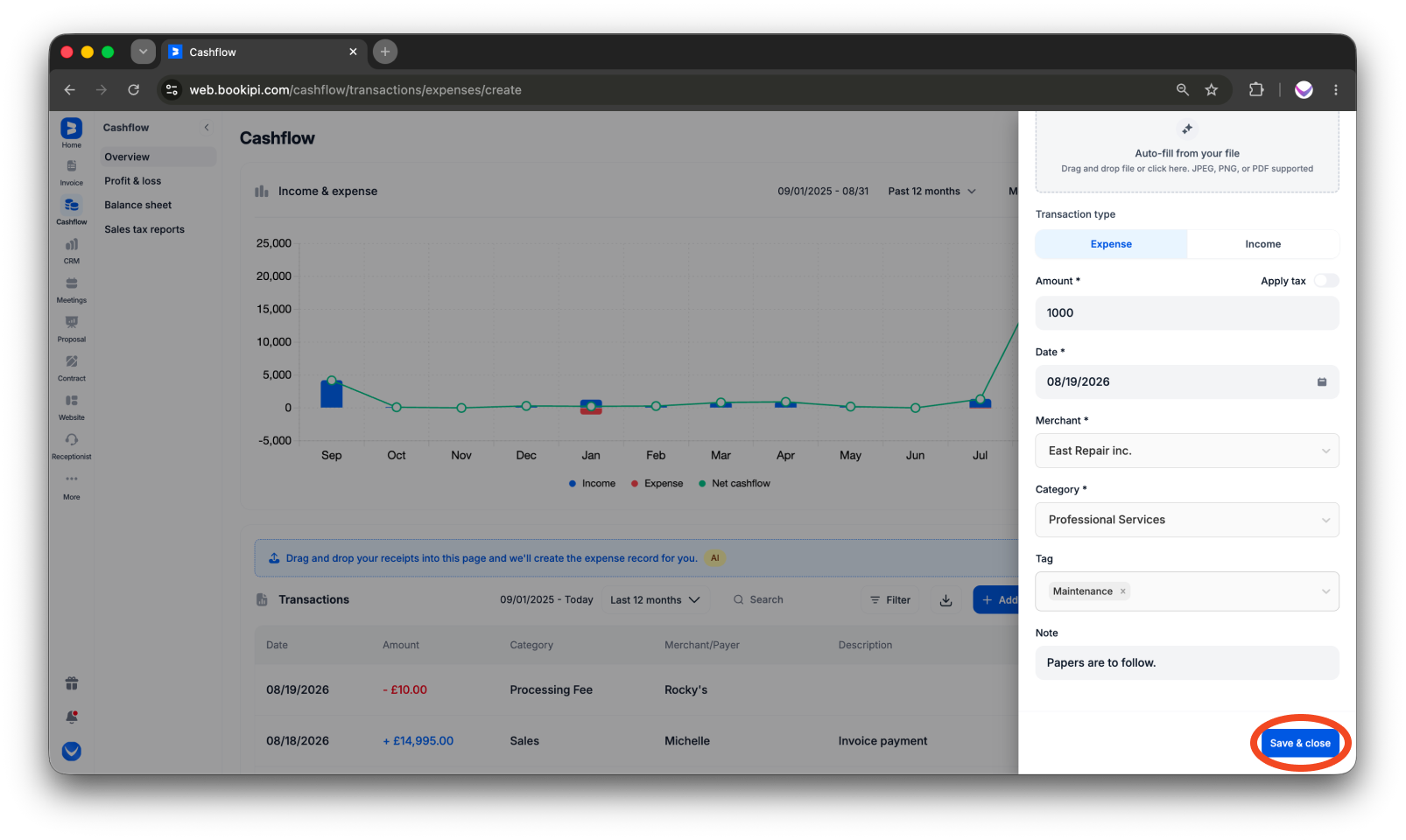
In the Add transaction panel, select ‘Expense’ as the transaction type.
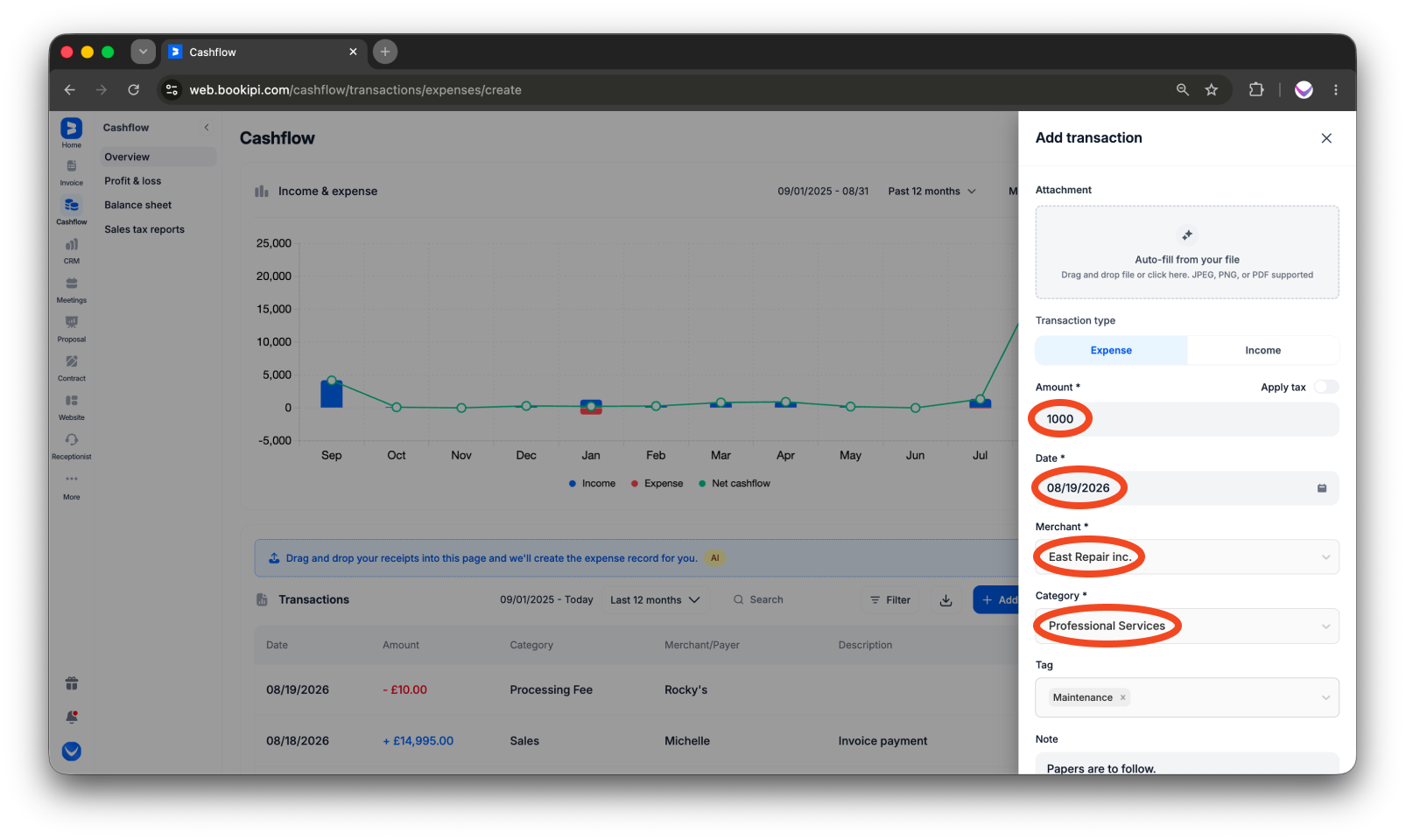
Step 4: Enter the expense details
For each expense, enter the Amount, Date, Merchant, and Category. If you use tags to organize your transactions, select a relevant Tag. Add any additional details about the expense in the Note field.
Step 5: Save the expense
Review the transaction details, then click ‘Save & close’.
The expense will be added to your Cashflow transactions.
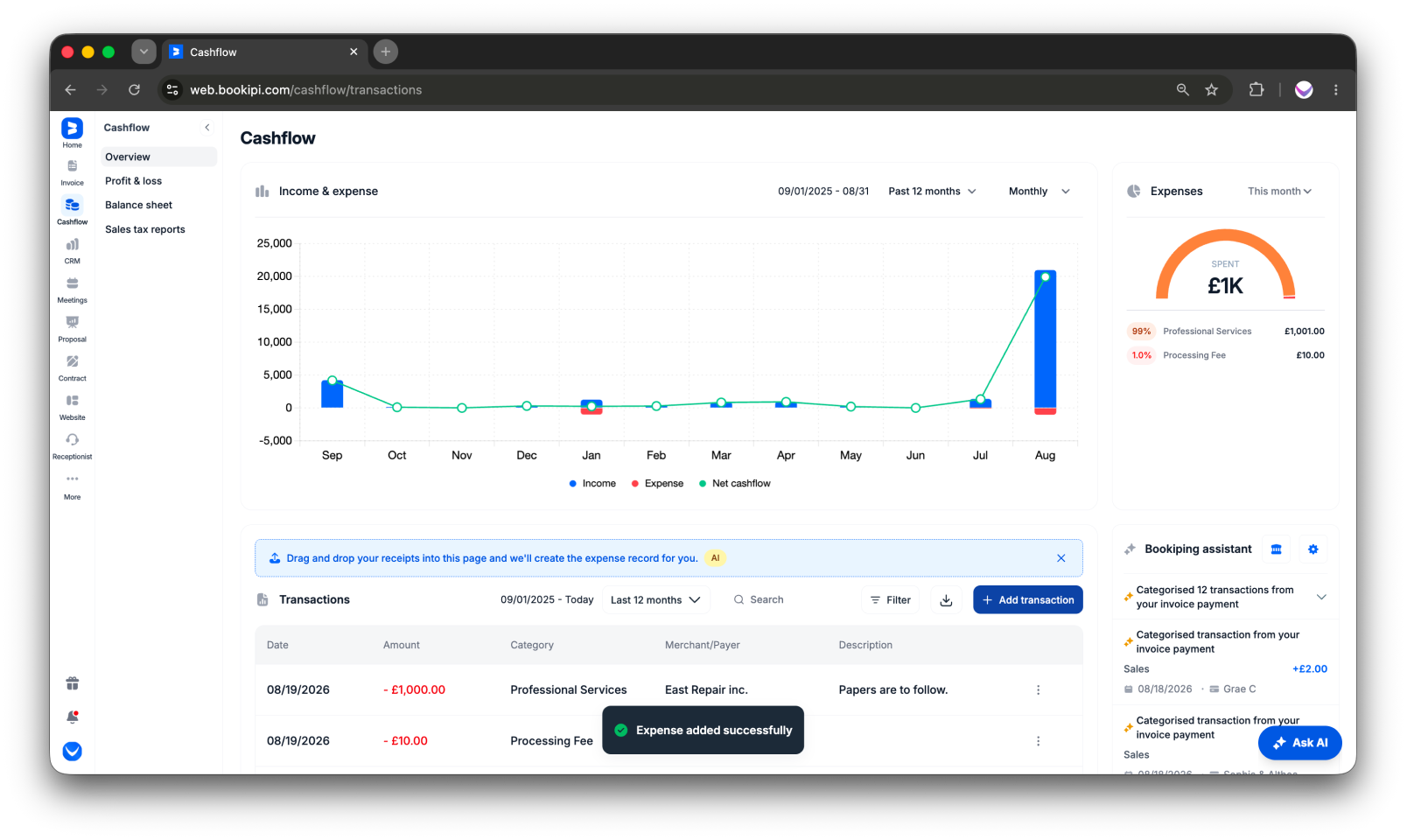
On the Cashflow page, all expenses are listed chronologically, starting with the most recent at the top and moving toward older entries. This organization makes it easy to quickly review and access your latest expenses.
FAQ
Q: Is this feature free?
A: Yes, this feature is currently available free of charge.
Q: Can I sync my bank with the platform?
A: Yes, you can sync your bank using the Cashflow web version. To get started, follow the steps below:
-
On the right-hand side of the Cashflow page, click ‘Booking assistant’.
-
Select ‘Add bank account’.
-
Choose your bank from the list. If you don’t see your institution, use the search bar at the bottom to find it.
-
Enter your bank details and other information as prompted.
-
Once completed, click ‘SUBMIT’.
Q: Will expenses added on the web app sync to the mobile app?
A: No, expenses added via the web app will not sync with the mobile app’s Cash Flow feature.
Q: Can I add expenses for individual companies to my account?
A: Yes, each company in your account includes a Cashflow feature, allowing you to add and manage expenses specific to that company.
Discover more tutorials for Bookipi Invoice on Web v2
Discover more tips on how to get the most out of Bookipi Invoice on Web v2 with our Web v2 guides.
Download the Bookipi Invoice mobile app and check out our mobile app guides to make sending invoices anytime and anywhere even easier.


