
Discover how to edit an expense in the Web app.
How to edit expense in the Web App
Learn how to edit an expense entry with these simple steps.
Step 1: Navigate to Cashflow
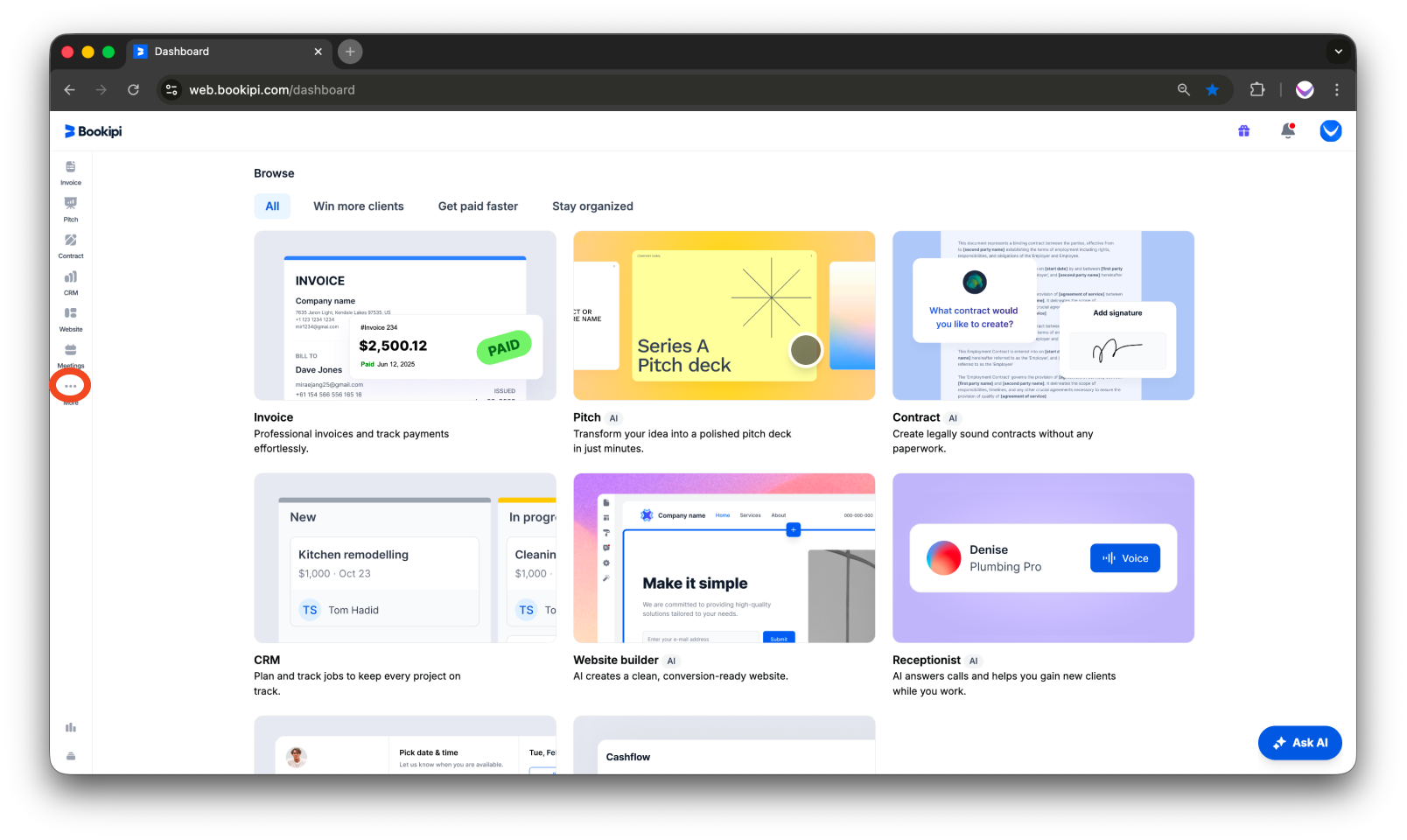
On the navigation bar, click the ellipsis (⋯) button to open additional options.
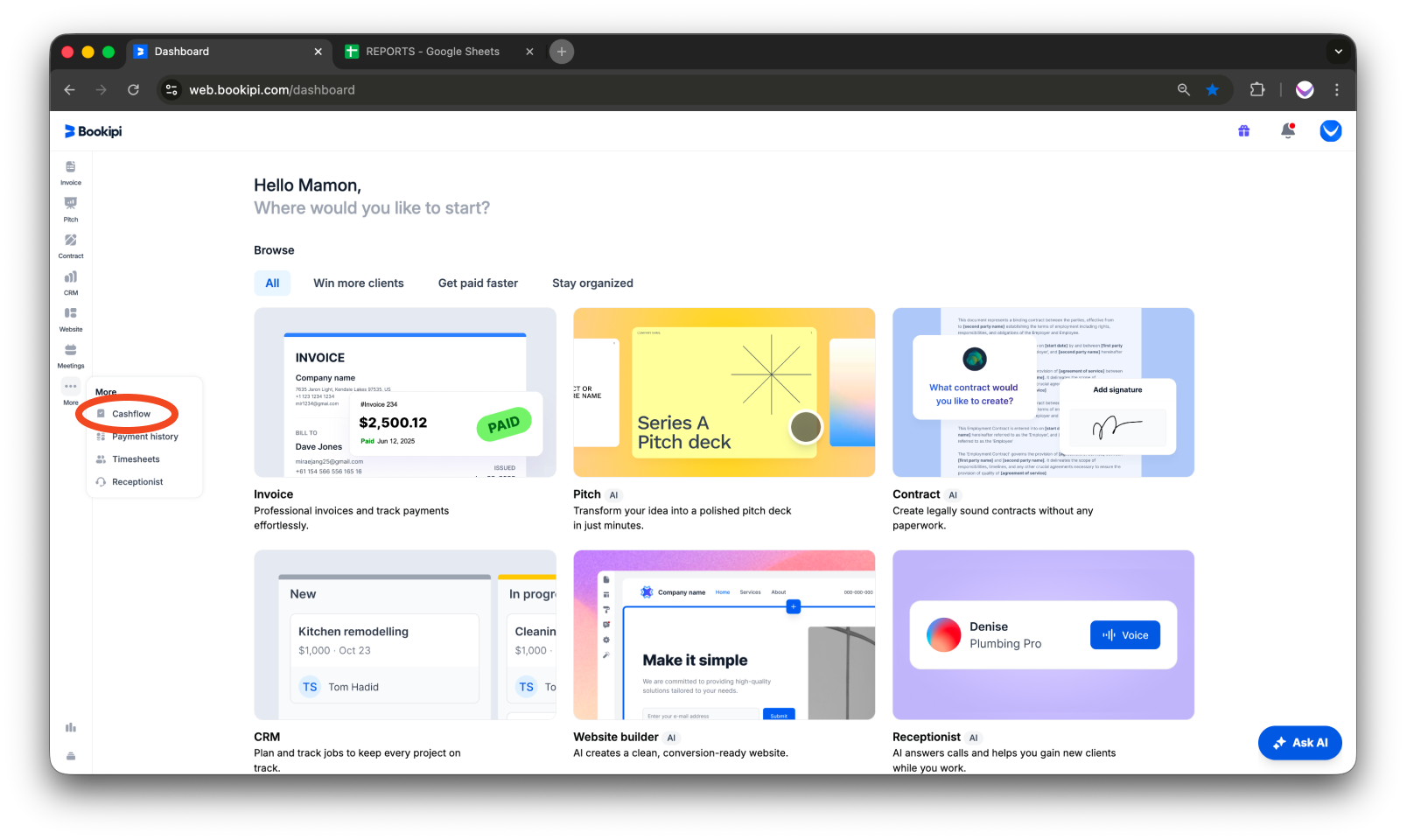
On the options, click ‘Cashflow’.
Step 2: Access the Expense Edit View
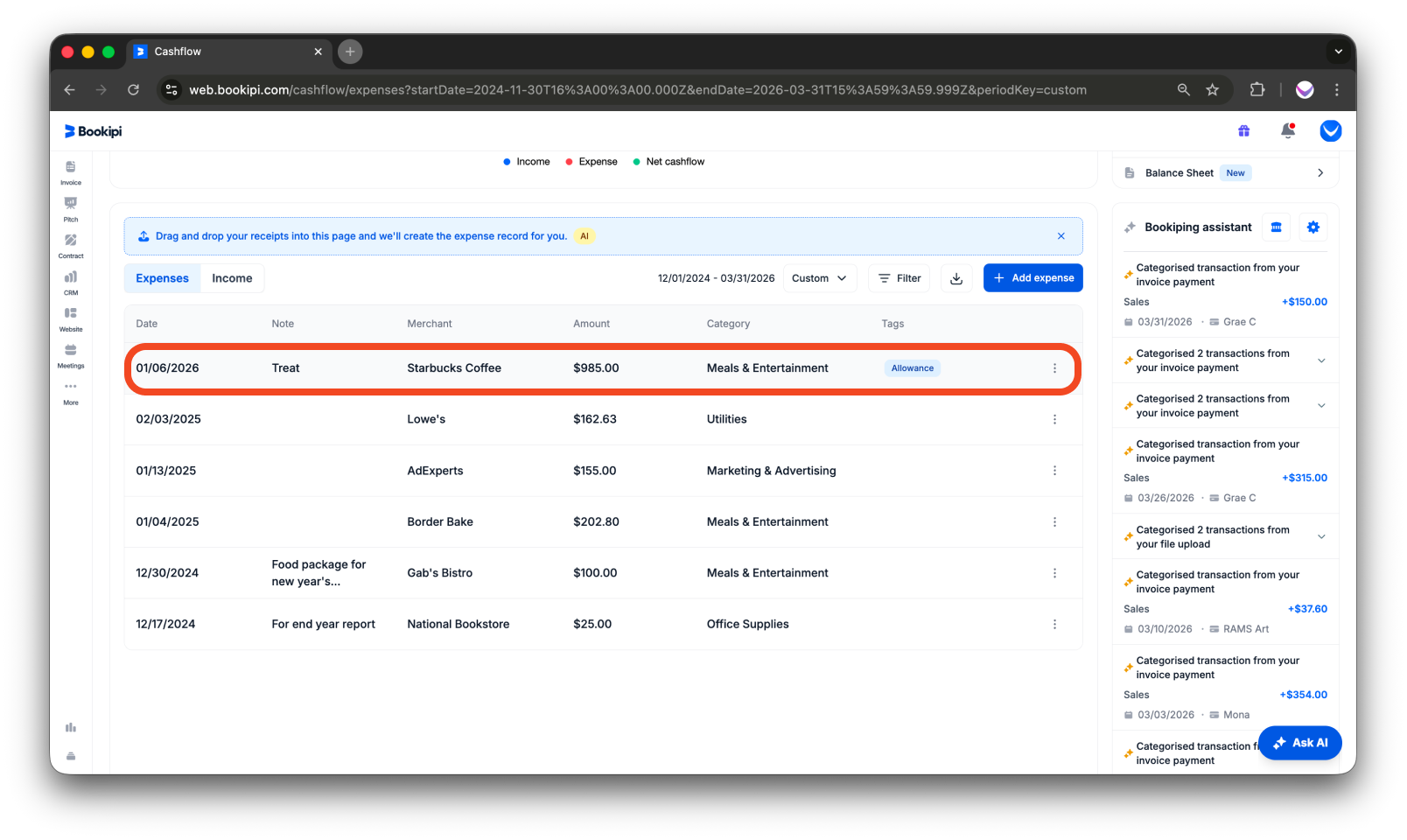
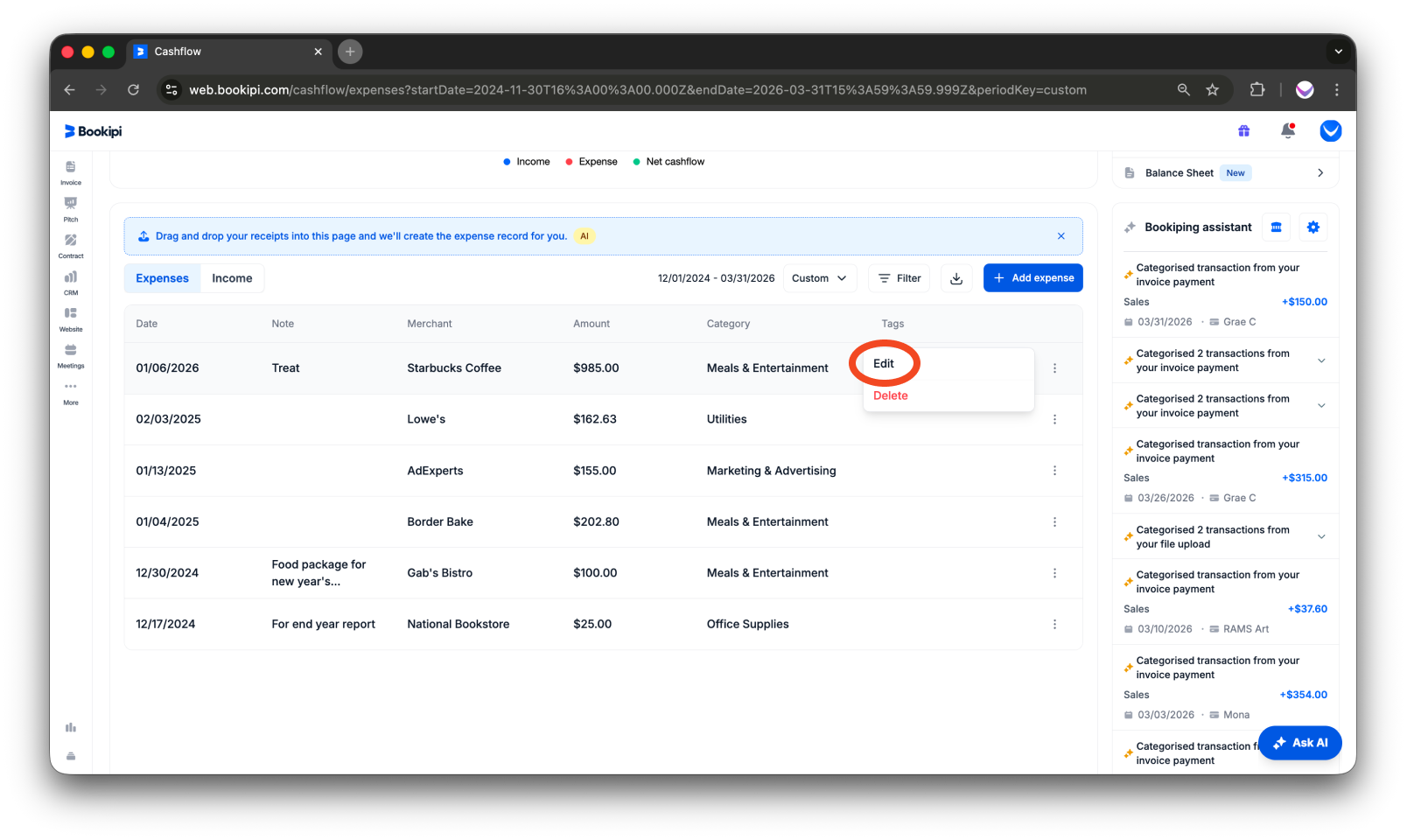
There are two ways to edit an expense. The first option is to click directly on an expense item to open the edit expense view.
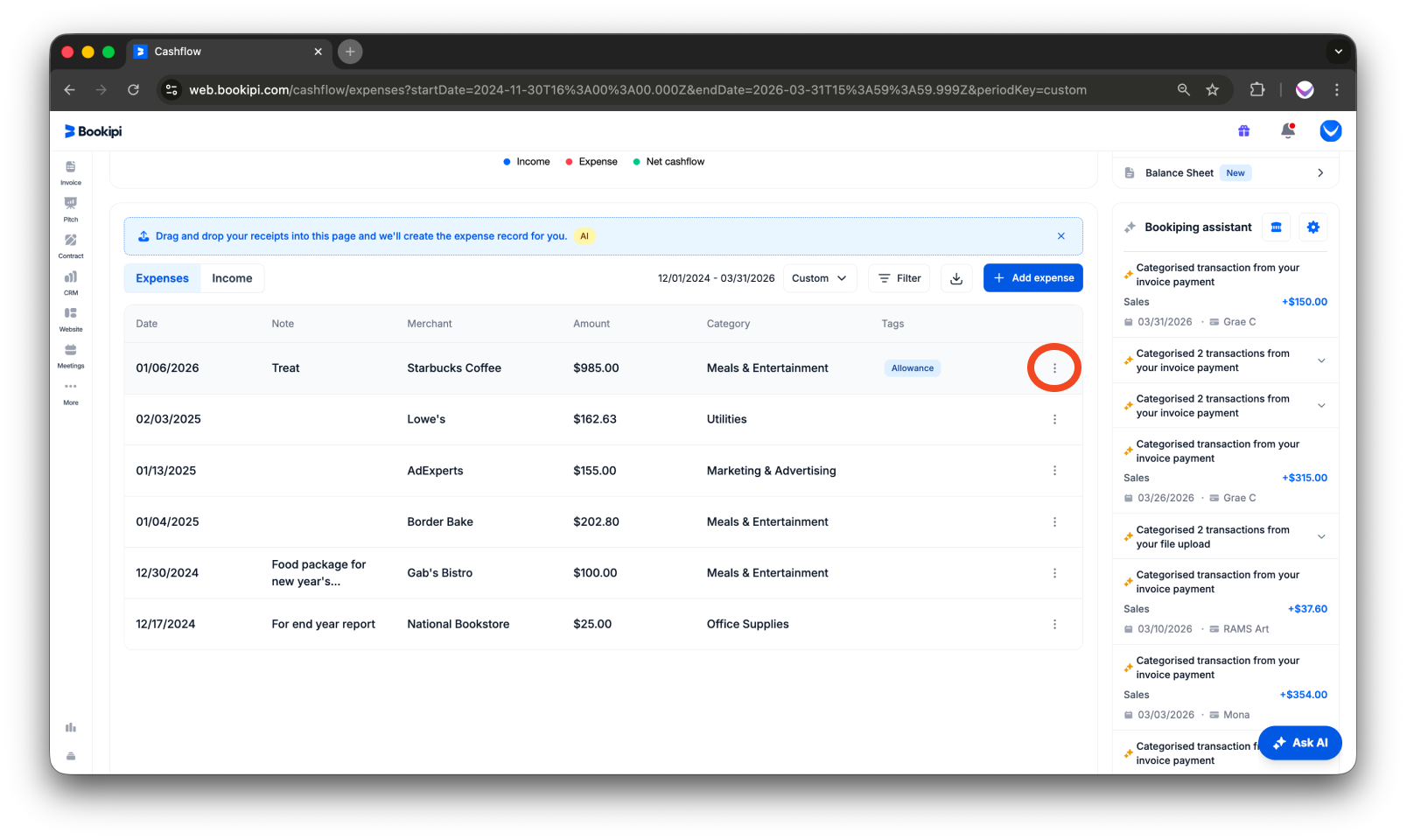
The second option is clicking on the vertical ellipsis button next to the expense item and selecting the ‘Edit’ option.
Step 3: Modify Expense Details
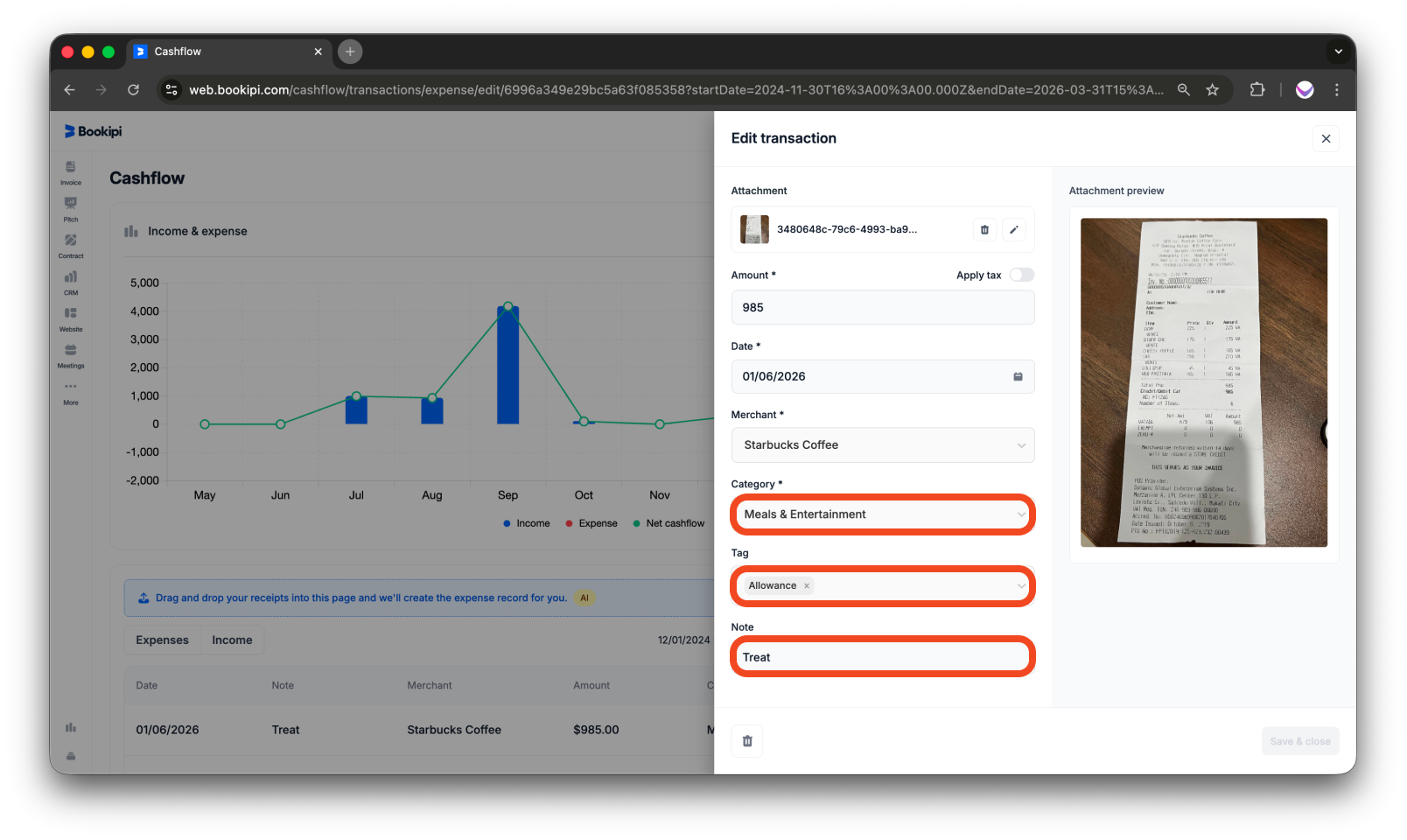
You can update fields such as ‘Category’ and ‘Tag’, or add additional details on the ‘Note’ section as needed.
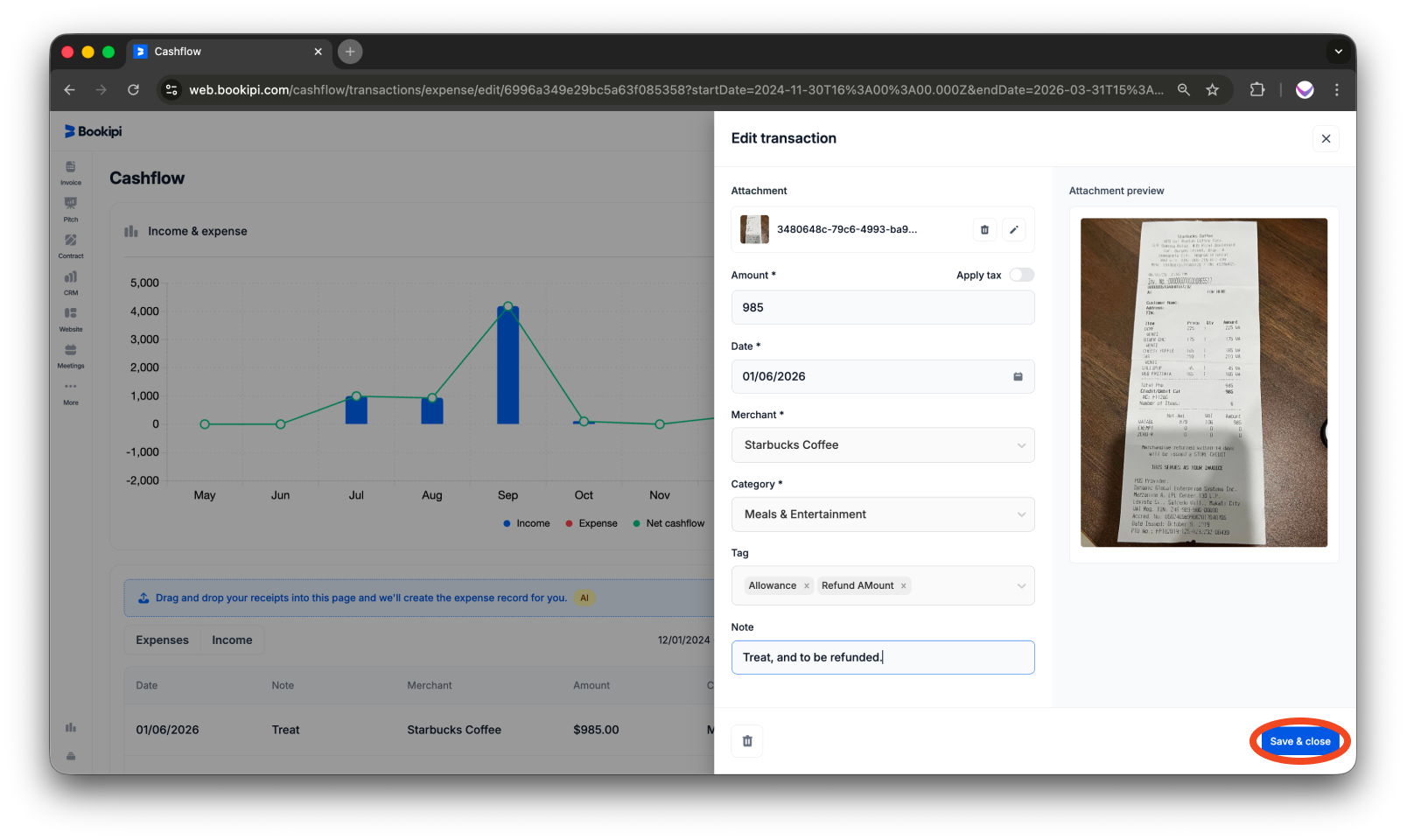
Step 4: Save Changes
After making your changes, click the ‘Save & close’ button located in the lower-right corner to apply and save your edits.
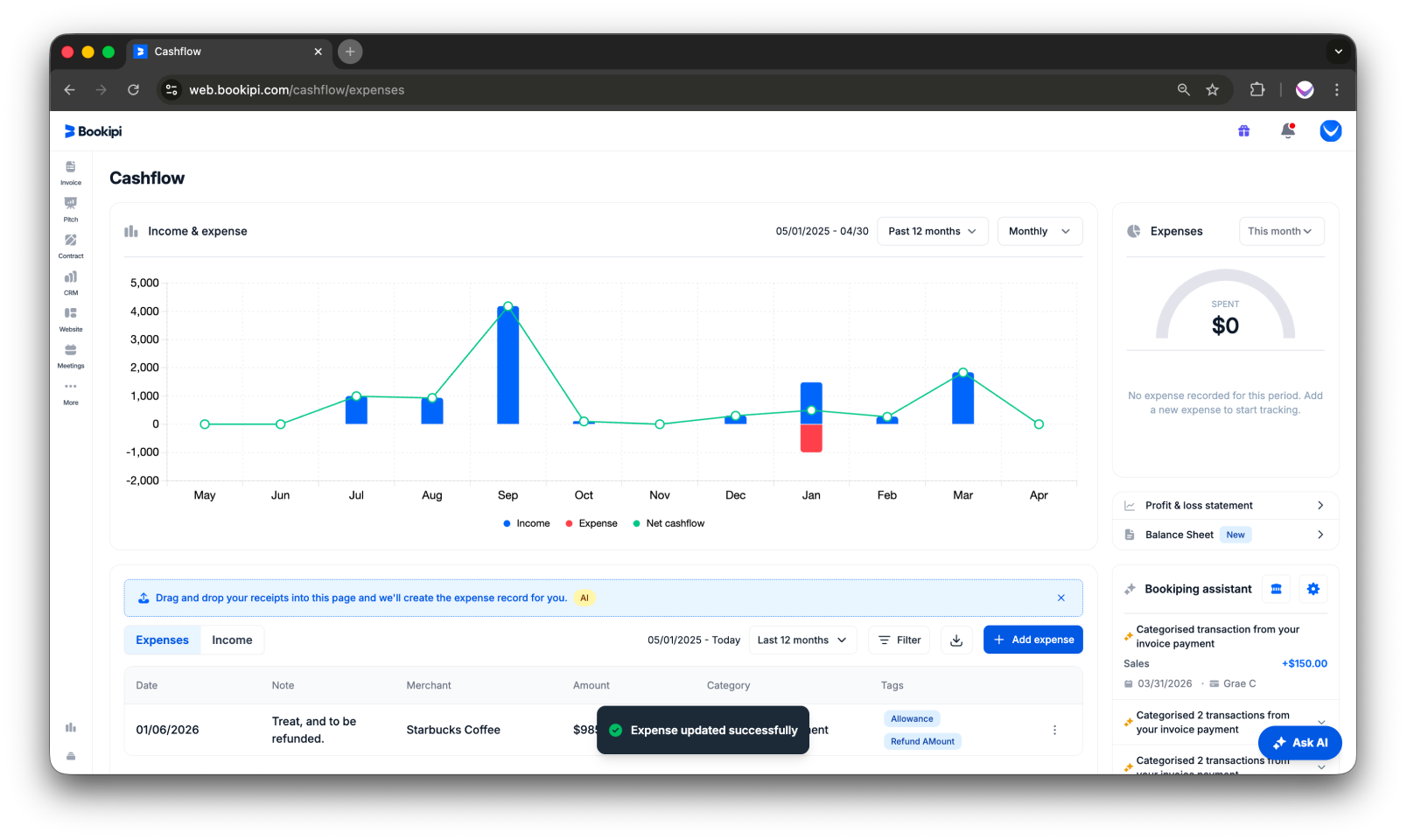
You have successfully edited an expense.
Frequently Asked Questions (FAQ):
Find answers to common questions about this feature below.
Q: What is the file size limit for images?
A: Images can be added up to a maximum size of 5MB.
Q: Can I crop an image in the Edit expense window?
A: No, cropping an image is not currently supported.
Q: Is it possible to undo changes made to an expense?
A: Once changes to an expense are saved, they cannot be undone. However, you can reopen the expense at any time to make further updates.
Discover more tutorials for Bookipi and explore tools to help you manage and grow your business
Explore our Web app help guide to discover useful tips and practical advice on how to get the most out of Bookipi Web.
Download the Bookipi Invoice mobile app and check out our mobile app guides to make sending invoices anytime and anywhere even easier.


