
Learn how to disconnect your Gmail account when it’s synced with the Web Cashflow feature for tracking expenses.
How to disconnect Gmail synced to Expenses
Follow these simple steps on disconnecting Gmail synced to Expenses:
Step 1: Access Business Settings
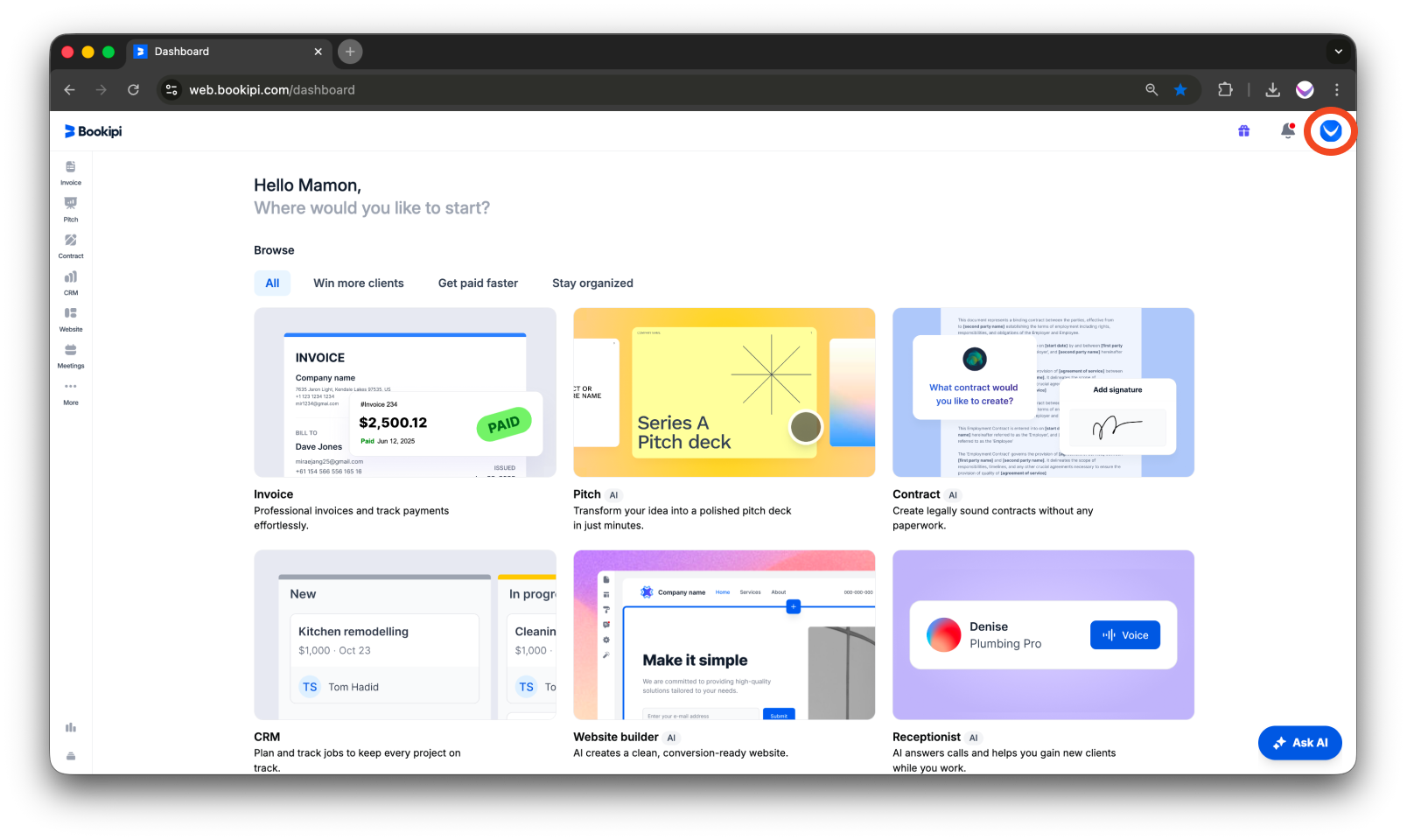
Click your user icon in the upper-right corner of your screen.
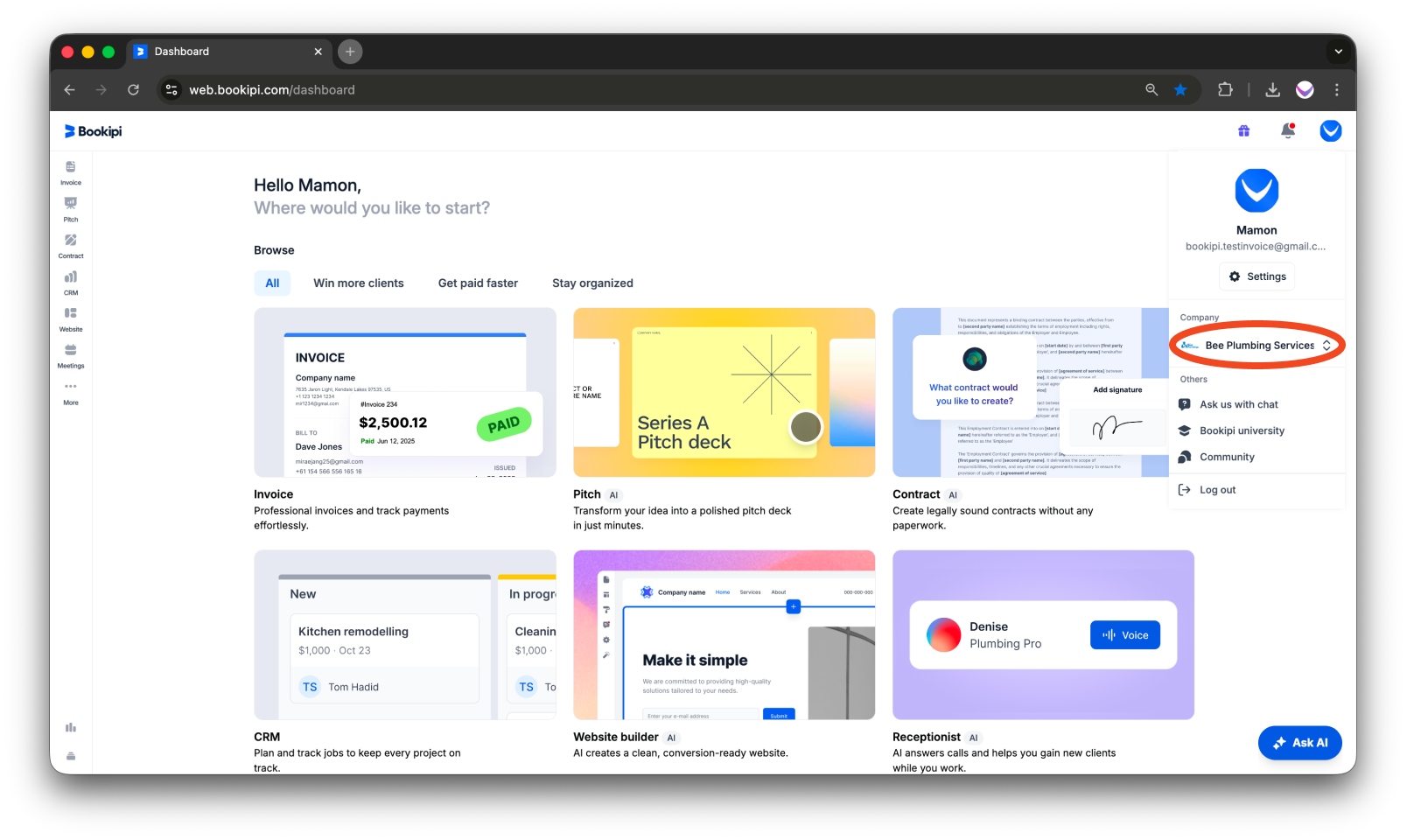
Make sure you’re working in the correct company. If not, click your company name and select the right one from the list.
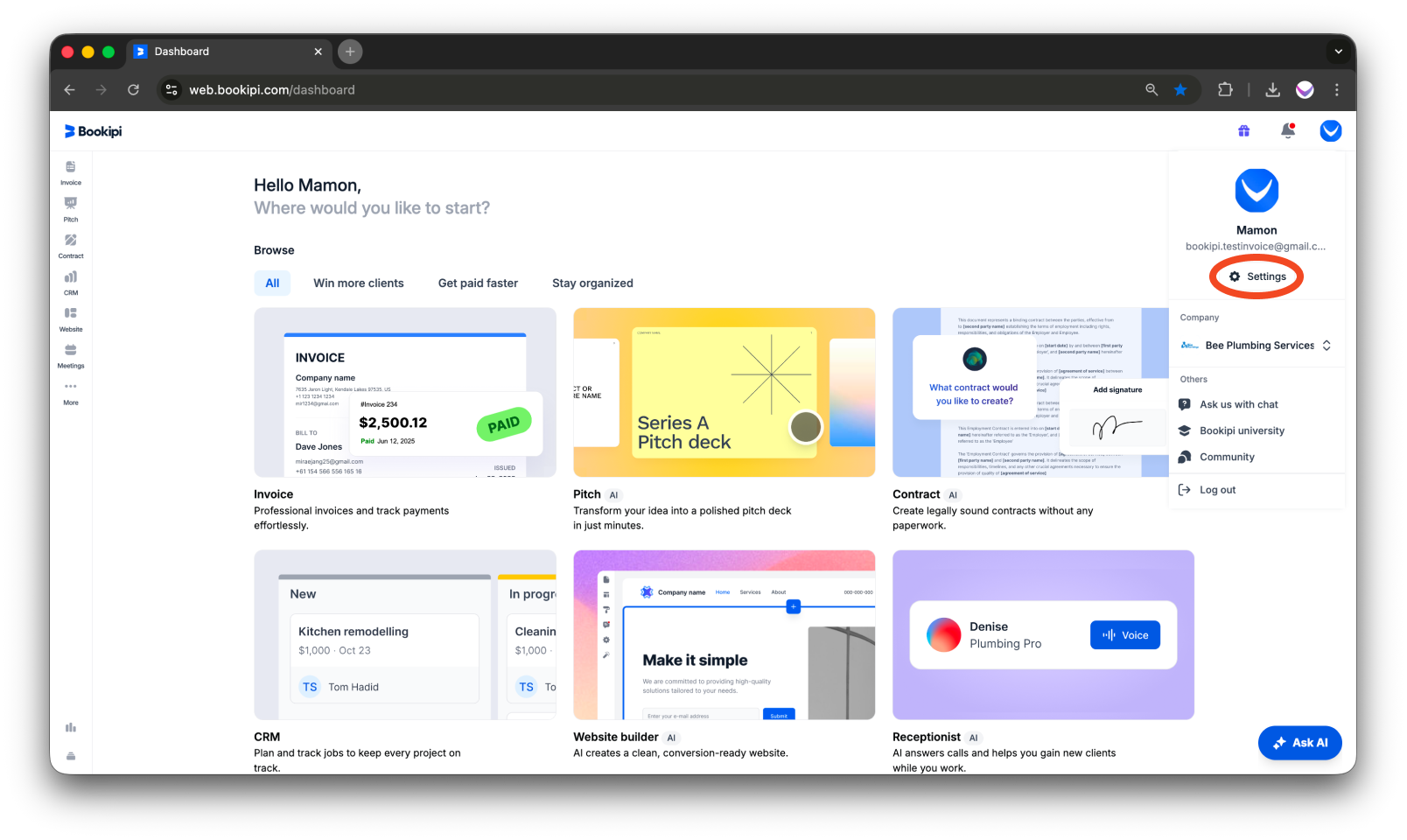
After selecting the correct company, click ‘Settings’.
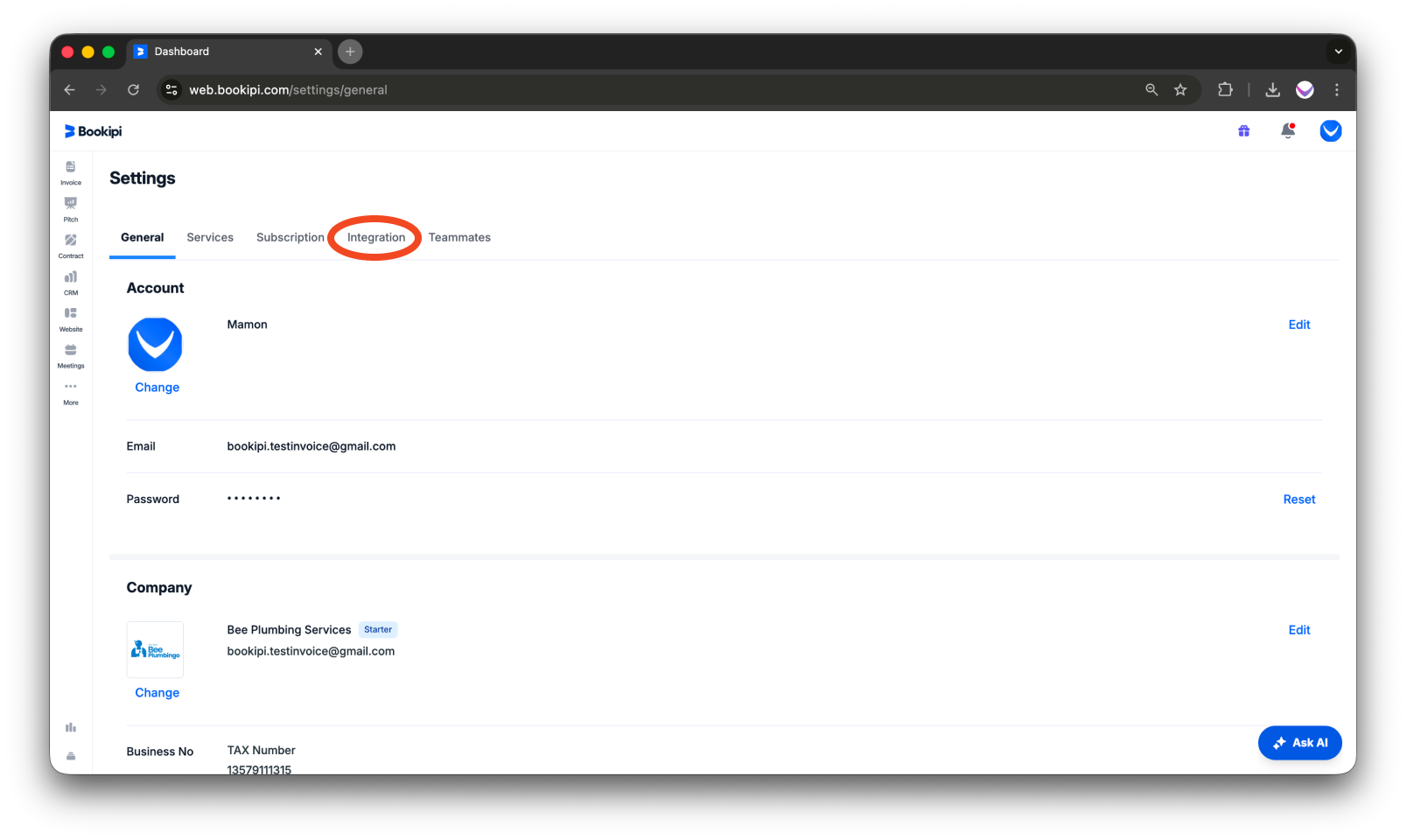
Step 2: Navigate to Integration Settings
Click on the ‘Integration’ tab.
Step 3: Disconnect Gmail Sync
Locate Gmail Sync (Expenses) and click the ‘Disconnect’ button beside it.
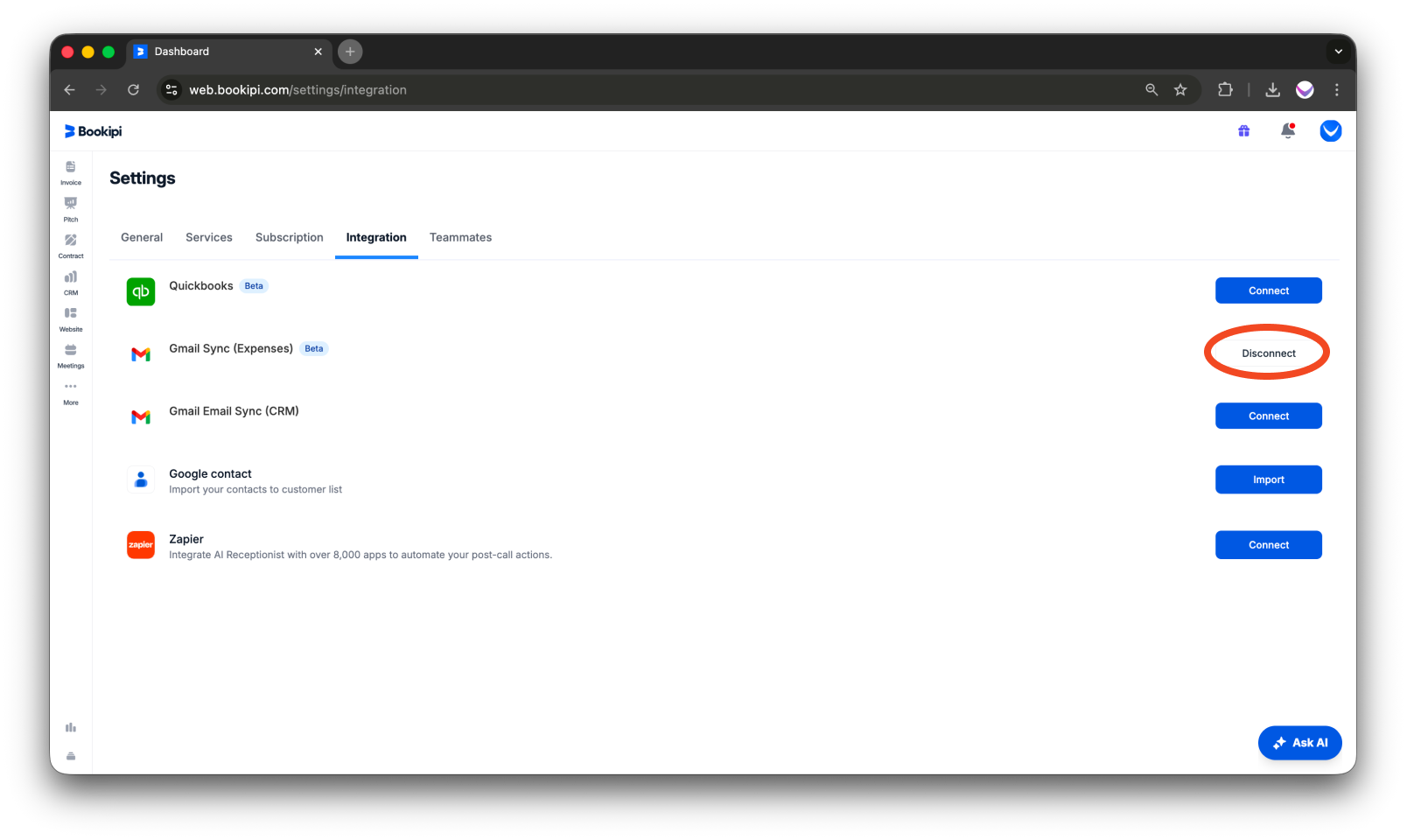
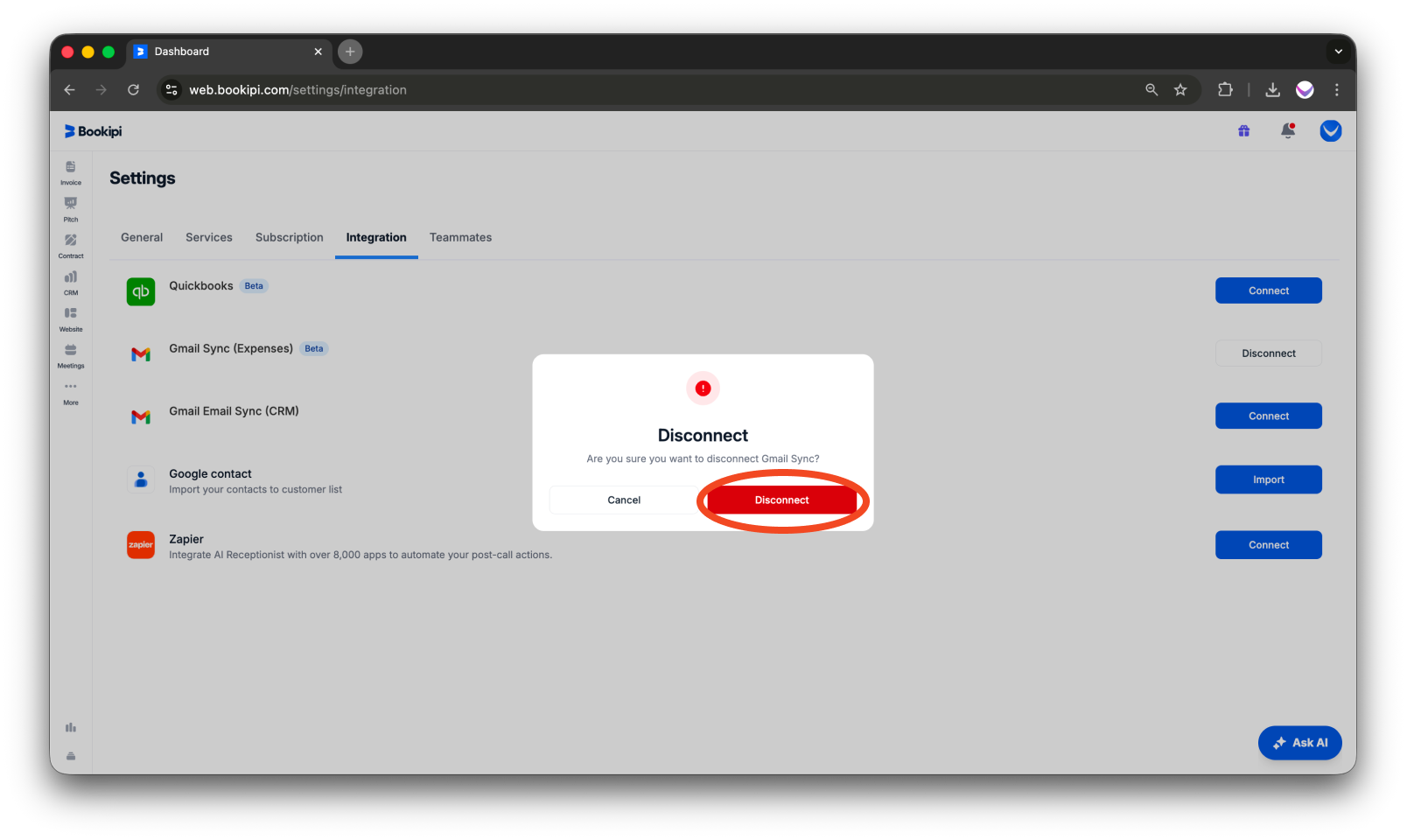
Step 4: Confirm Disconnection
A confirmation message will appear. Click ‘Disconnect’ to finalize the process.
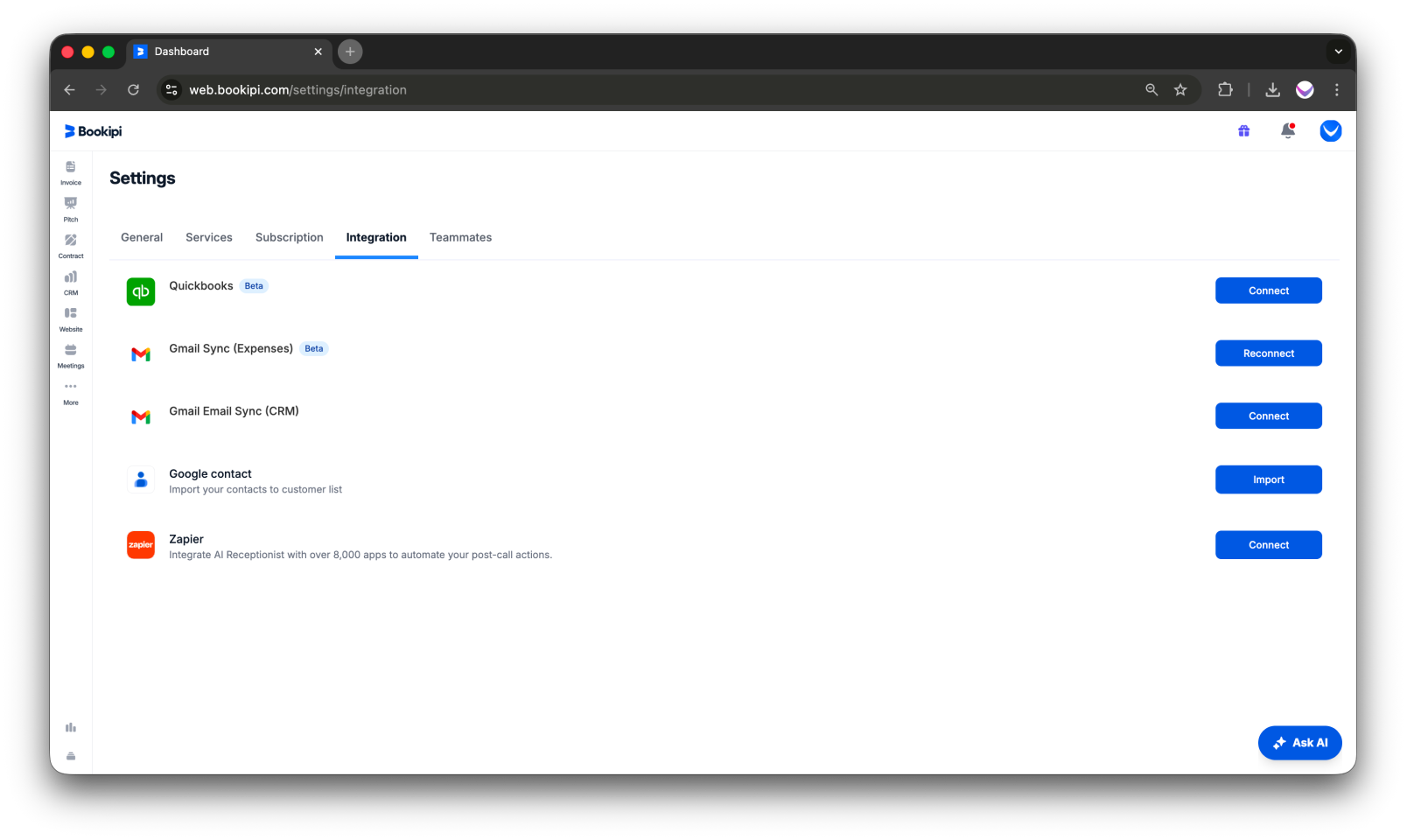
You have now successfully disconnected your Gmail account from the Expenses.
FAQ: Disconnecting Gmail from Web Cashflow Expenses
Q: How can I reconnect my Gmail account?
A: To reconnect your Gmail account, navigate to Settings, then access the Integrations tab and follow the prompts to reconnect.
Q: Can I sync multiple accounts?
A: No, syncing multiple accounts is not supported at this time. If you wish to link a different account, go to Settings > Integrations, disconnect the current account, and then connect the new one.
Q: Can others in my company access my expense documents?
A: No, your documents, including images and PDFs, are encrypted and cannot be accessed by others.
Discover more tutorials for Bookipi and explore tools to help you manage and grow your business
Explore our Web app help guide to discover useful tips and practical advice on how to get the most out of Bookipi Web.
Download the Bookipi Invoice mobile app and check out our mobile app guides to make sending invoices anytime and anywhere even easier.


