
Learn how to add an additional Pipeline status in Bookipi CRM.
How to add an additional Pipeline status in Bookipi CRM
Learn how to add an additional Pipeline status in Bookipi CRM with the simple steps below.
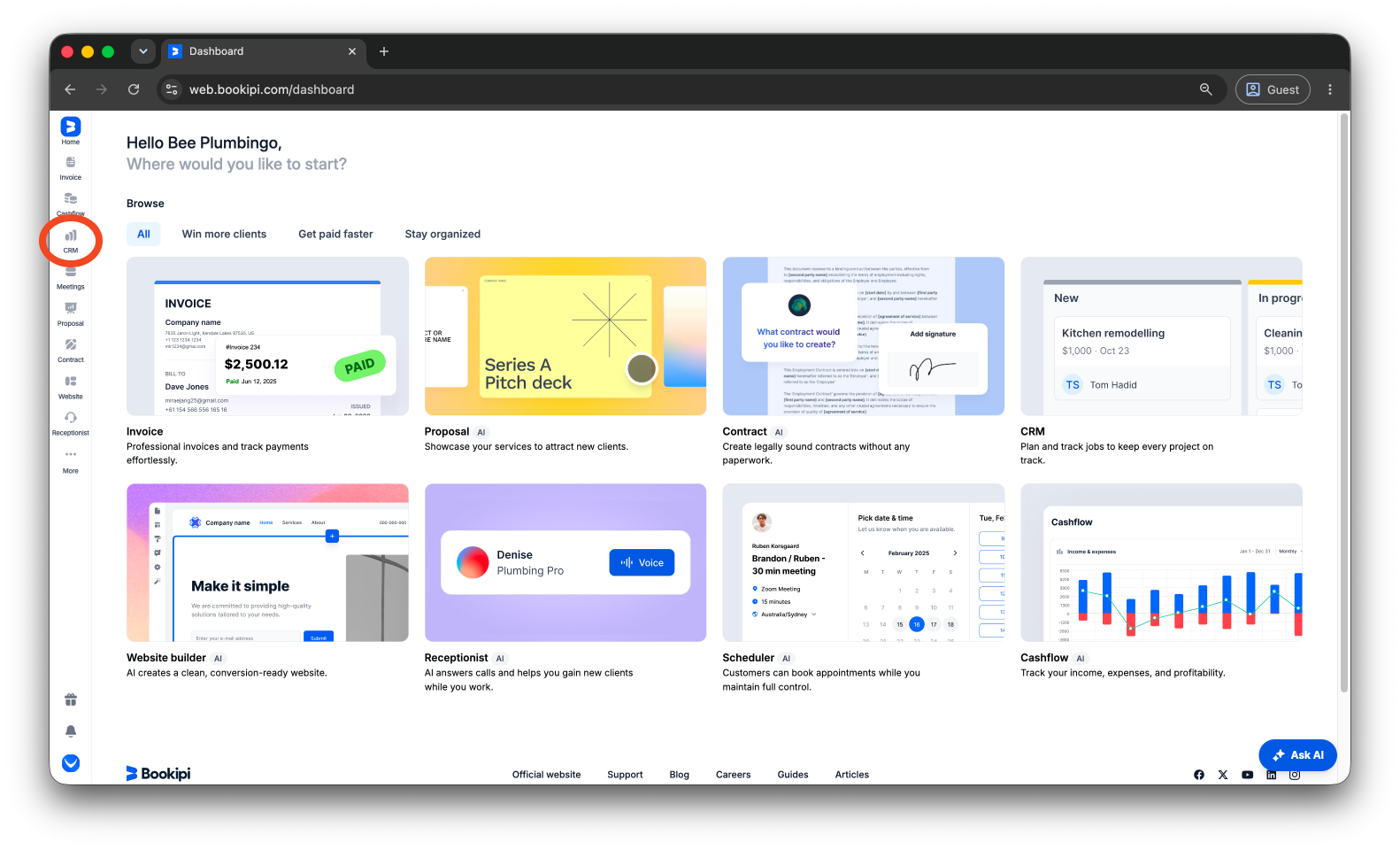
Step 1: Select ‘CRM’.
Click on ‘CRM’ in the left-hand panel of your screen.
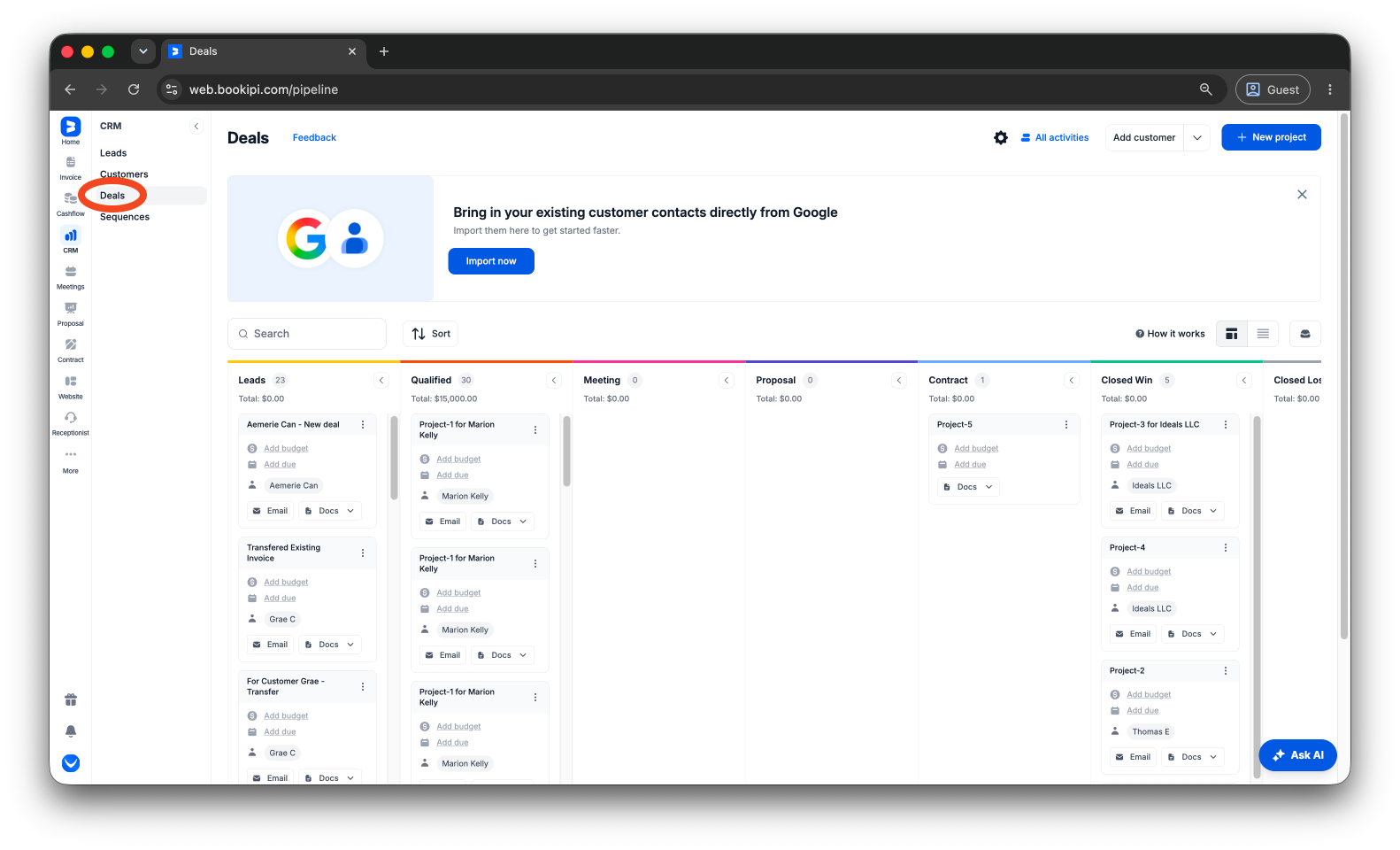
Step 2: Choose ‘Deals’.
Click ‘Deals’ in the left-hand menu.
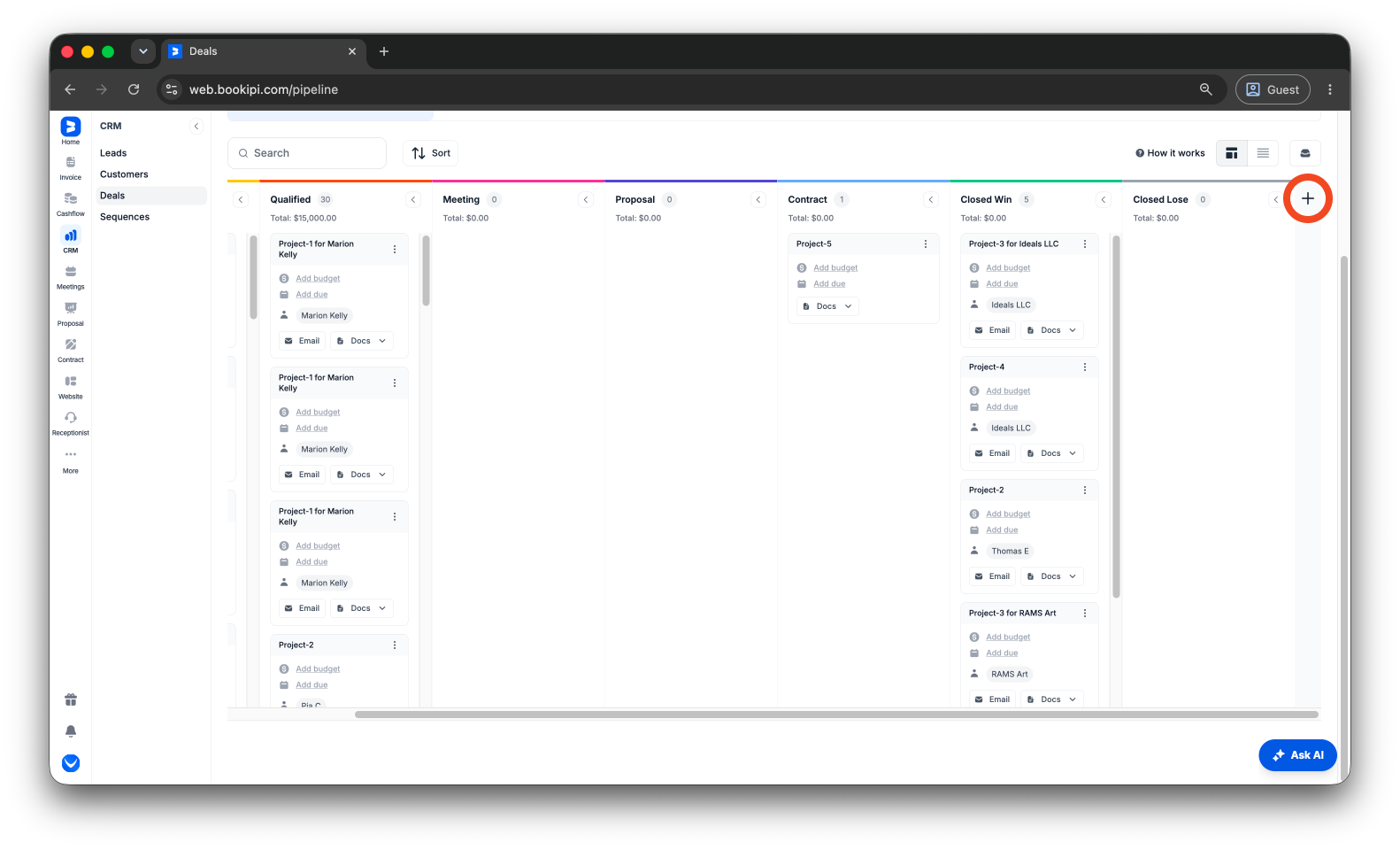
Step 3: Add a pipeline.
Scroll to the bottom of the page and drag the scroll bar all the way to the right. Then, click the ‘+’ button at the end of the pipeline to add a new pipeline.
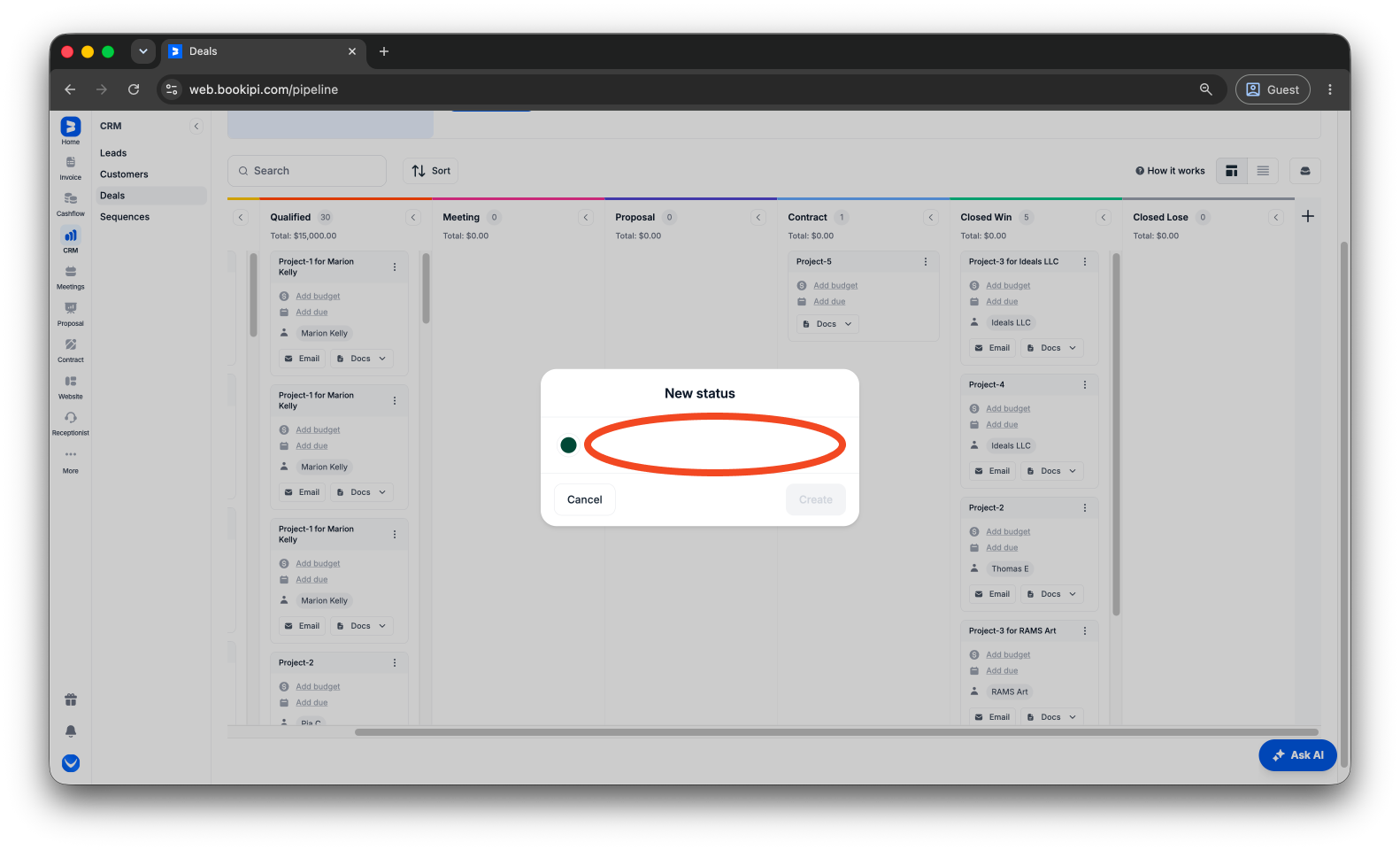
Step 4: Enter a pipeline name.
Type in the title for the new Pipeline status.
Step 5: Choose a status color.
Choose a color for your new Pipeline status.
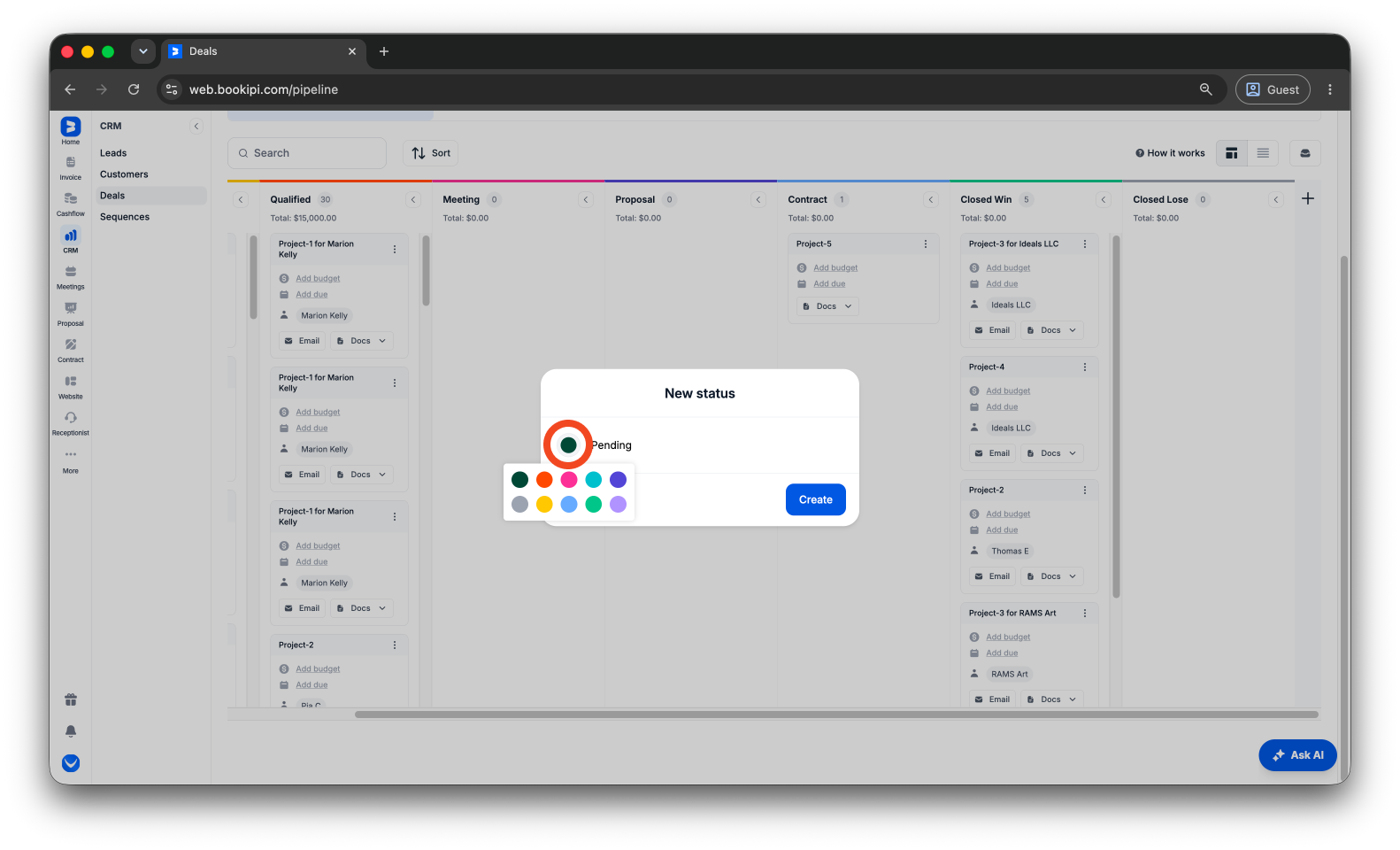
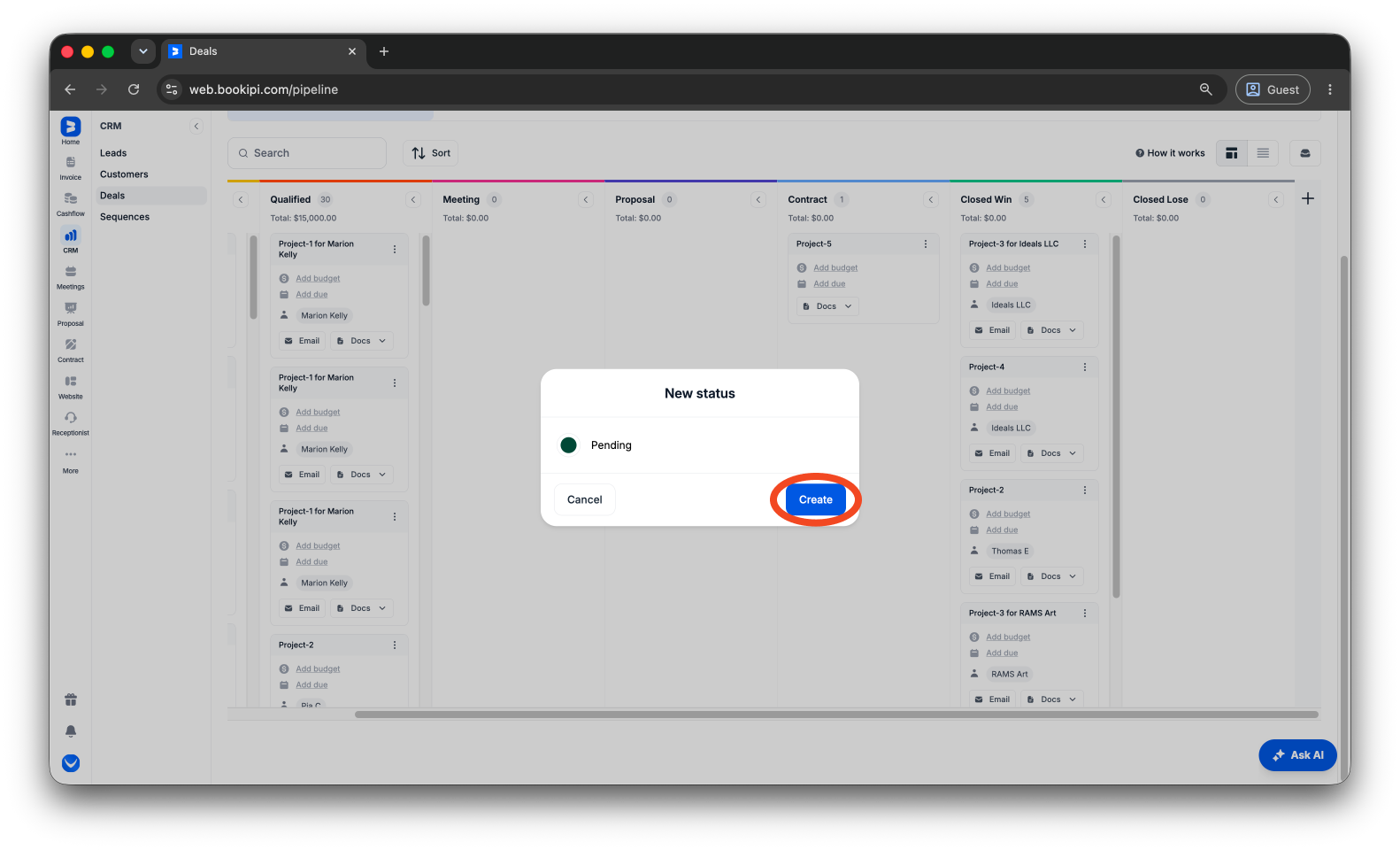
Step 6: Click ‘Create’.
Select ‘Create’ to confirm and save your new Pipeline status.
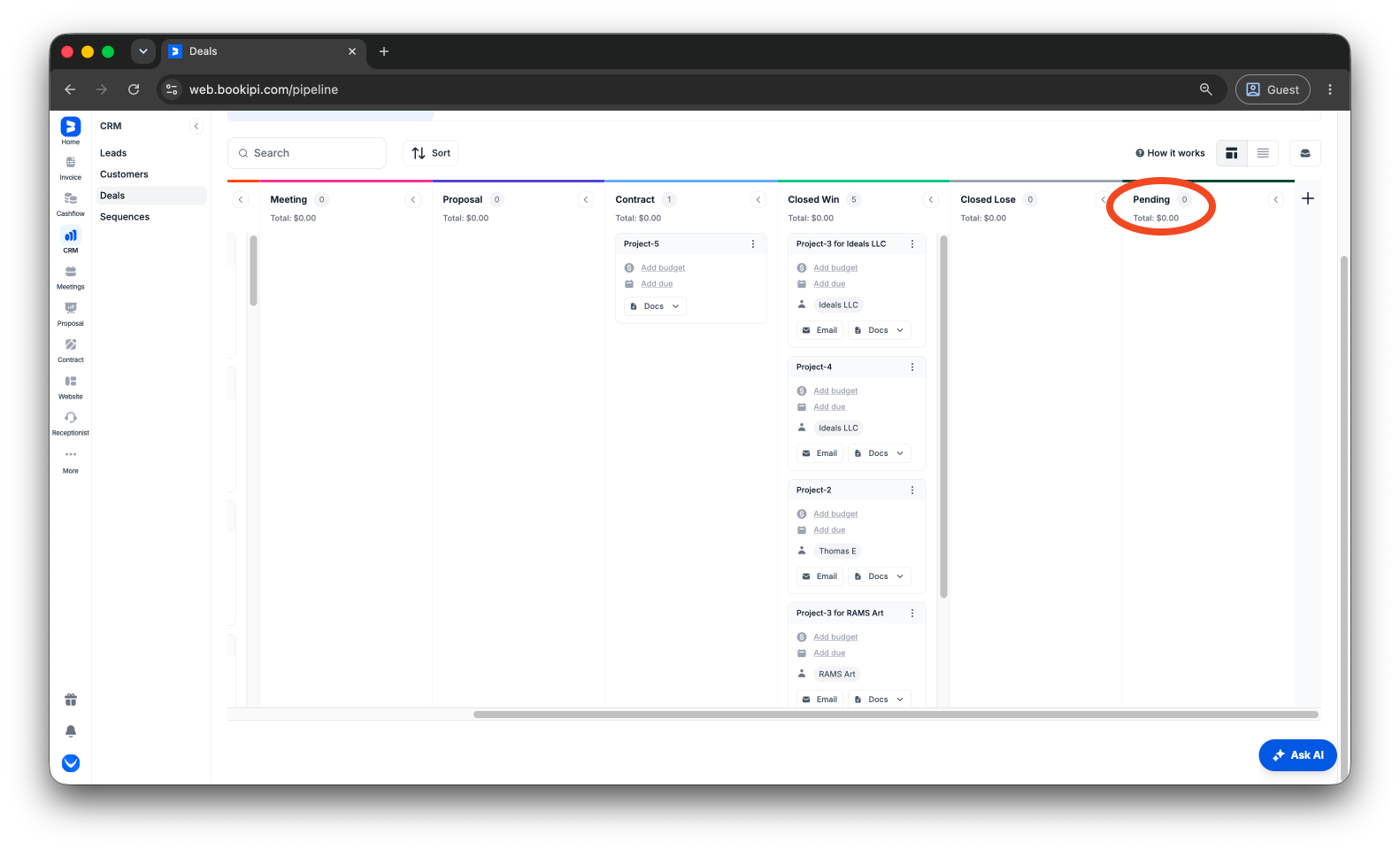
Your new Pipeline status has been successfully created.
FAQs about how to add additional Pipeline status in Bookipi CRM
Q: What is a Pipeline in a CRM?
A: A pipeline is a visual tool that helps you track and manage leads, deals, or customers as they move through different stages of your sales or business process.
Q: Can I add multiple custom Pipeline statuses?
A. Yes, you can create up to six additional Pipeline statuses to better organize your workflow in Bookipi CRM.
Q: Can I delete or edit the default Pipeline status?
A. No, default Pipeline statuses cannot be deleted or edited.
Q: Can I modify or remove a Pipeline status after adding it?
A: Yes, you can delete or edit custom Pipeline statuses by following the same steps used to add additional Pipeline statuses.
Discover more tutorials for Bookipi Invoice Web App
Discover more tips on how to get the most out of Bookipi Invoice web app with our Bookipi Invoice guides.
Want to send invoices easily? Download the Bookipi Invoice mobile app and check out our Bookipi Invoice mobile app guides.


