
Learn how to delete or remove a proposal in Bookipi Proposal
How to delete a proposal on the Web App
Learn how to delete a proposal on the Web App with the simple guide below.
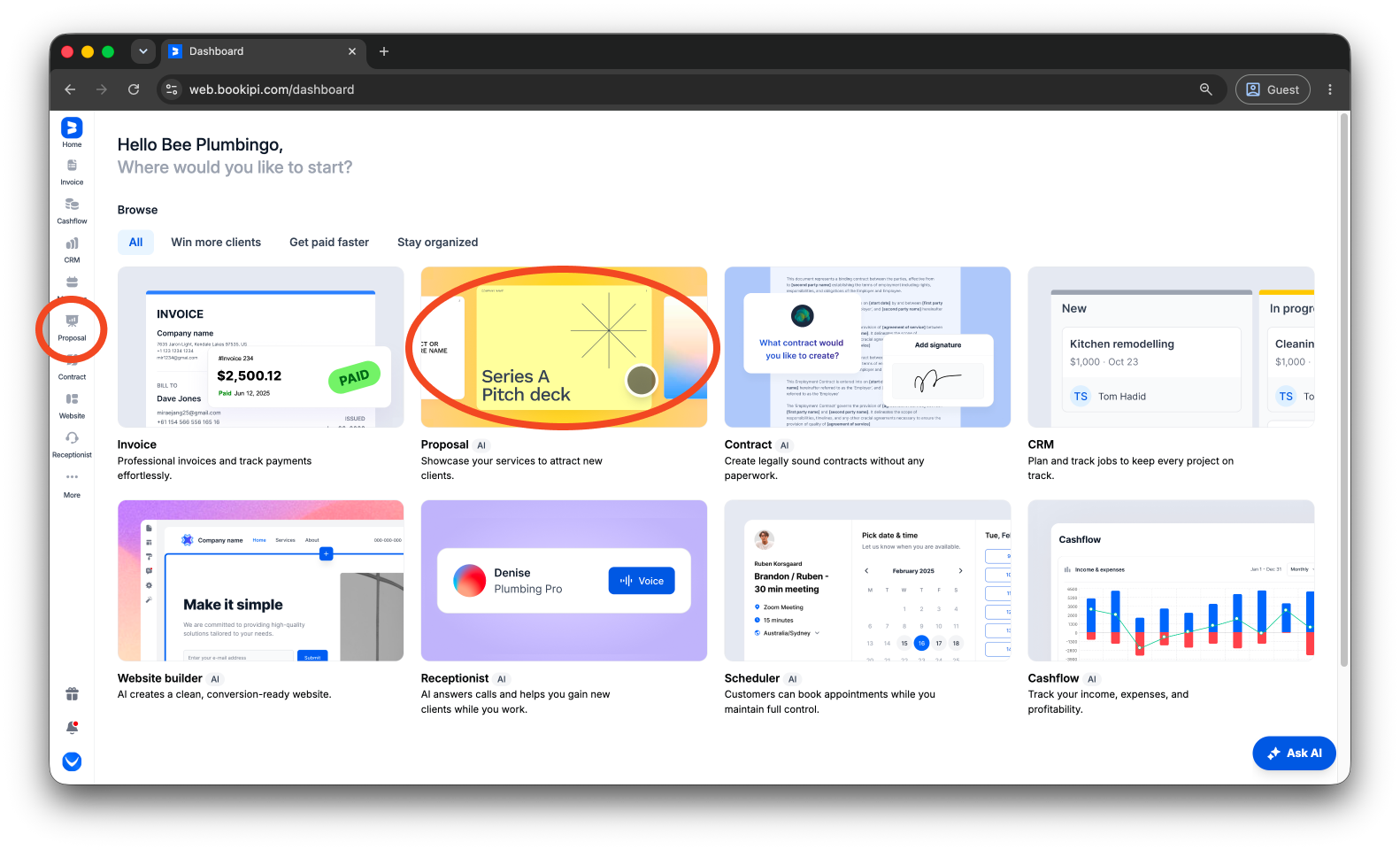
Step 1: Navigate to your proposals.
Select ‘Proposal’ from the dashboard menu or the left-hand navigation panel to access your proposals.
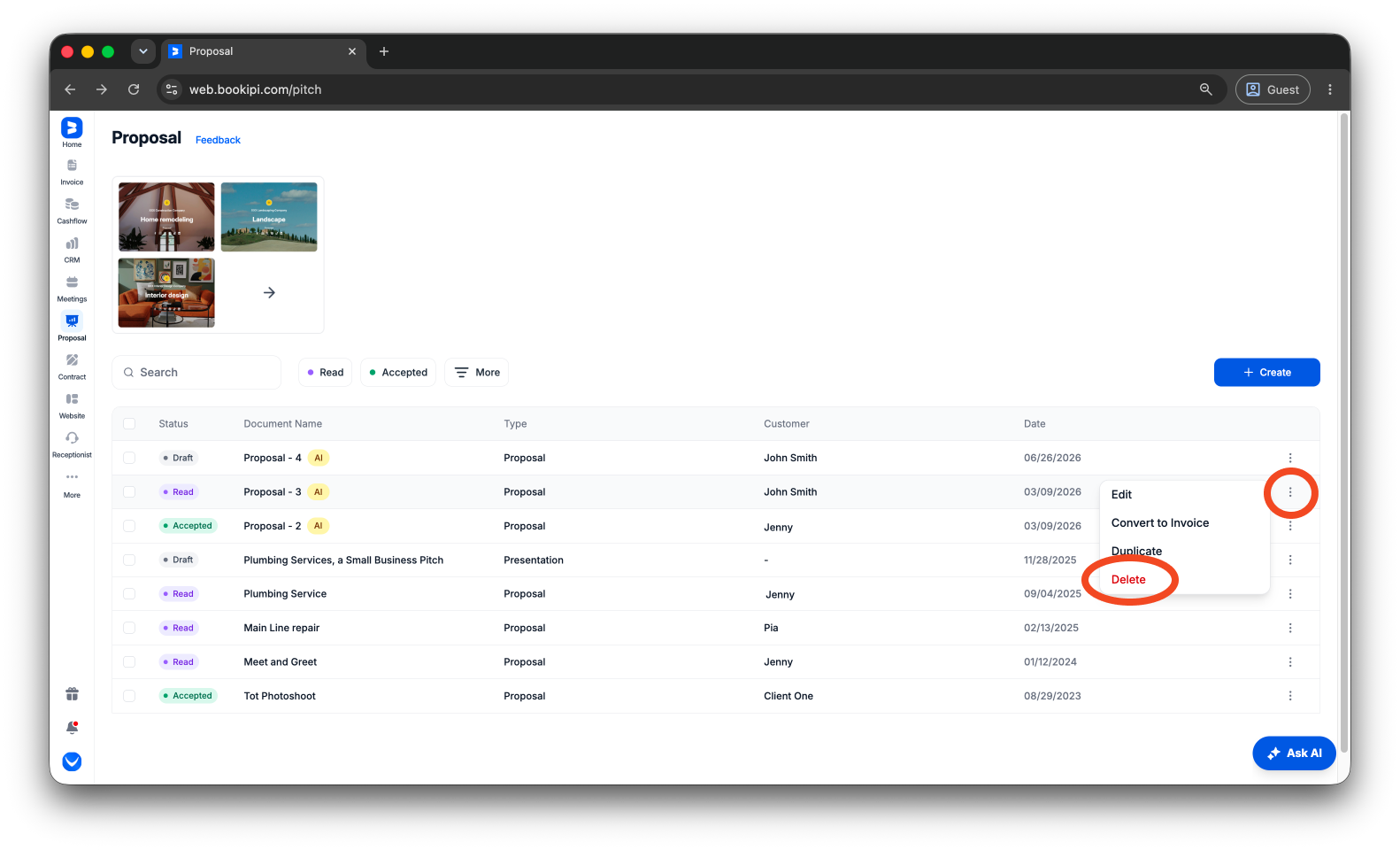
Step 2: Select the proposal to delete.
Find the proposal you want to delete, then click the ellipsis button on the right side of the proposal and select ‘Delete’.
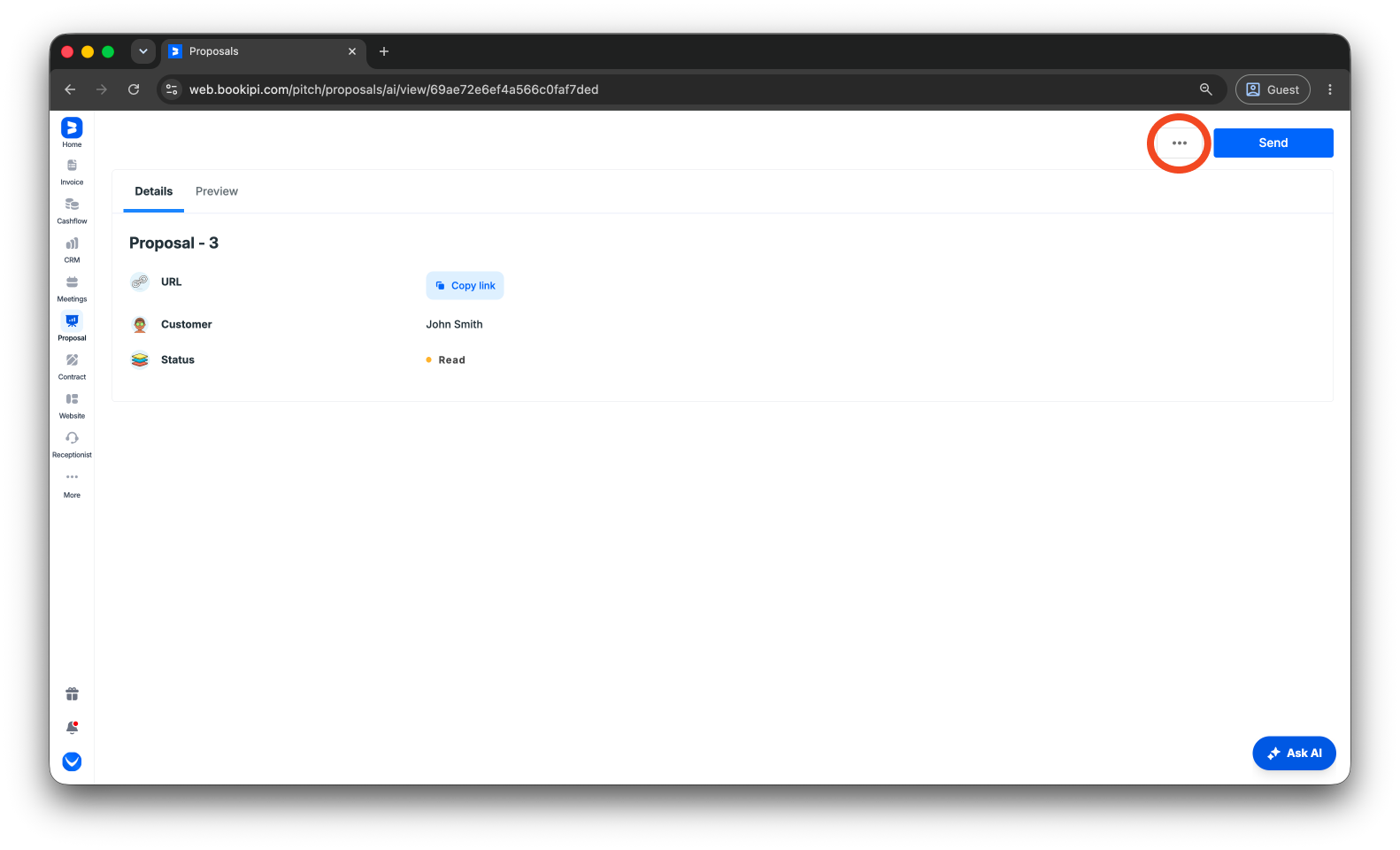
Alternatively, open the proposal, click the three dots in the upper-right corner, and select ‘Remove’.
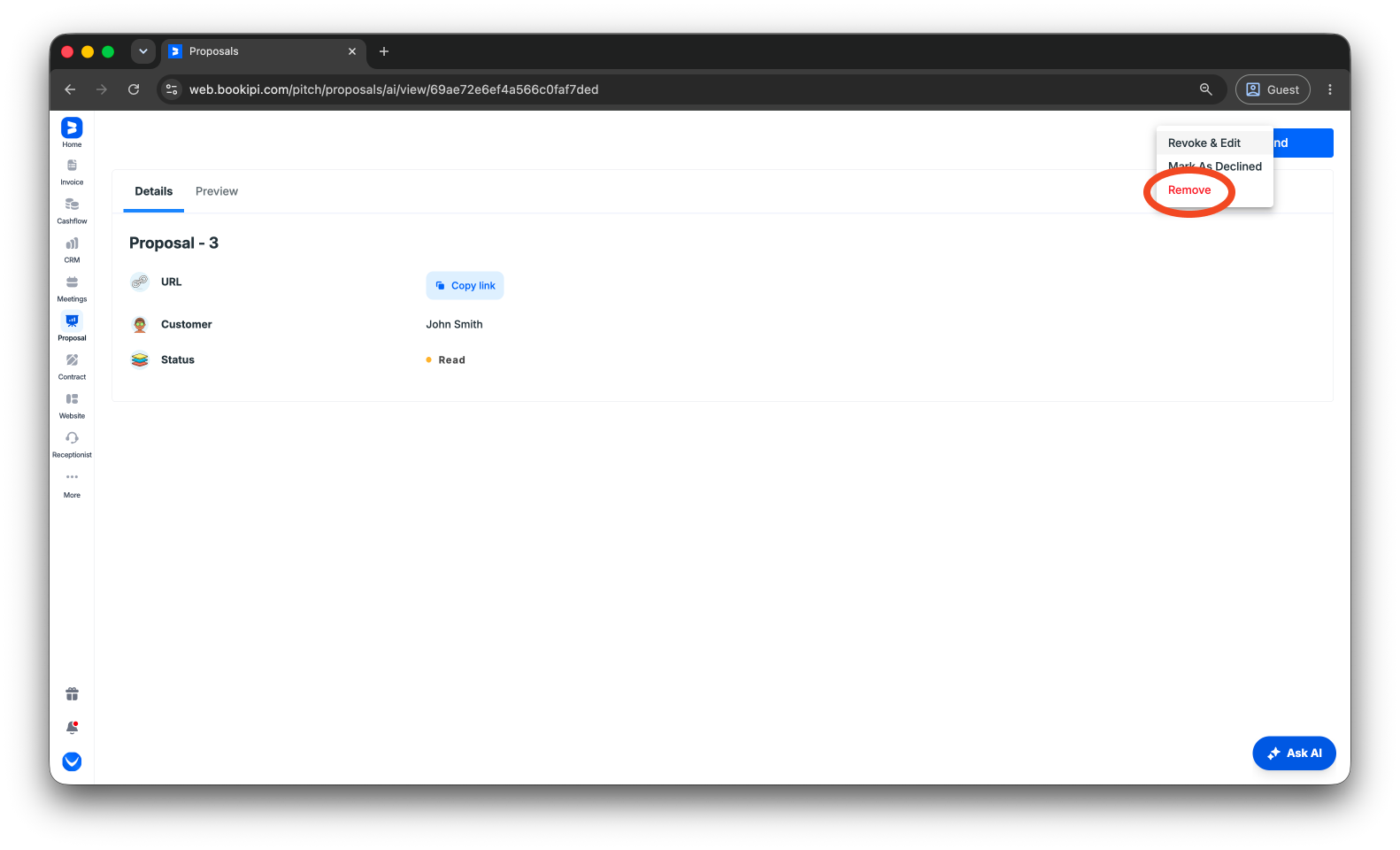
Step 3: Confirm deletion.
Confirm the deletion of your proposal to permanently remove it.
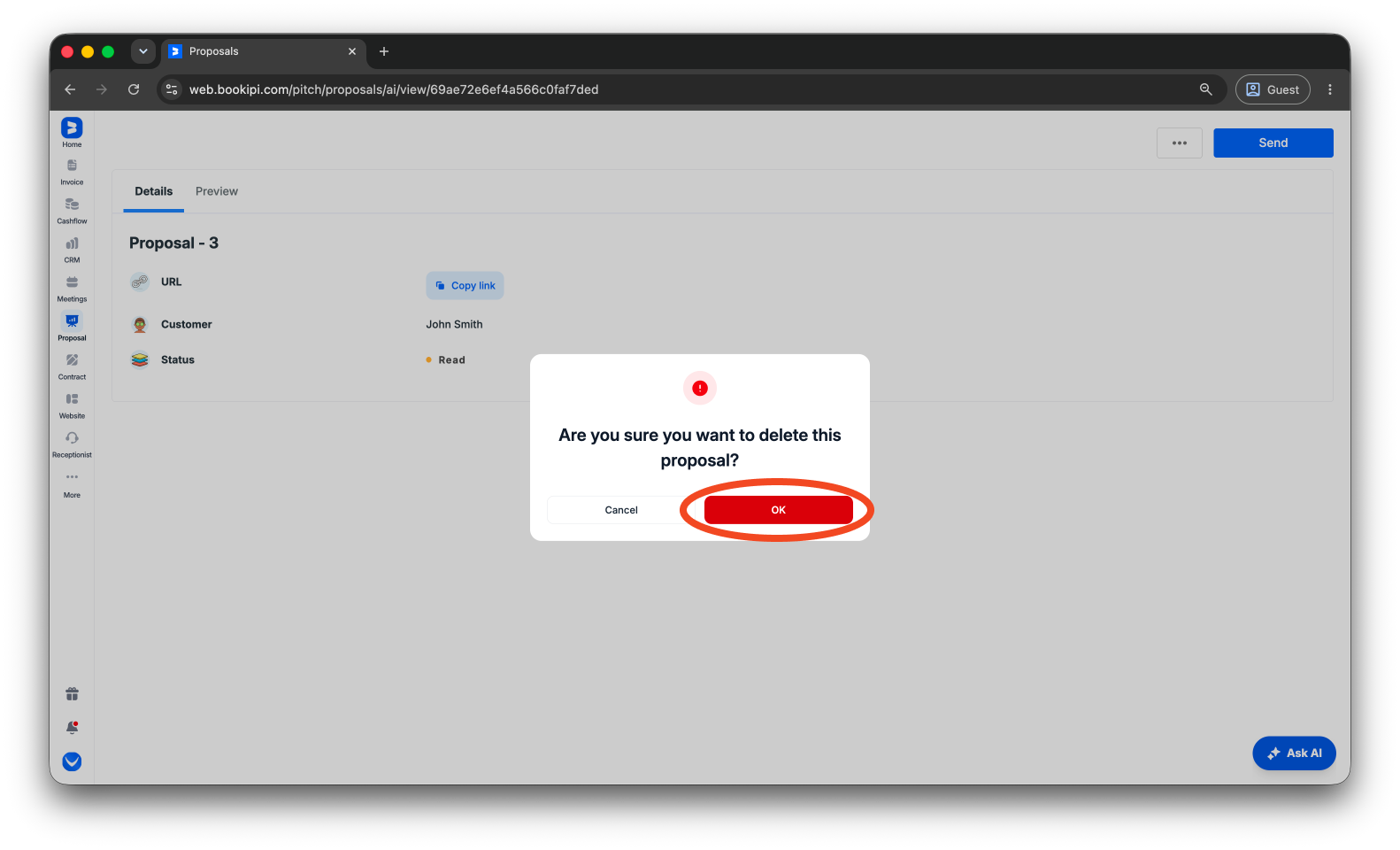
Please note that you can no longer recover the Proposal once you have deleted it since there is currently no Trash feature on the Web App.
FAQs about how to delete a proposal on the Web App
Q: Can I undo a deleted proposal?
A: No. Deleted proposals cannot be recovered, so make sure you want to remove the proposal before confirming.
Q: Can I delete multiple proposals at once?
A: Yes. Select multiple proposals by ticking the checkbox on the left side of each proposal, then click ‘Delete’ to remove them.
Q: Can I archive my proposals instead?
A: Currently, there is no option to archive proposals. You can delete proposals that you no longer need.
Discover more tutorials for Bookipi Proposals
Discover more tips on how to get the most out of using the Proposals feature in Bookipi Invoice with our Bookipi Proposals guides.
Get the latest version of Bookipi Invoice on Web v2 and get set up with our Web v2 guides.
Make sending invoices anytime and anywhere even easier by downloading Bookipi Invoice mobile app. Check out our mobile app guides.


