
Learn how to delete an item on the Bookipi Invoice mobile app
How to delete an item on the mobile app
Learn how to delete an item on the Bookipi Invoice mobile app with 5 simple steps:
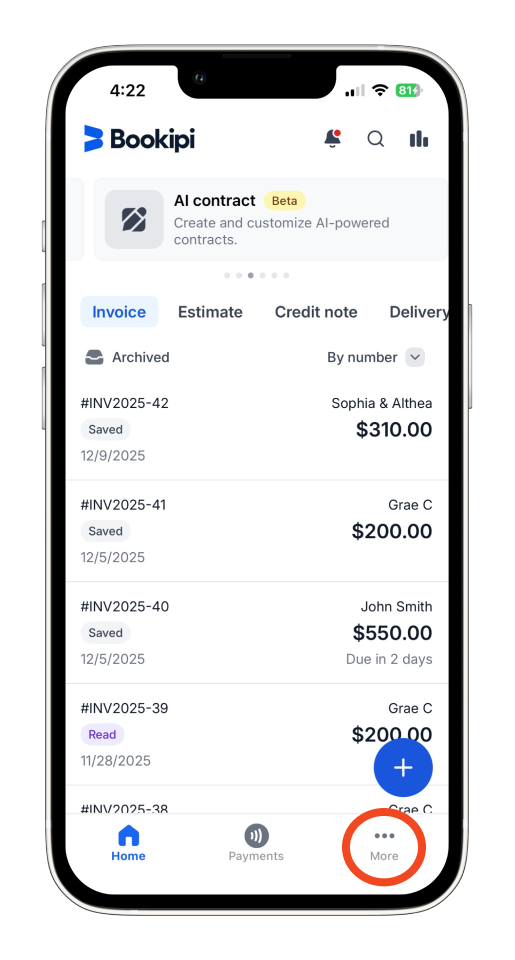
Step 1: Select ‘More’.
Tap ‘More’ in the bottom right corner of the screen to view more options.
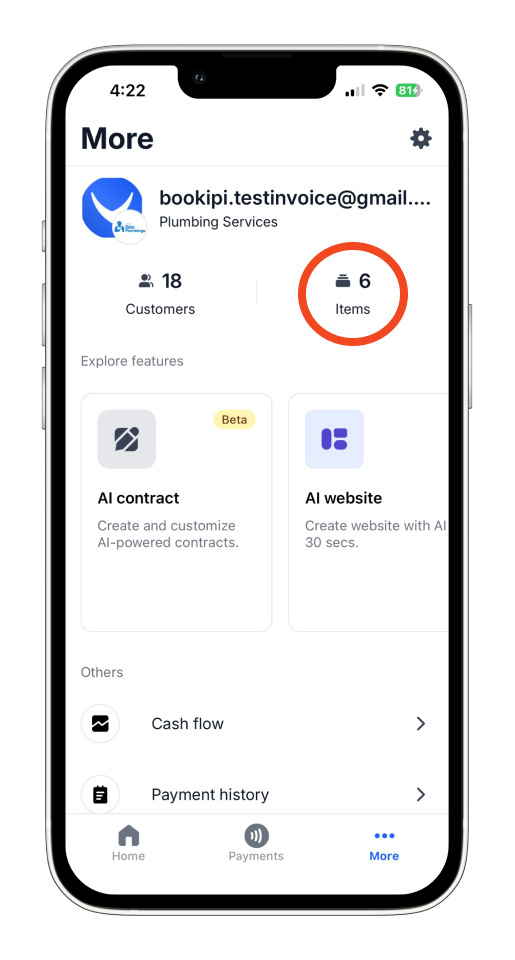
Step 2: Choose ‘Items’.
Tap ‘Items’ at the top of the screen, just below your account email.
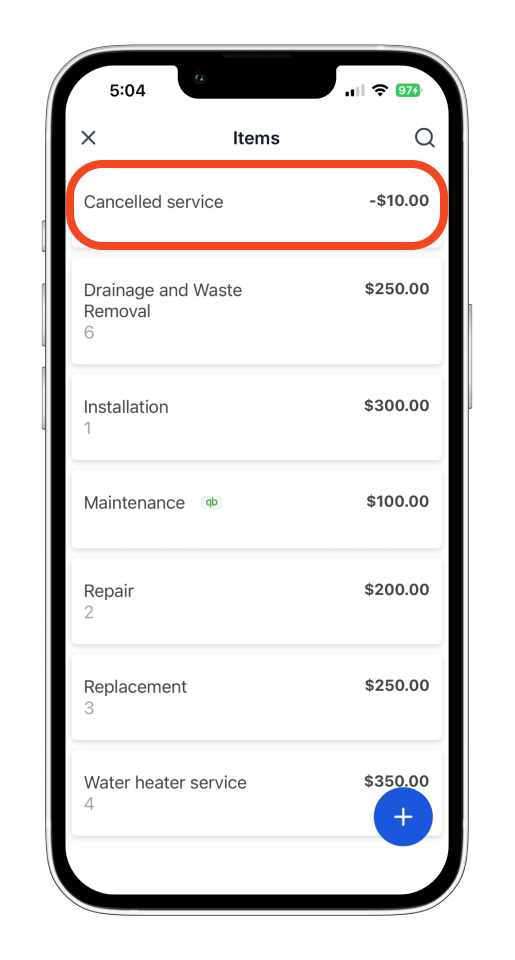
Step 3: Select the item you would like to delete.
Choose the item you want to remove.
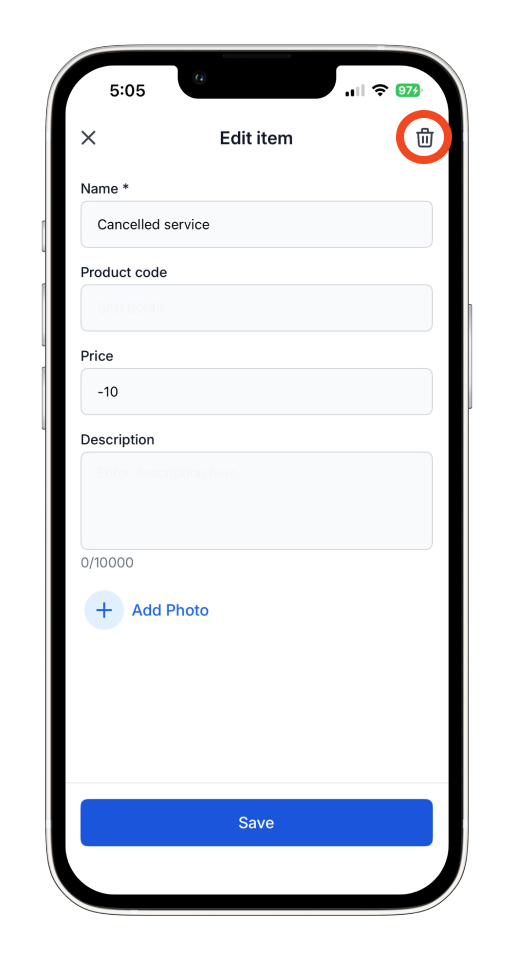
Step 4: Tap the trash icon.
Tap the trash icon located at the upper right corner of the screen.
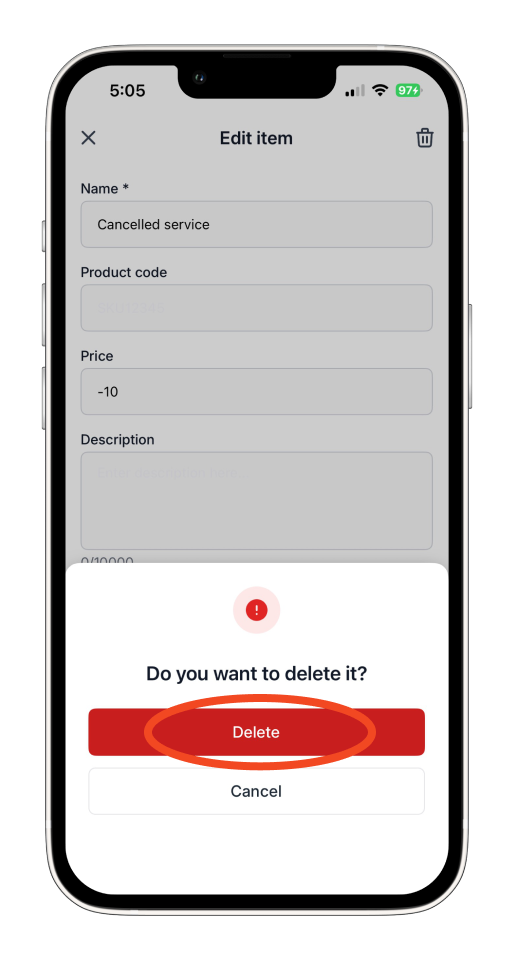
Step 5: Confirm to delete.
Tap ‘Delete’ to confirm and delete the item from your list.
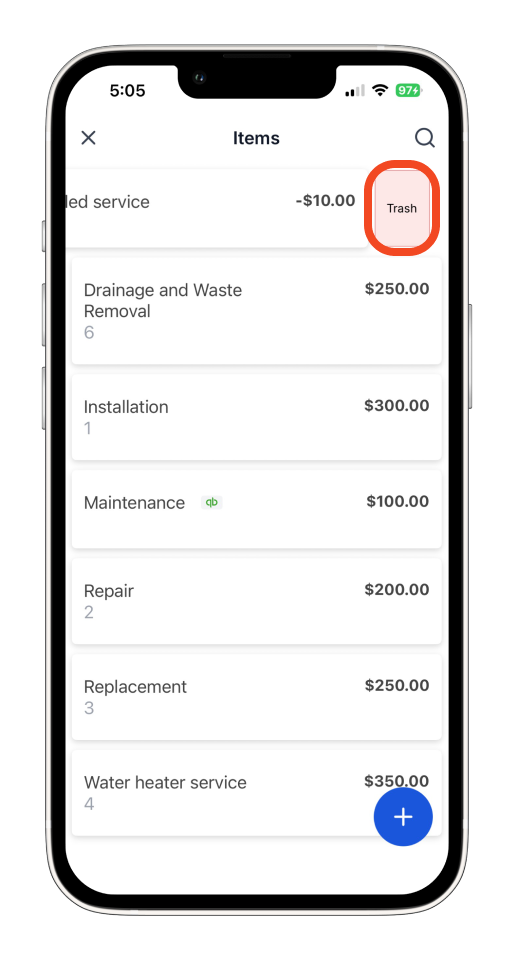
Alternatively, you can also swipe the item to the left and select ‘Trash’. This will immediately delete the item without displaying a confirmation prompt.
Common FAQs about how to delete an item on the mobile app
Q: Can I recover a deleted item?
A: Yes, if you accidentally delete an item, you can recover it from the Trash folder located just below the Settings.
Q: Can I delete multiple items at once?
A: Currently, you can only delete items one at a time.
Q: Will deleting an item remove it from existing invoices?
A: No, deleting an item from your list will not affect invoices where the item has already been used.
Discover more tutorials for Bookipi Invoice on the mobile app
Creating and sending invoices is even easier with the Bookipi Invoice mobile app.
Discover more tips on how to get the most out of Bookipi Invoice with our mobile app guides.


