
Learn how to view Profit and Loss totals for a selected date range in the Bookipi Invoice mobile app using the Cash flow feature.
How to view profit and loss totals
You can view your Profit and Loss (P&L) totals for a selected date range using the Cash flow feature in the mobile app. This view helps you track income, expenses, and overall financial performance over time.
Accessing Profit & Loss in Cash flow
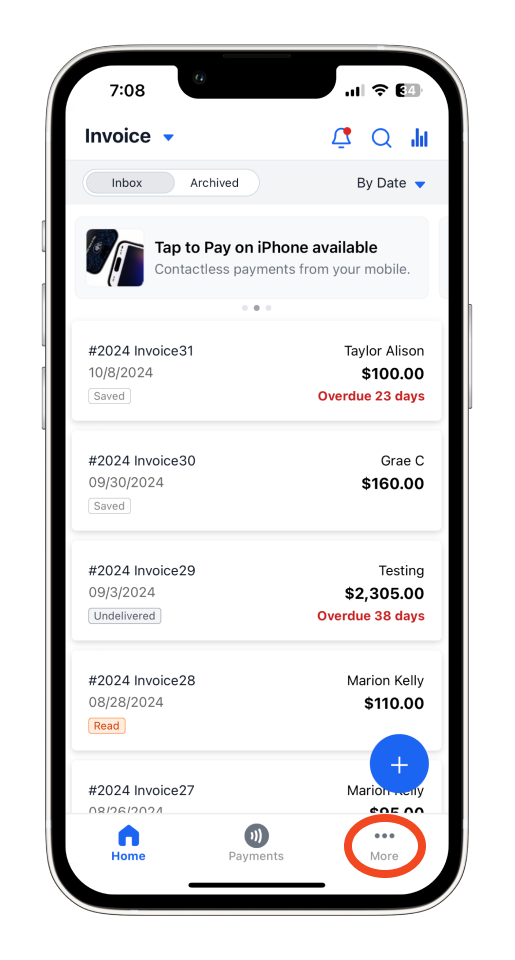
Step 1: Access the menu
Tap ‘More’ to access the main menu.
Step 2: Navigate to Cash Flow
Select ‘Cash flow’ from the menu options.
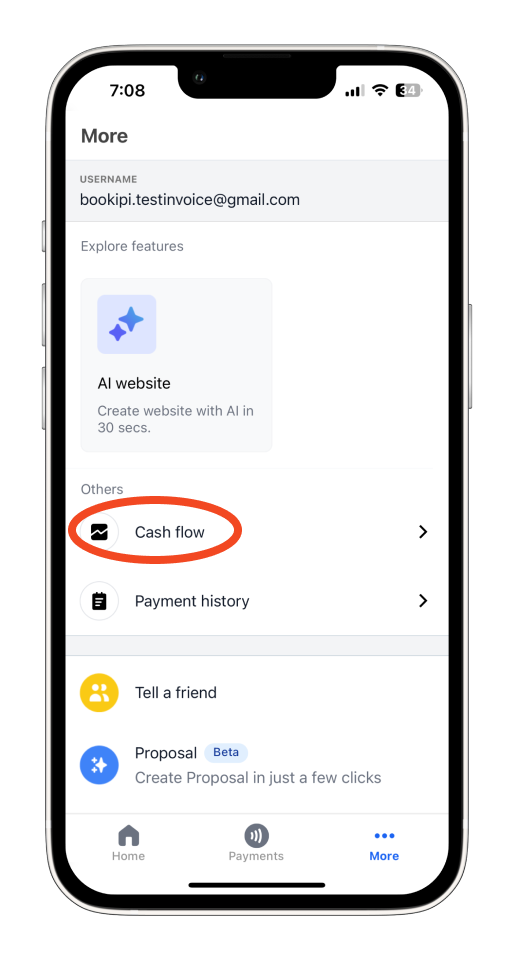
The cash flow dashboard is automatically set to the current Financial Year view. Here you will be able to see your total balance, Total P&L for the timeframe selected, Monthly P&L, Monthly Expense, Monthly Income, and your top 5 expenses for the timeframe selected.
To change the timeframe, follow the steps below:
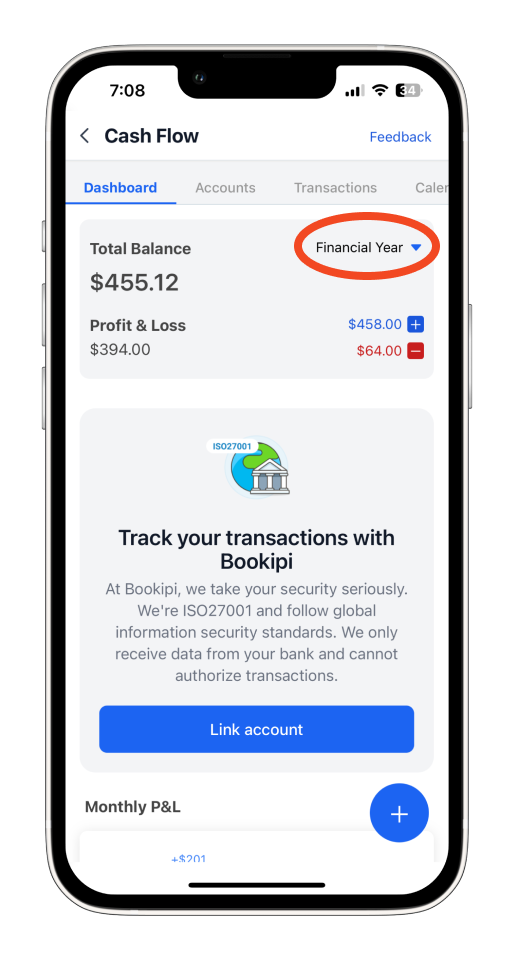
Step 3: Choose Financial Year
Tap ‘Financial Year’ at the top right of the screen.
Step 4: Customize the Date Range
Select ‘Custom’ to start setting your specific date range.

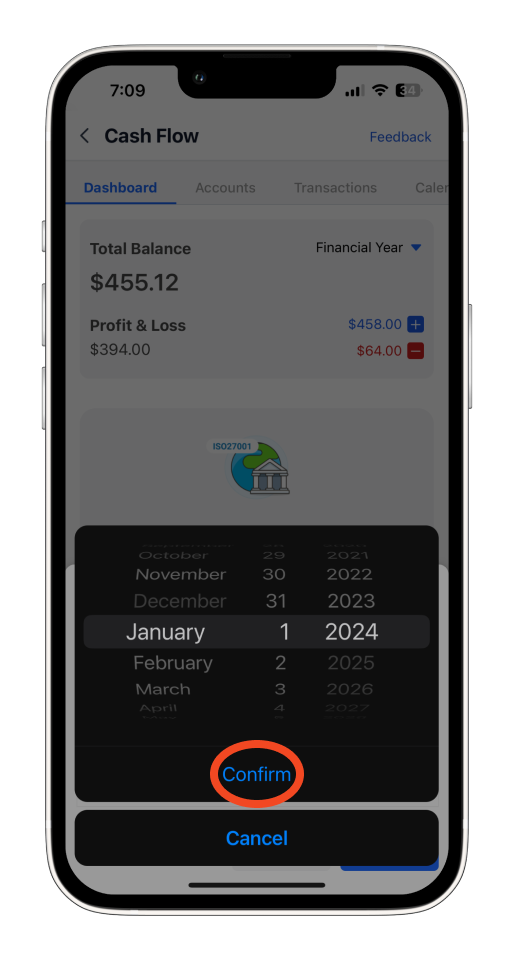
Step 5: Set Start Date
Tap ‘Start Date’, pick your desired start date, and then tap ‘Confirm’.
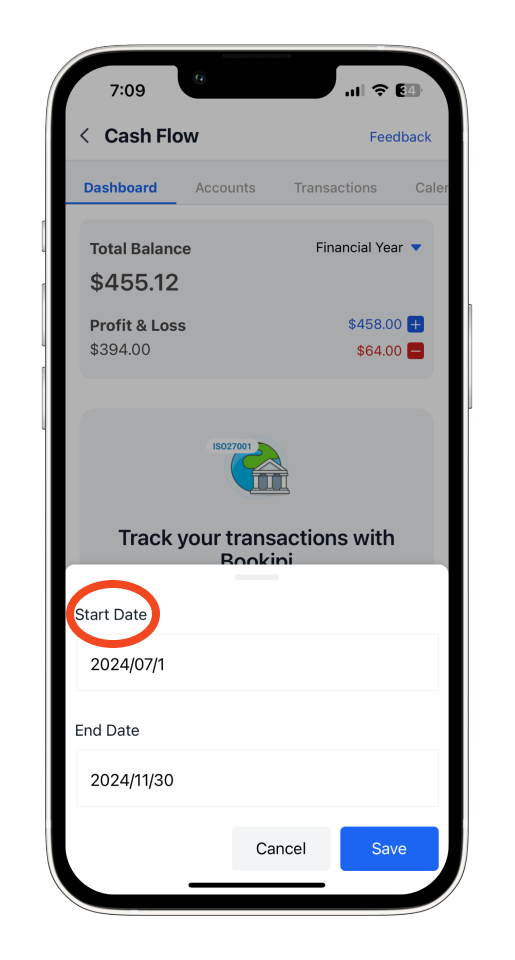
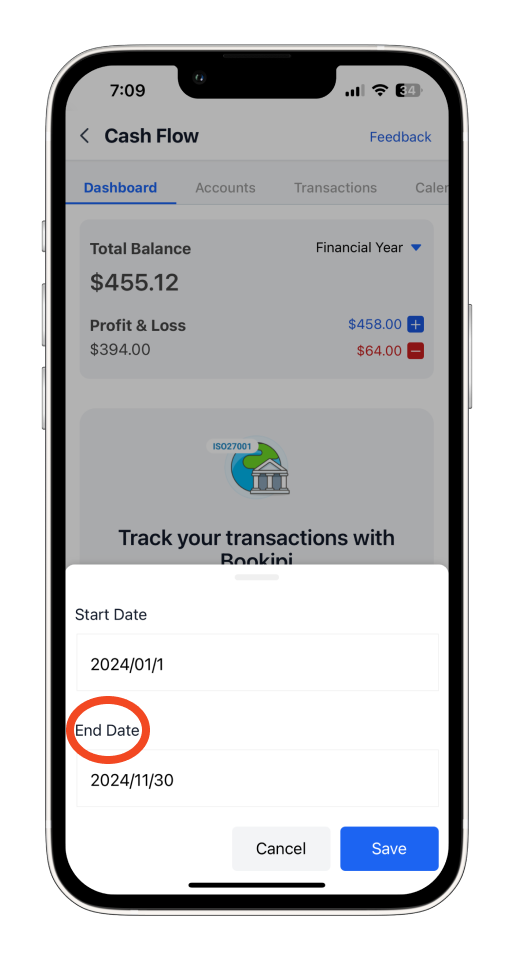
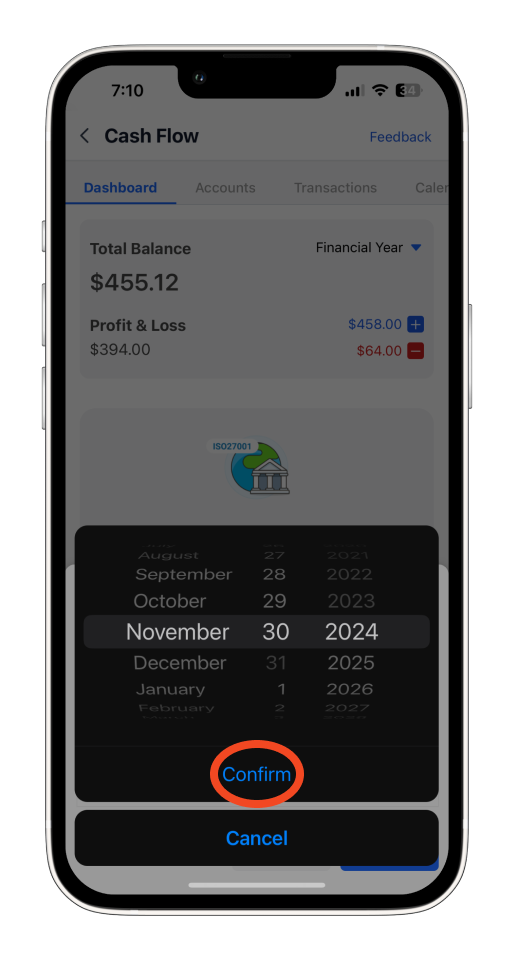
Step 6: Set End Date
Tap ‘End Date’, choose your end date, and tap ‘Confirm’.
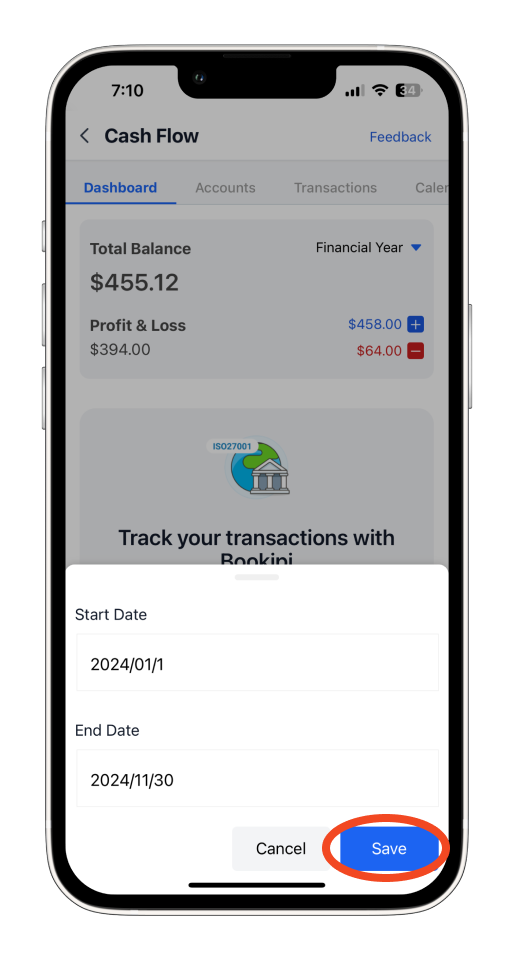
Step 7: Finalize
Tap ‘Save’ to apply your customized date range.
Once that’s complete, you will be able to see your Profit and Loss for the dates you have selected.
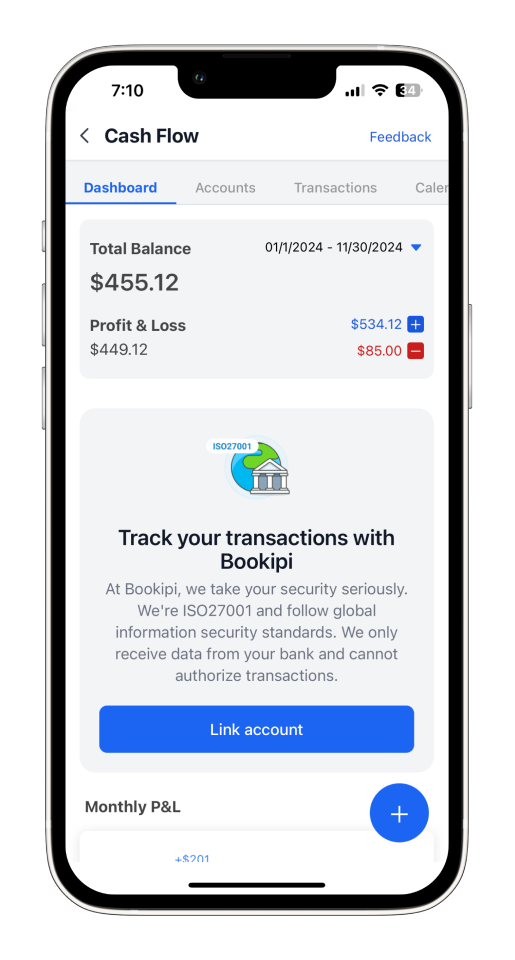
Scroll up to see your Monthly P&L, Monthly Expense totals, and your top 5 expenses for the period selected.
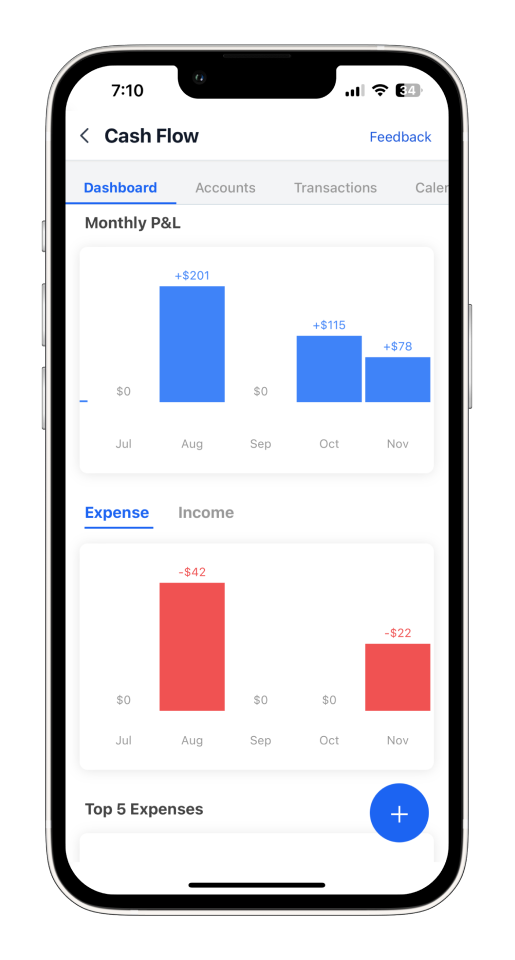
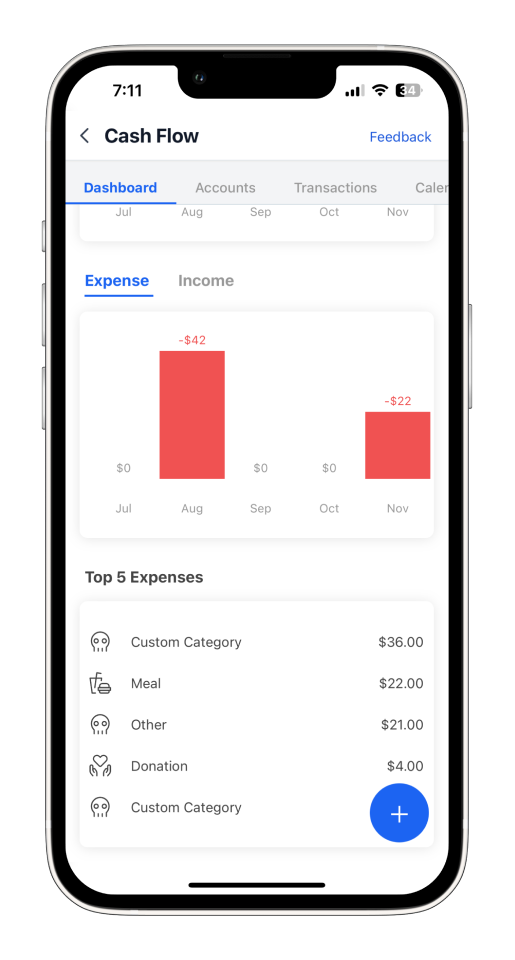
Select income to view the monthly income totals for the period selected.

Please note that this report is view-only and cannot be downloaded.
Discover more tutorials for Bookipi Invoice on the mobile app
Creating and sending invoices is even easier with the Bookipi Invoice mobile app.
Find more tips on how to get the most out of Bookipi Invoice with our mobile app guides.


