
Learn how to create a category using the Bookipi Expense app.
How to create a category in Bookipi Expense
Learn how to create a category in Bookipi Expense with these easy-to-follow steps.
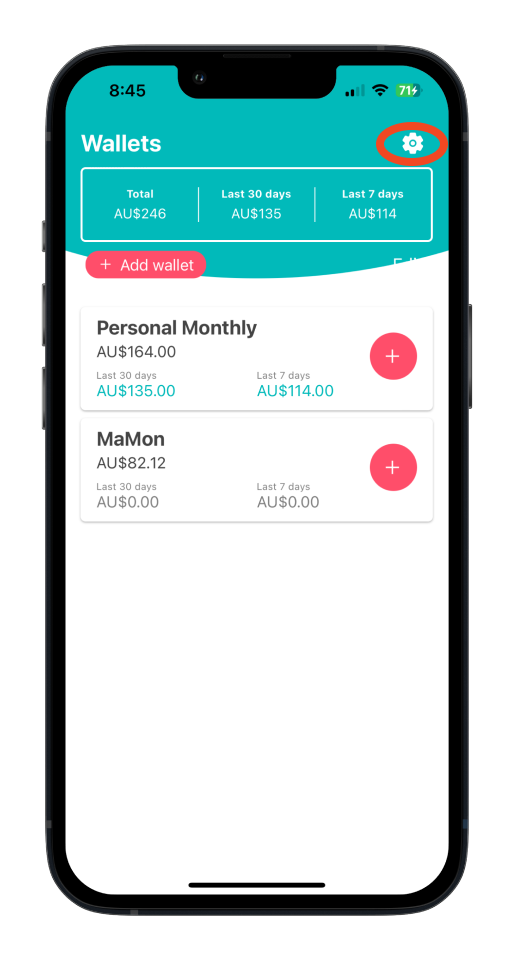
Step 1: Go to ‘Settings’.
On the wallet homepage, tap the ‘Settings’ icon in the upper-right corner.
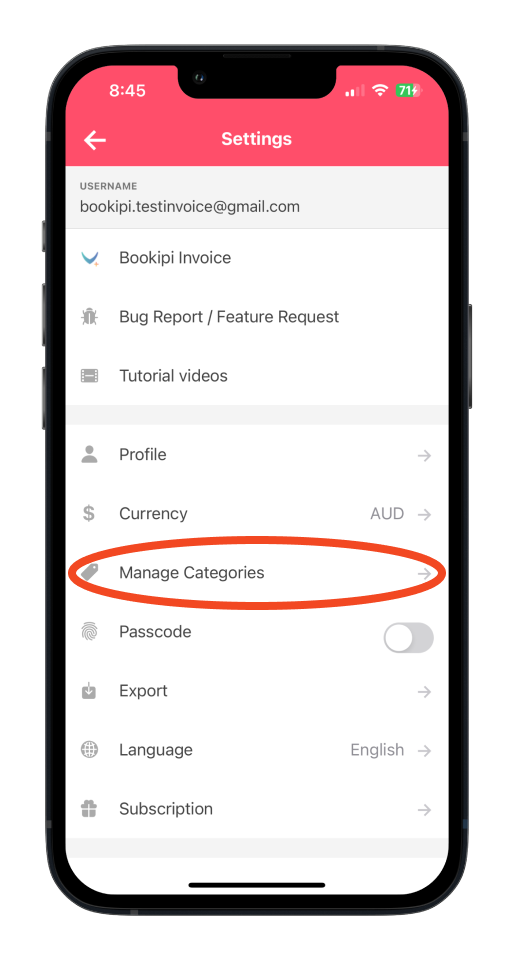
Step 2: Select ‘Manage Categories’.
From the Settings menu, tap on ‘Manage Categories’.
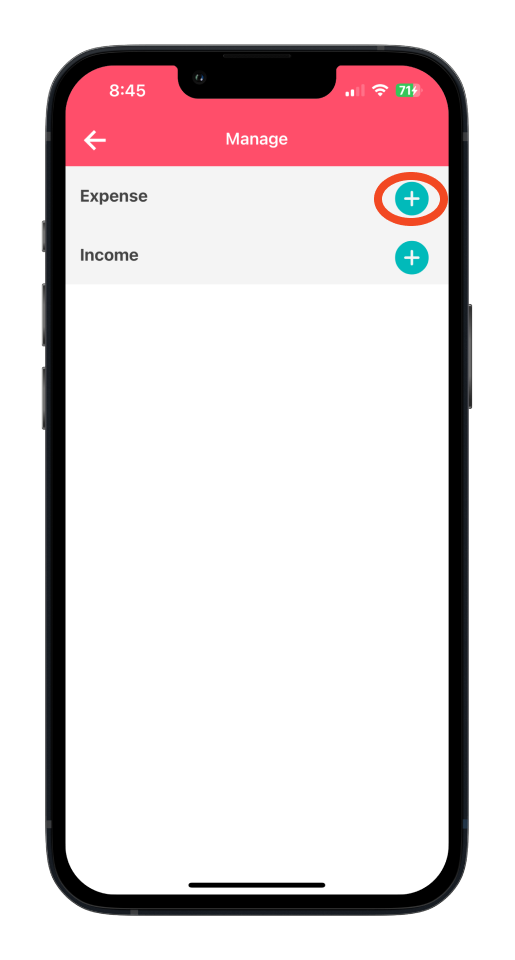
Step 3: Choose the type of category.
Tap the ‘+’ button to add a new category under either Expense or Income.
Step 4: Enter category name.
Enter the name of the category.
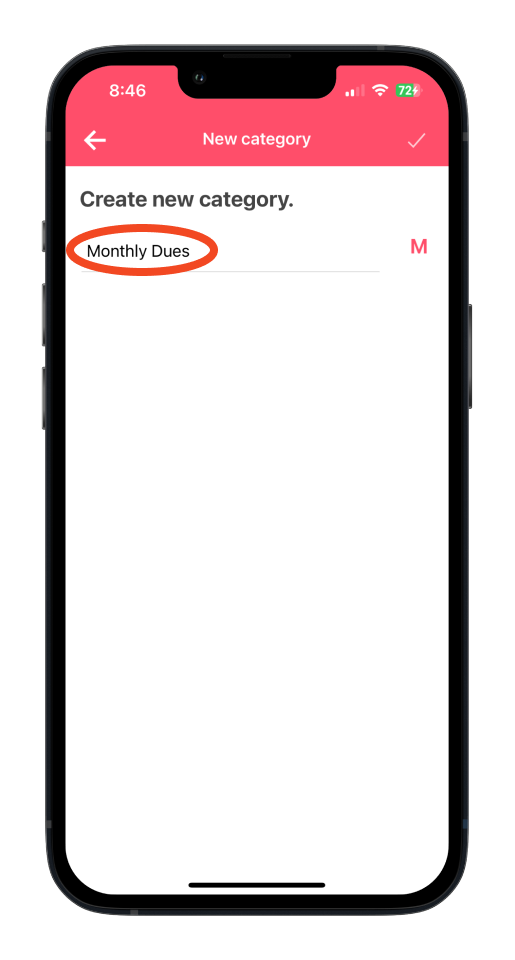
To customize, tap the icon next to the category name and choose an icon from the list.
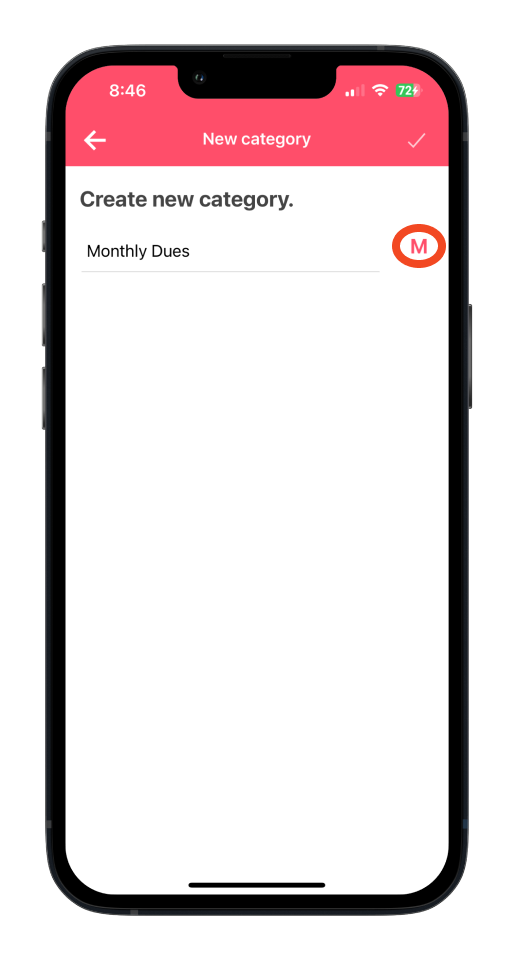
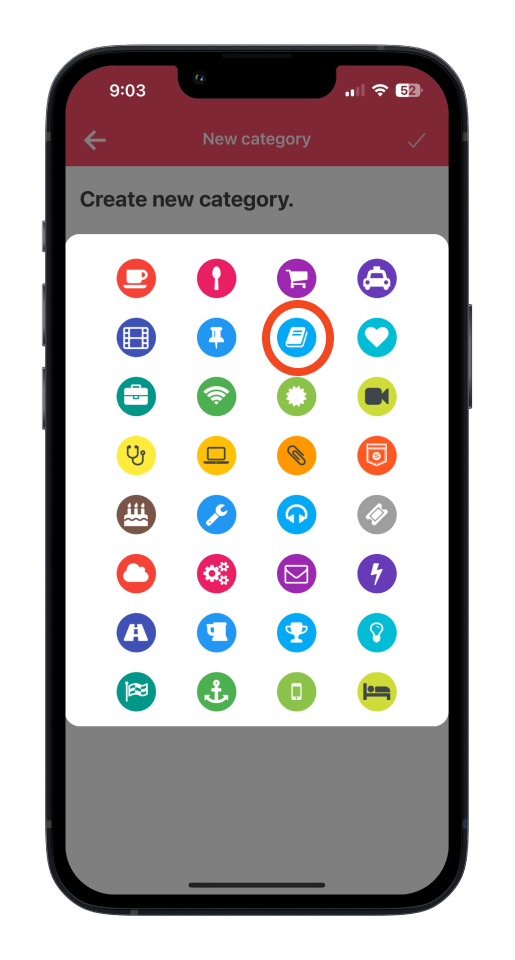
Step 5: Save the category.
Tap the ‘checkmark’ icon in the upper right corner to save your new category.
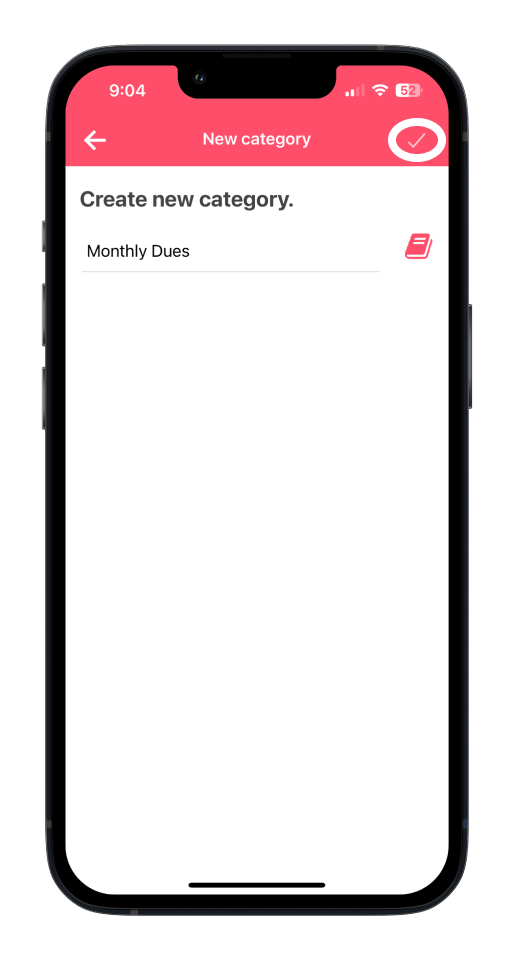
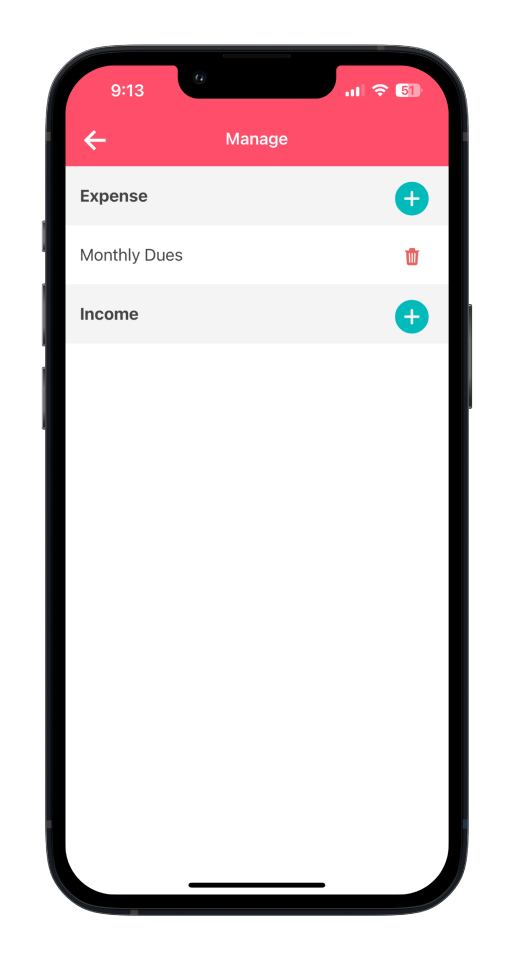
Your new category will now be added and ready for use!
Common FAQs on how to create a category in Bookipi Expense
Q: Is there a limit to how many categories I can create?
A. There is no set limit for how many categories you can create, but for best performance and usability, we recommend keeping your list organized and concise.
Q: Can I edit or delete a category after creating it?
A. Yes. To edit or delete a category:
-
Go to Settings > Manage Categories
-
Tap the category you want to edit or delete
-
Make your changes or select the delete (trash bin) icon
Q: Will my custom categories sync across devices?
A. Yes, as long as you’re logged into the same Bookipi account, your custom categories will sync across devices automatically.
Discover more tutorials for Bookipi Expense mobile app
Discover more tips to maximize your experience with the Bookipi Expense mobile app with our Bookipi Expense guides.
Need to send invoices with ease? Download the Bookipi Invoice mobile app and check out our Bookipi Invoice mobile app guides.


