
Learn how to edit a recurring invoice using the mobile app.
How to edit a recurring invoice using the mobile app
Step 1: Open the Invoice category
From the app home screen, go to the ‘Invoice’ category. Select the recurring invoice you want to edit.
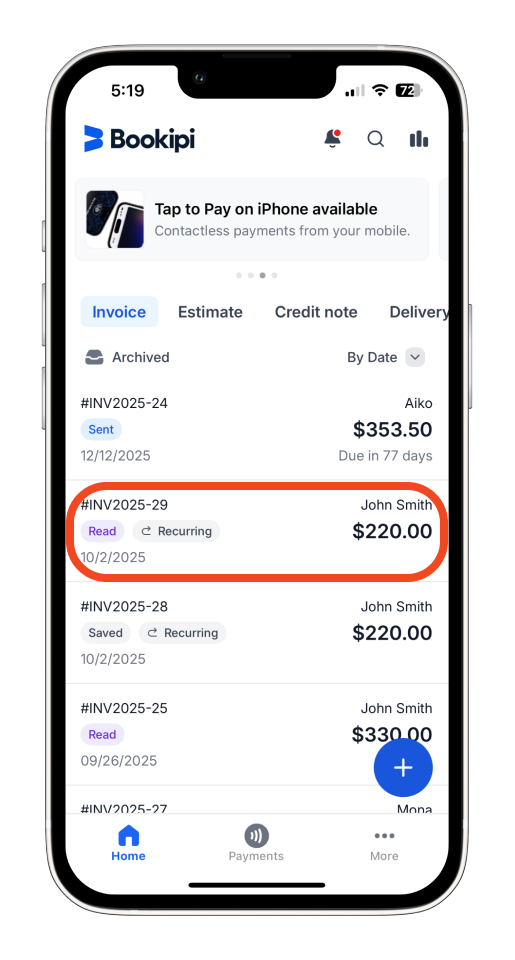
Step 2: Enter editing mode
Tap the pen icon (upper right corner) to open and start updating the invoice.
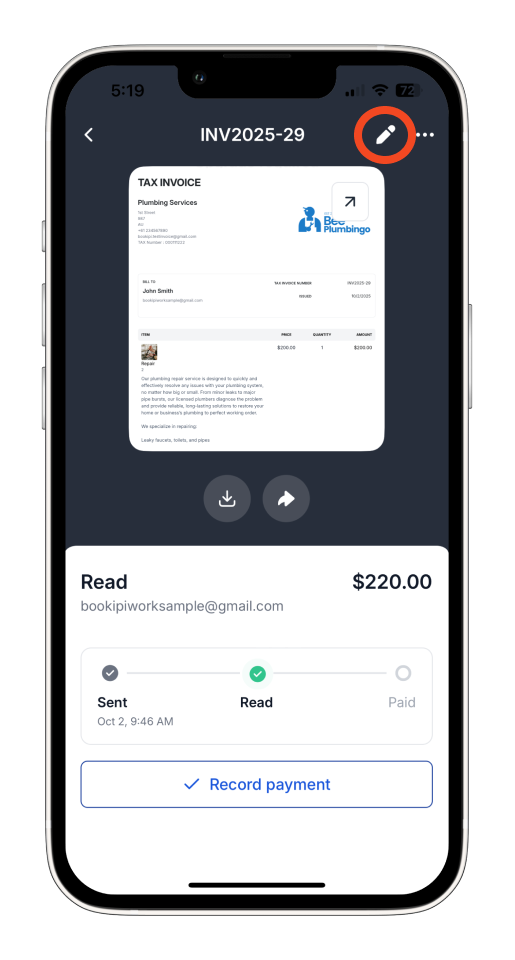
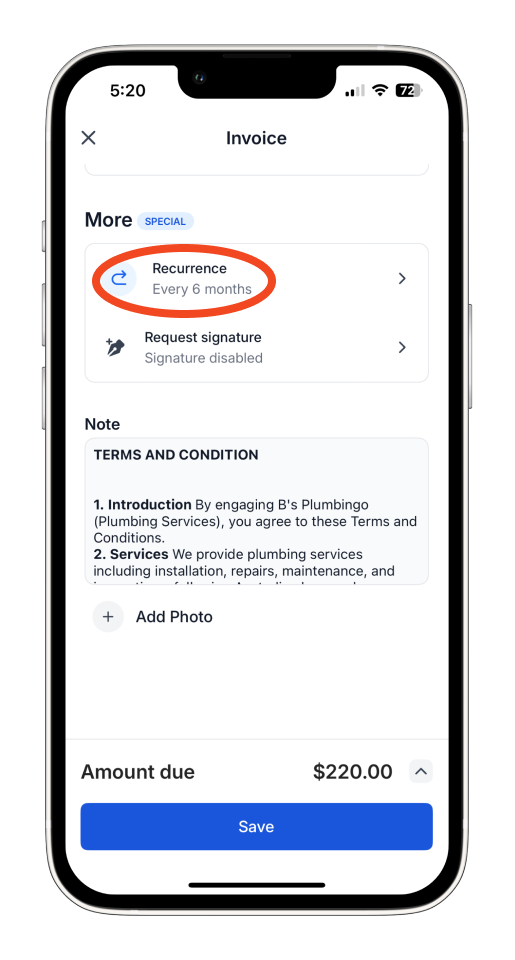
Step 3: Access recurrence settings
Scroll up to the More section. Tap ‘Recurrence’.
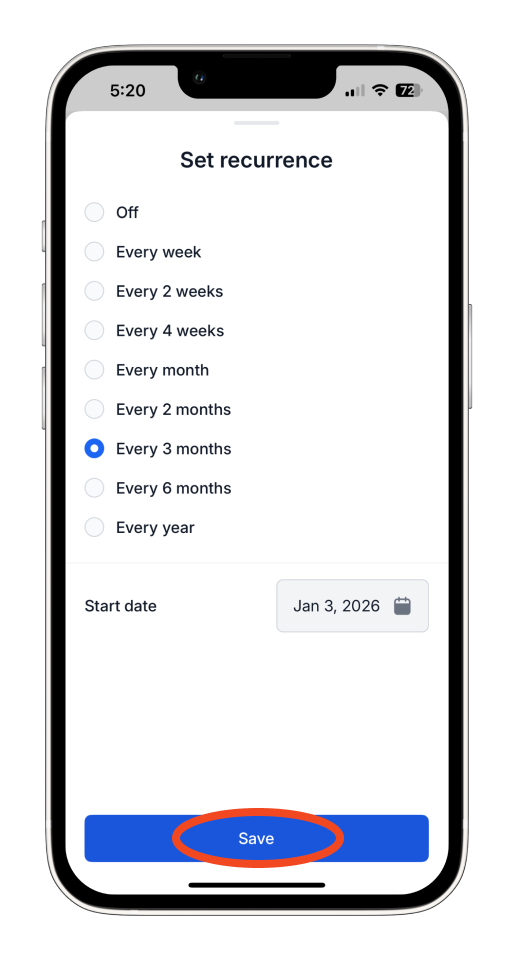
Step 4: Update recurrence interval
Choose your preferred interval (e.g., weekly, every 2 weeks, monthly, yearly, etc). Once selected, the recurrence setting will be updated.
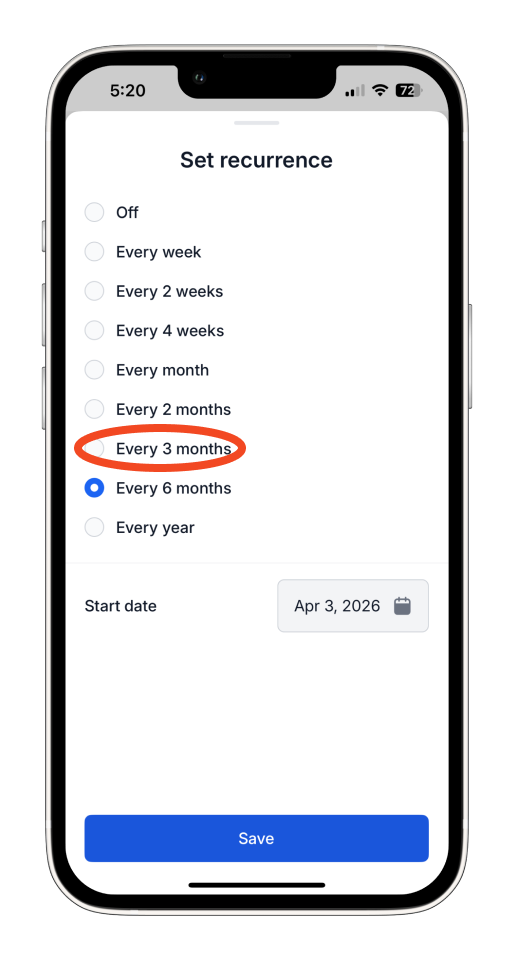
Step 5: Save recurrence settings
Tap ‘Save’ to apply your new recurrence interval.
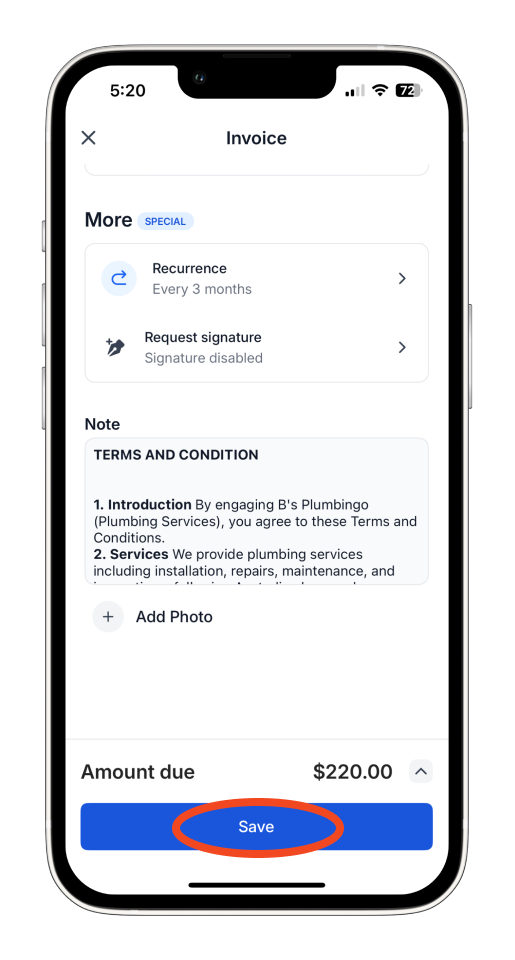
Step 6: Save the invoice
Tap ‘Save’ again to save the invoice with your changes.
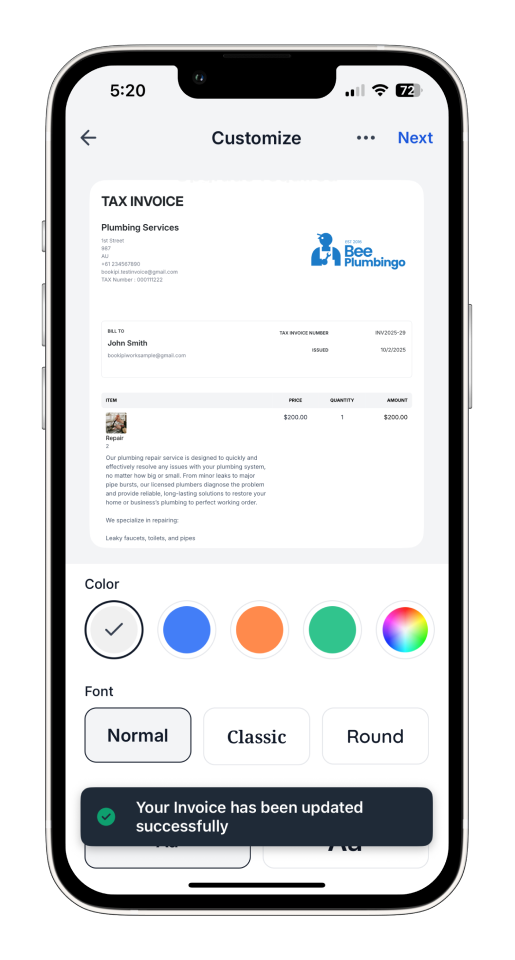
The updated invoice has been successfully saved. It will be sent on your newly scheduled recurring date.
Frequently Asked Questions: Recurring Invoice in the Bookipi Mobile App
Q: Can I edit a recurring setting?
A: Yes, you can edit the recurring settings as long as the invoice has not been marked as partially or fully paid. Once an invoice is partially or fully paid, the recurring settings can no longer be modified.
Q: The updates made to the recurring invoice were not sent on the scheduled date. What steps should I take next?
A: If the changes made to your recurring invoice didn’t send on the scheduled date, please try the following steps:
-
Active Status: Ensure the recurring invoice is active and is not turned off.
-
Start Date: Make sure the recurring profile’s date is correct and has already passed.
-
Client Email: Verify that the client’s email is correct.
If everything looks correct and the invoice still hasn’t been sent, please contact support and provide your account details and the recurring invoice in question for further assistance.
Discover more tutorials for Bookipi Invoice on the mobile app
Creating and sending invoices is even easier with the Bookipi Invoice mobile app.
Discover more tips on maximizing your Bookipi Invoice experience with our mobile app guides.
Explore additional features in the Bookipi Web app version.


