
Learn how add your social links to your Proposal using the Web app
How to add your social links to your Proposal AI
Follow these steps to generate and seamlessly integrate social media links into your proposal. This will enhance engagement and provide easy access to your online presence.
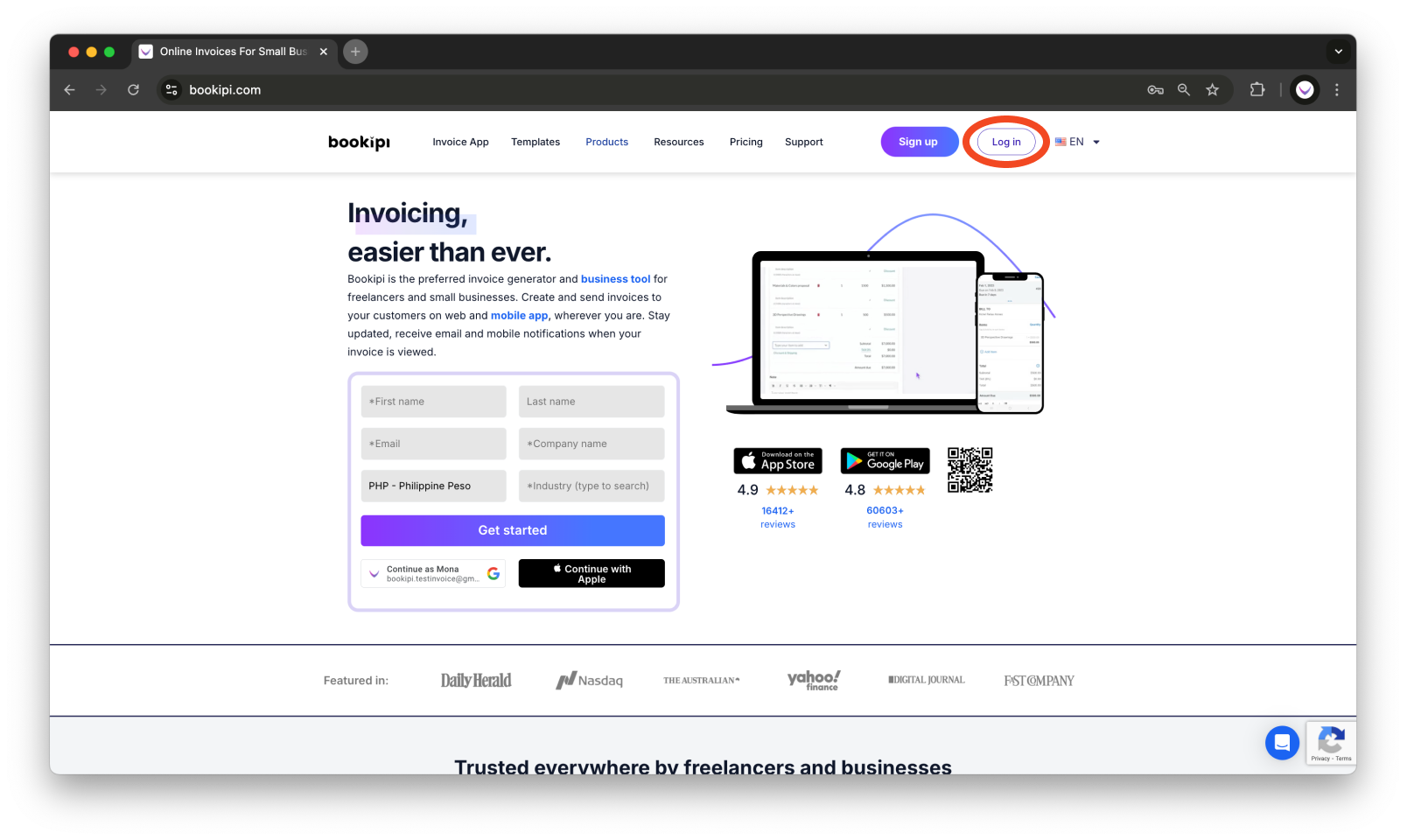
Step 1: Log in to Your Bookipi Invoice Account
Ensure you are Logged in to your Bookipi Invoice web app account. Go to https://bookipi.com/ then, select ‘Log in‘.
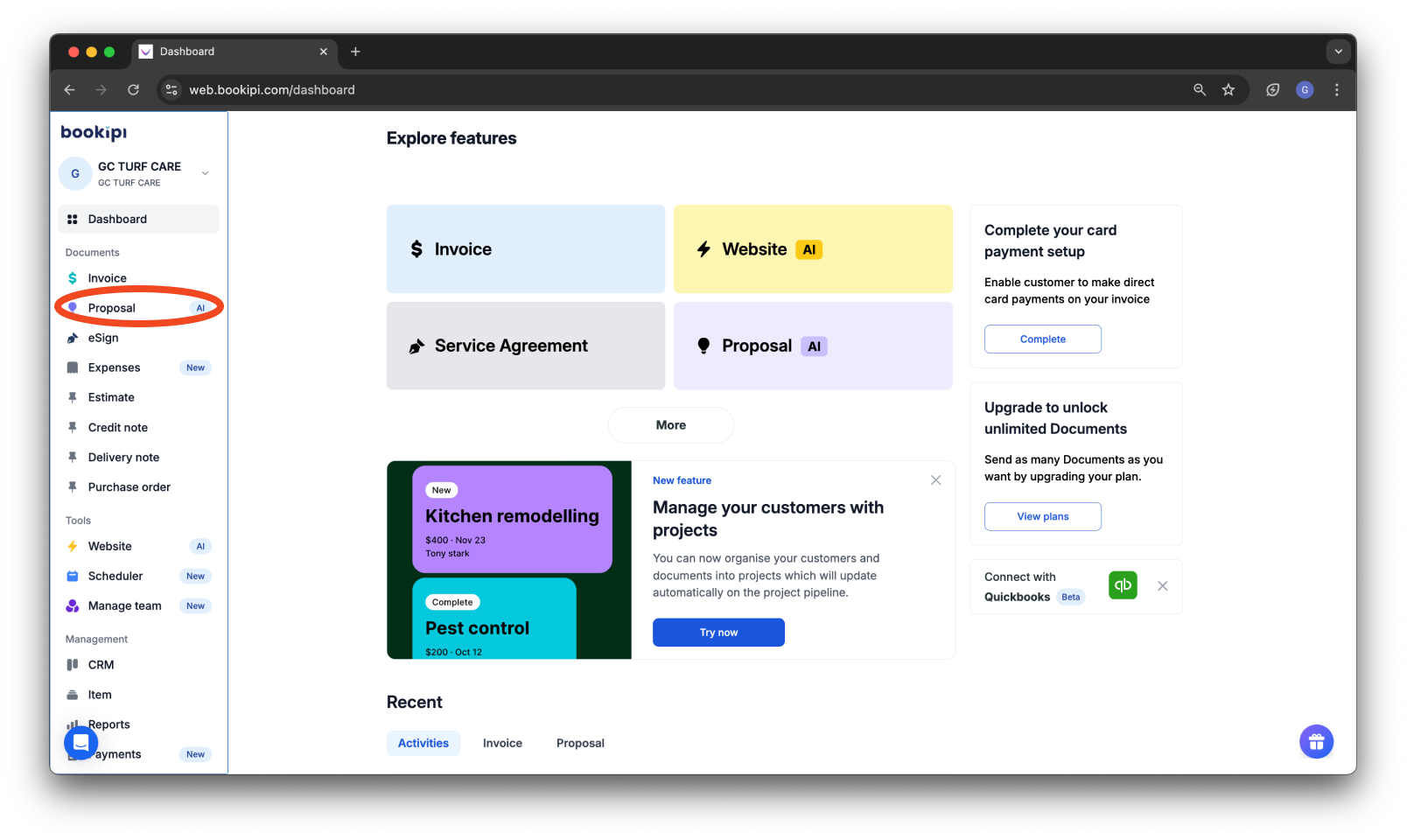
Step 2: Navigate to the Proposal Section
On your dashboard, go to ‘Proposal’.
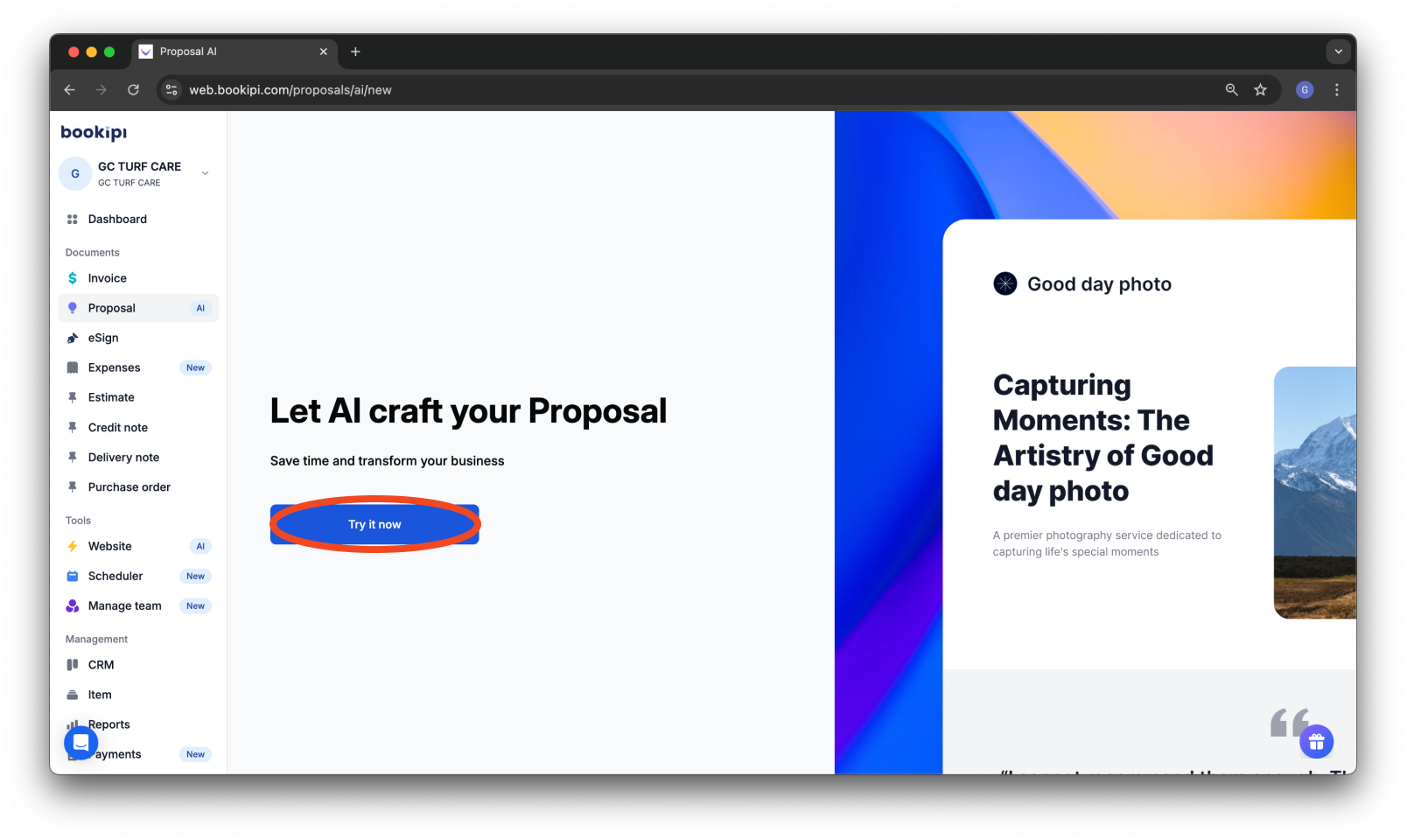
Click ‘Try it now’ to begin creating your proposal.
Step 3: Add Items to Your Proposal
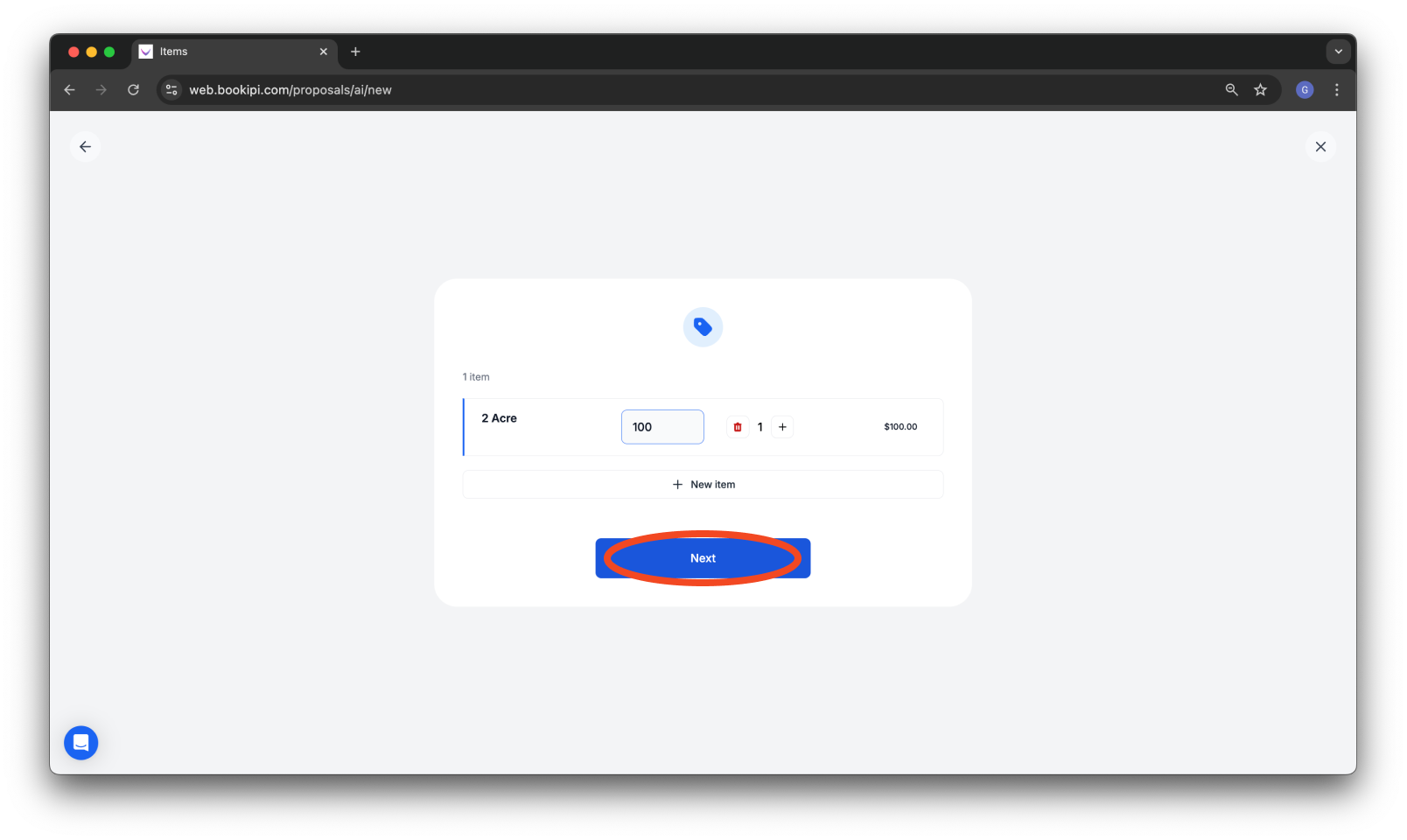
A new page will appear where you can add items to be included in your proposal.
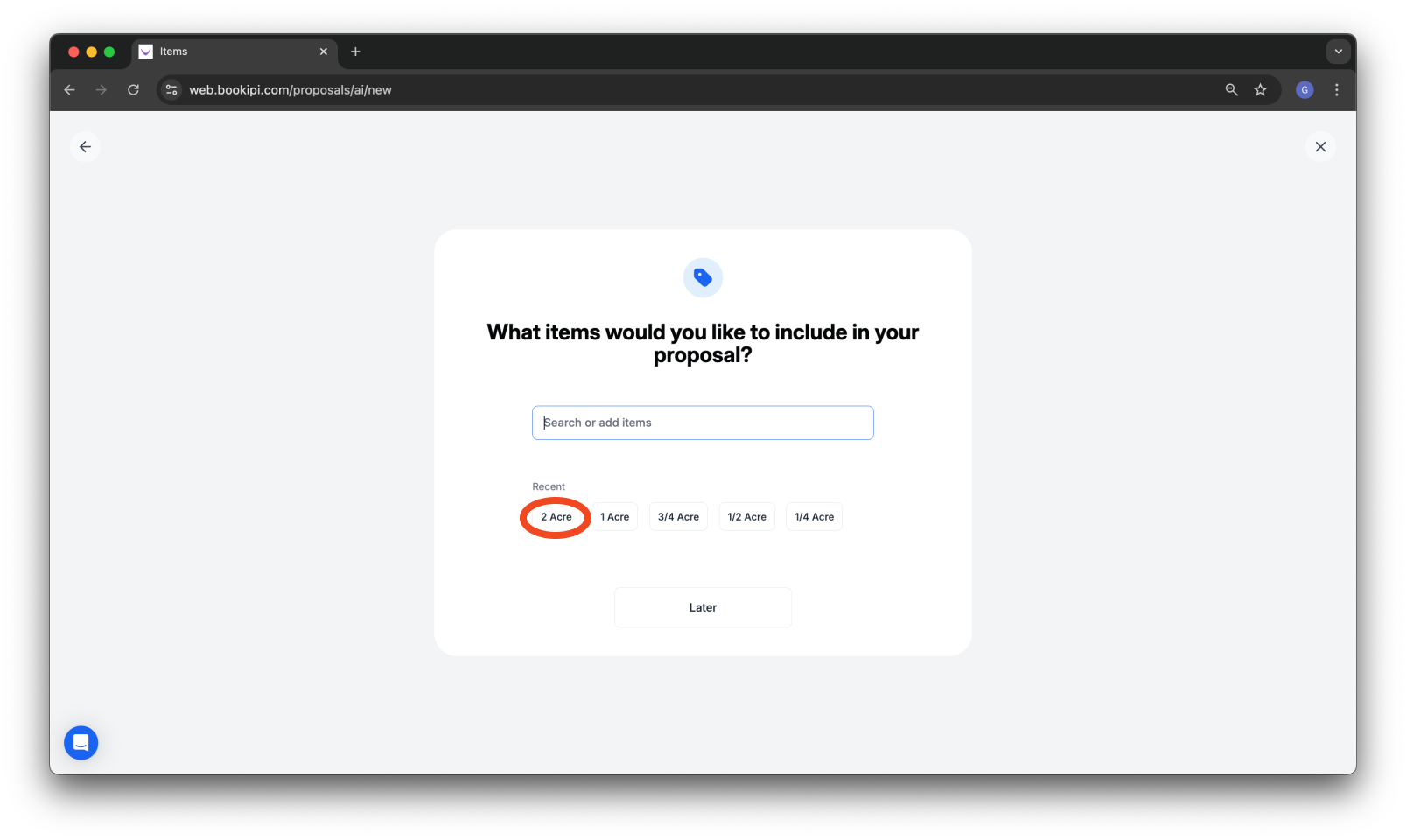
Once you’ve added your items, click ‘Next’.
Step 4: Add a Business Description
Once your items are added, a section will appear prompting you to add a short business description.
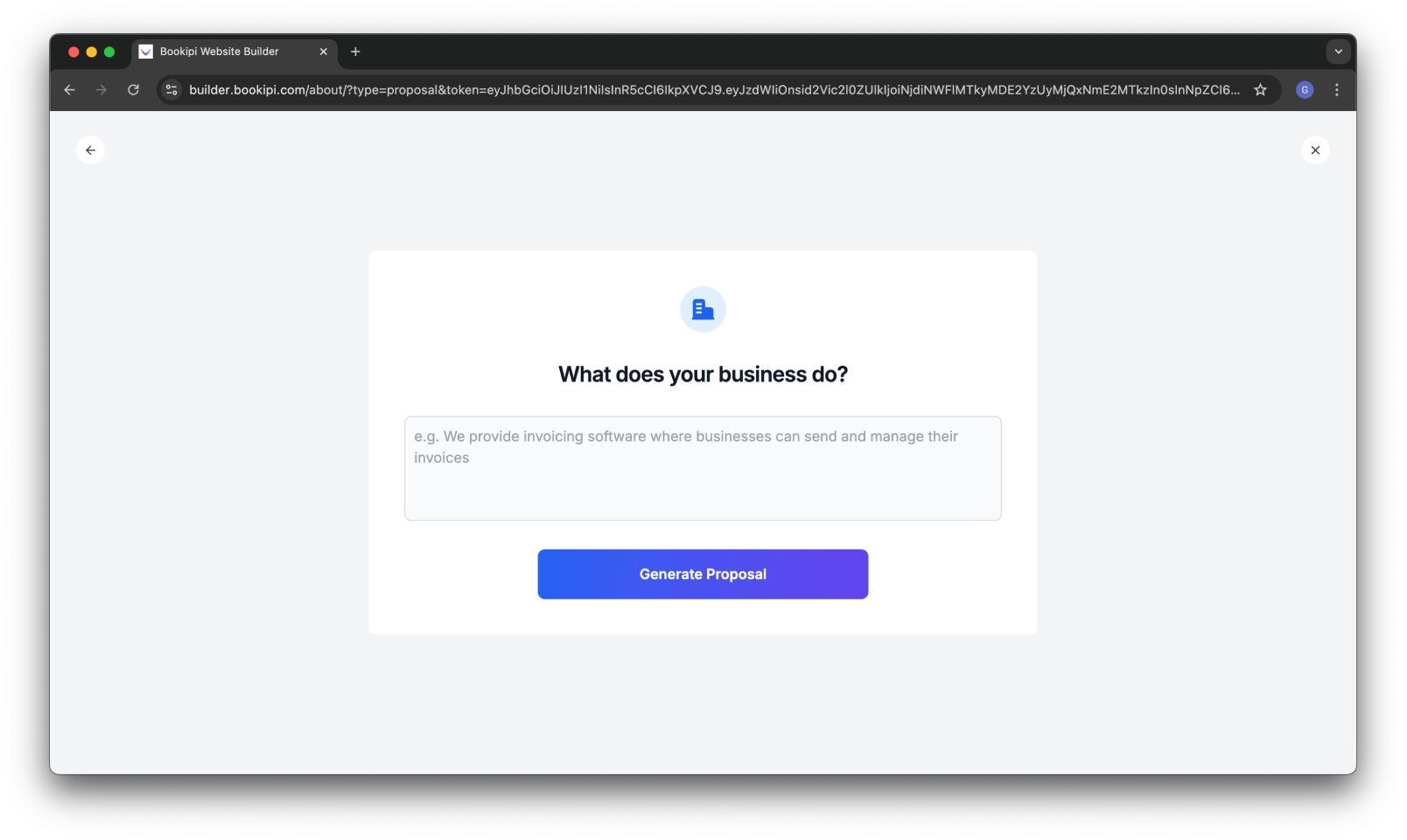
This helps the AI generate relevant content for your proposal.
Step 5: Generate the Proposal
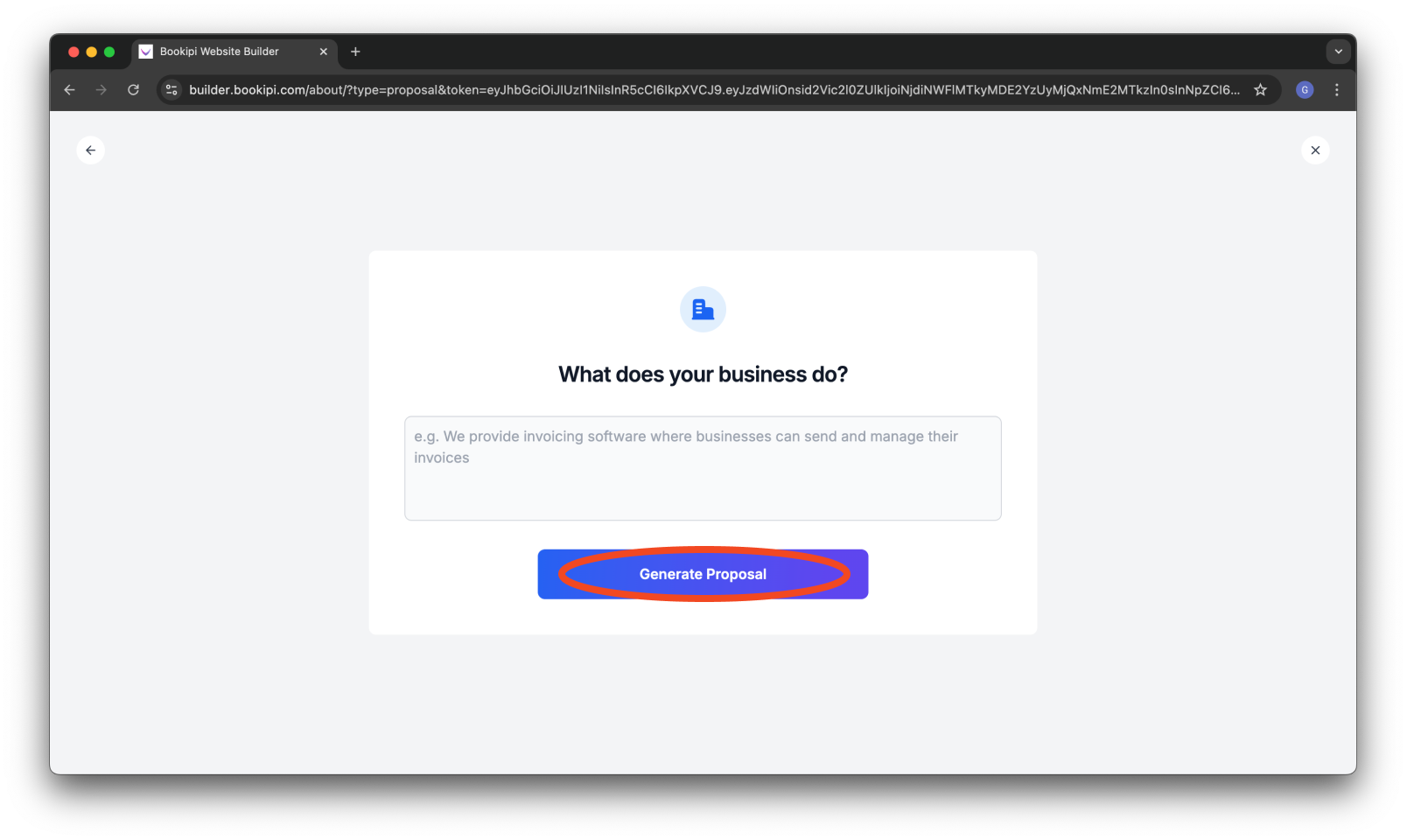
Click ‘Generate Proposal’ to allow the system to create a customized proposal based on the details you’ve provided.
Step 6: Review and Edit the Proposal
A preview page will be displayed where you can edit the proposal content, modify the item list, and adjust the service agreement.
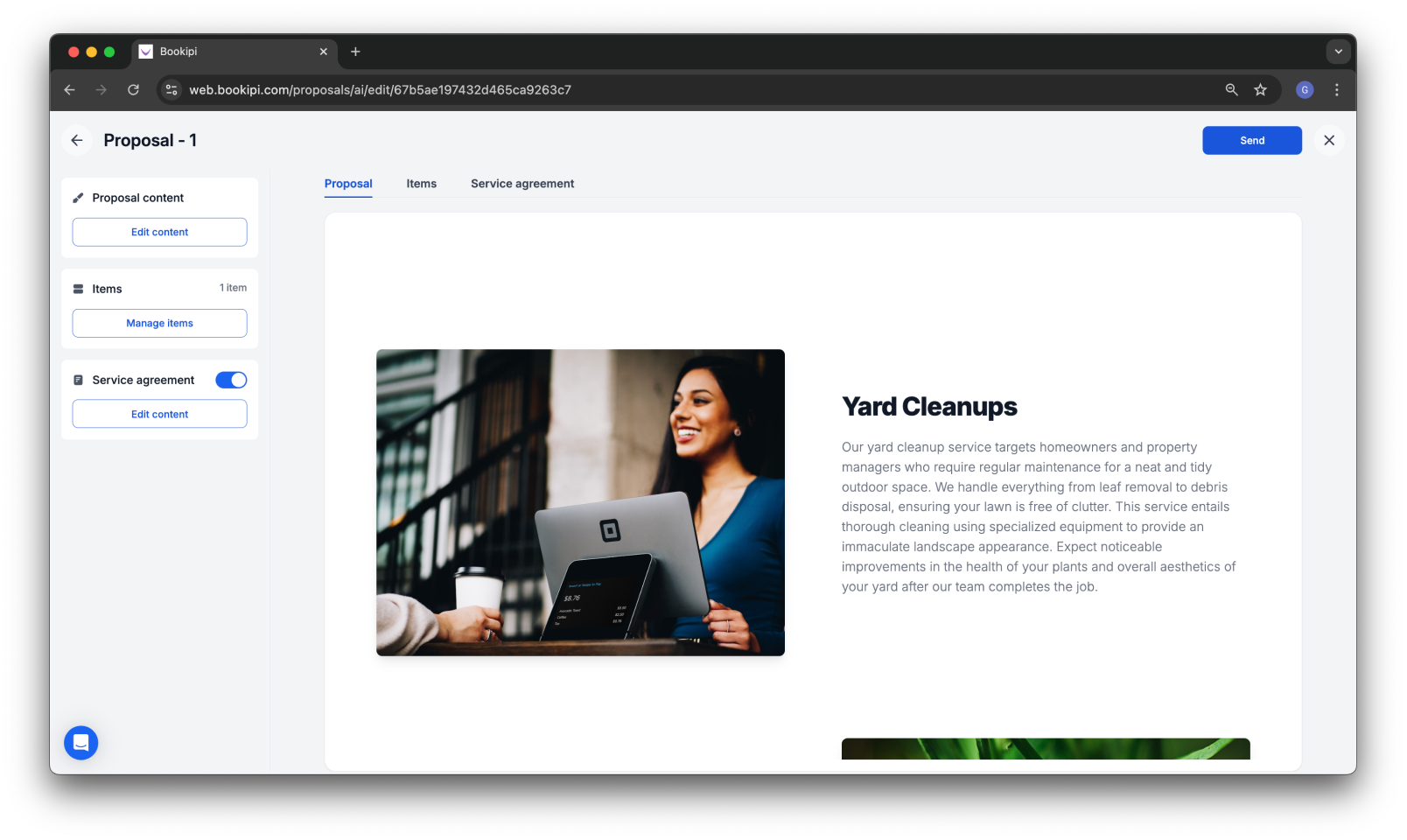
Step 7: Add Social Links (Optional)
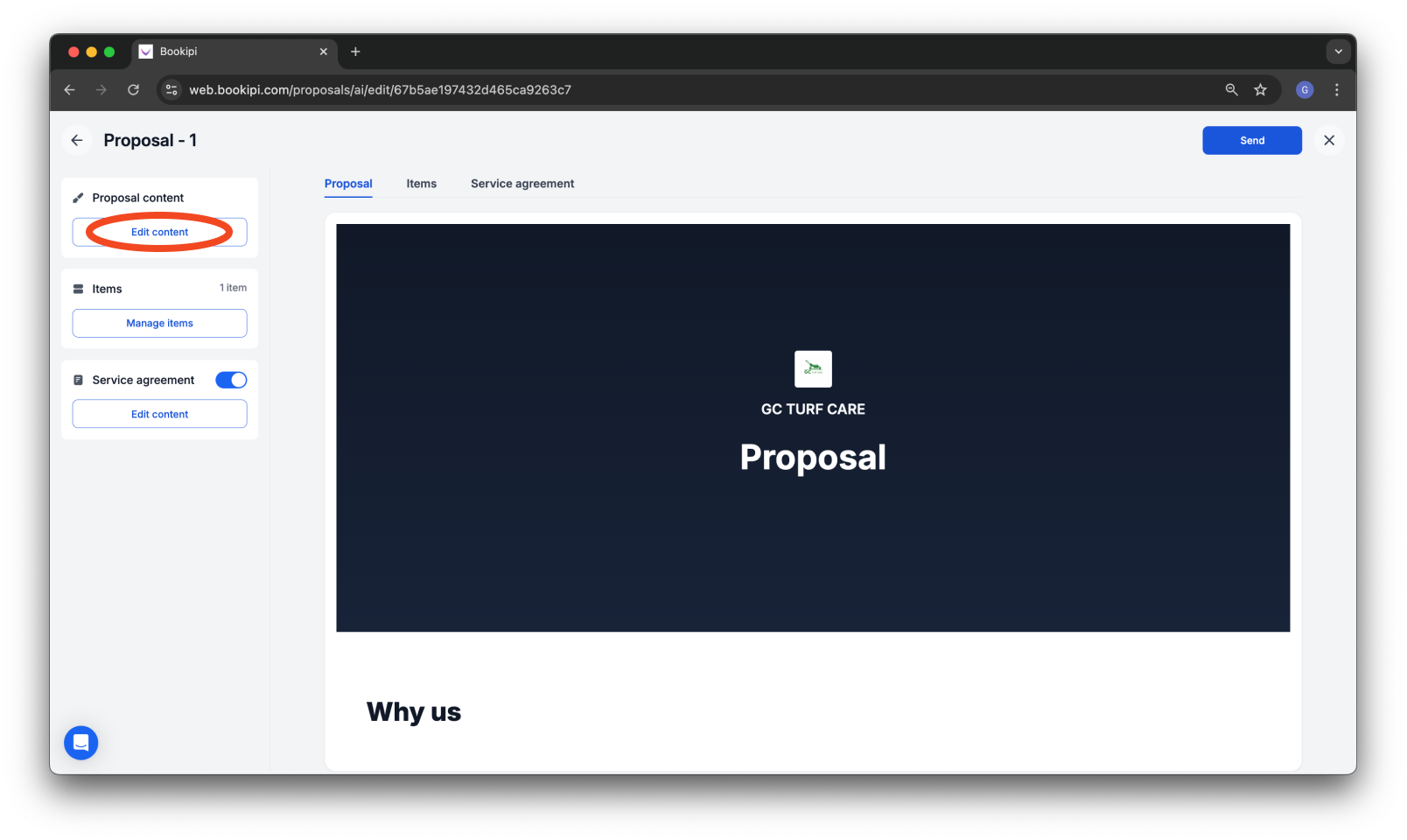
Navigate to the Proposal content section and click ‘Edit content’.
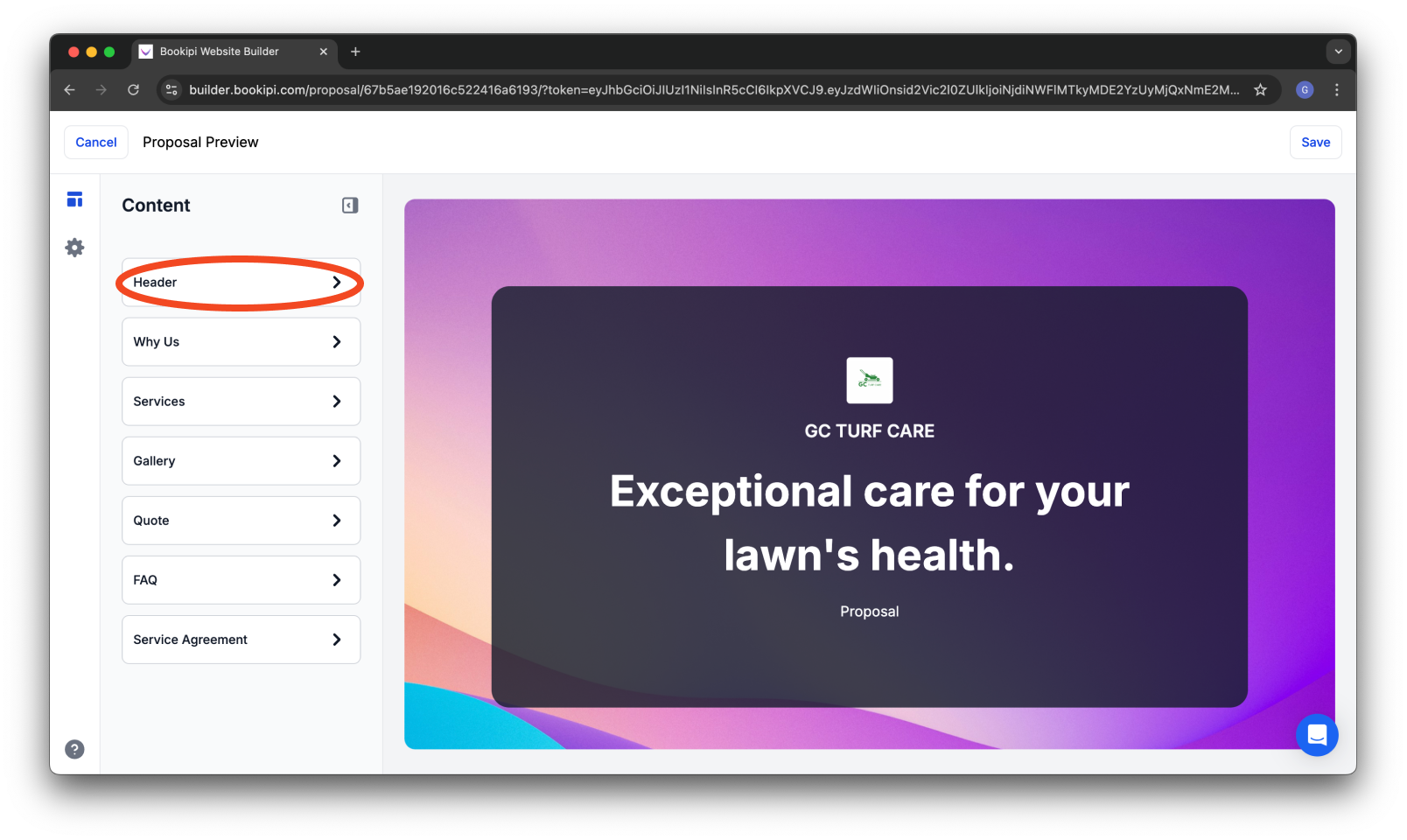
On the content page, click on ‘Header’.
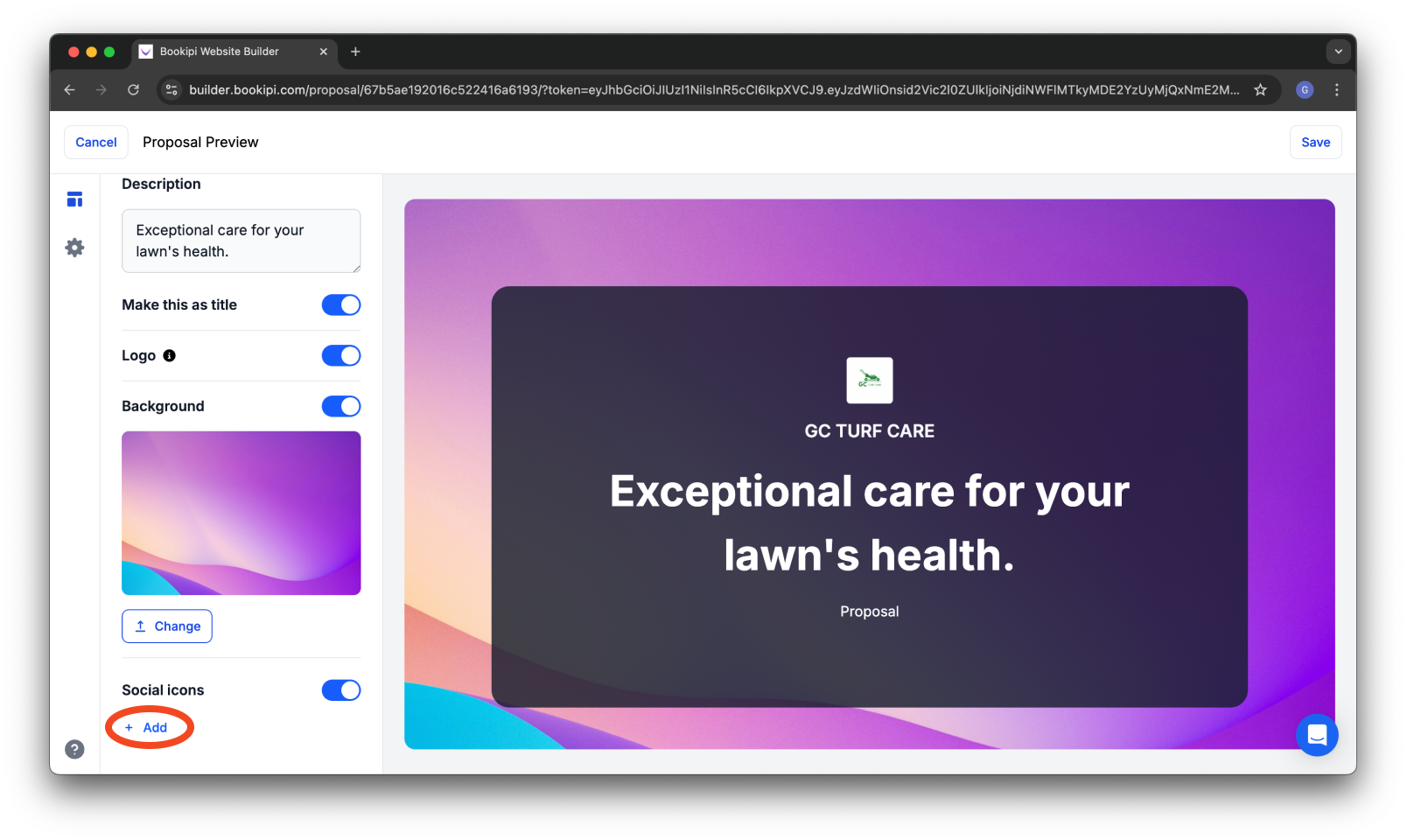
Scroll up to find the ‘Social Icons’ section and enable it.
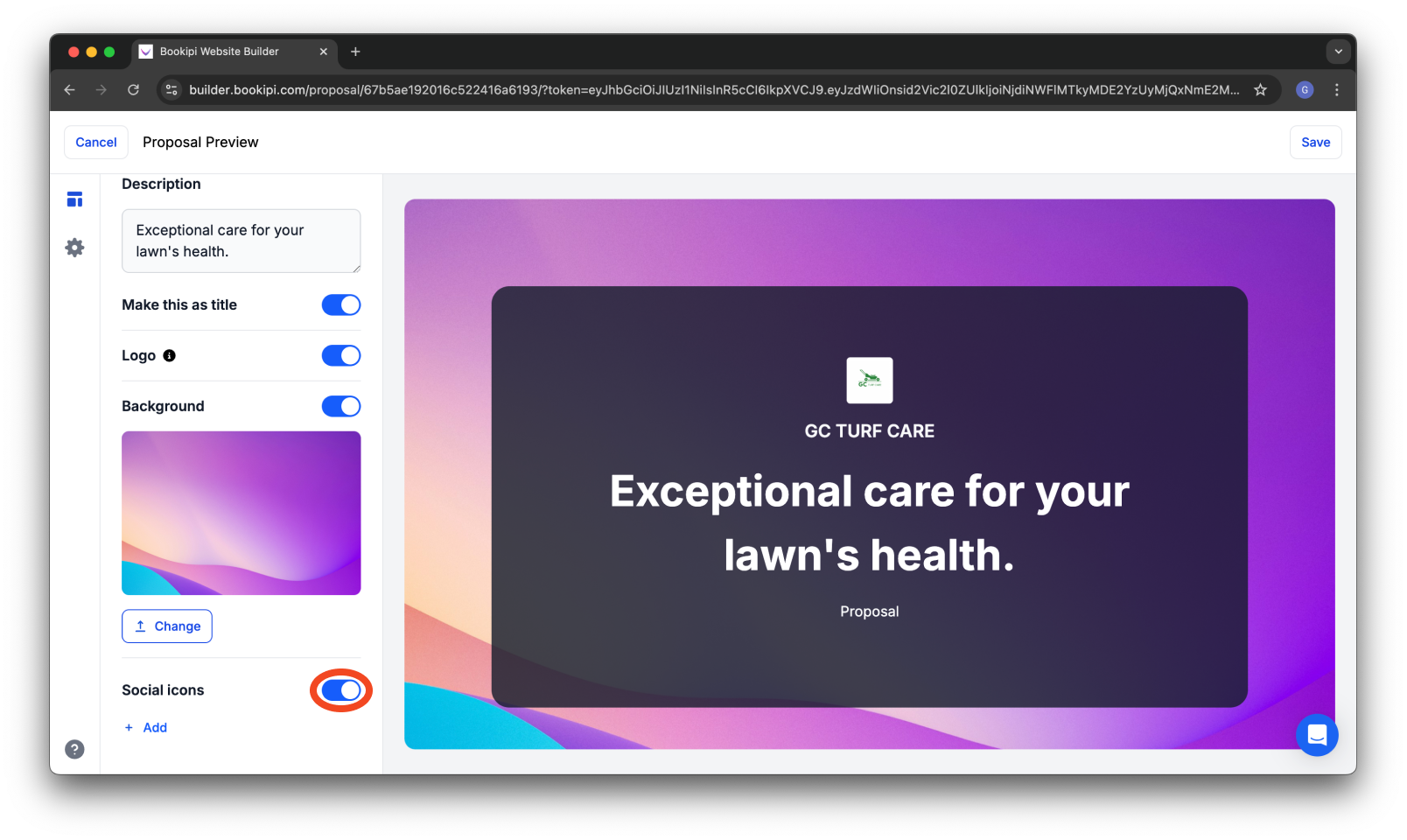
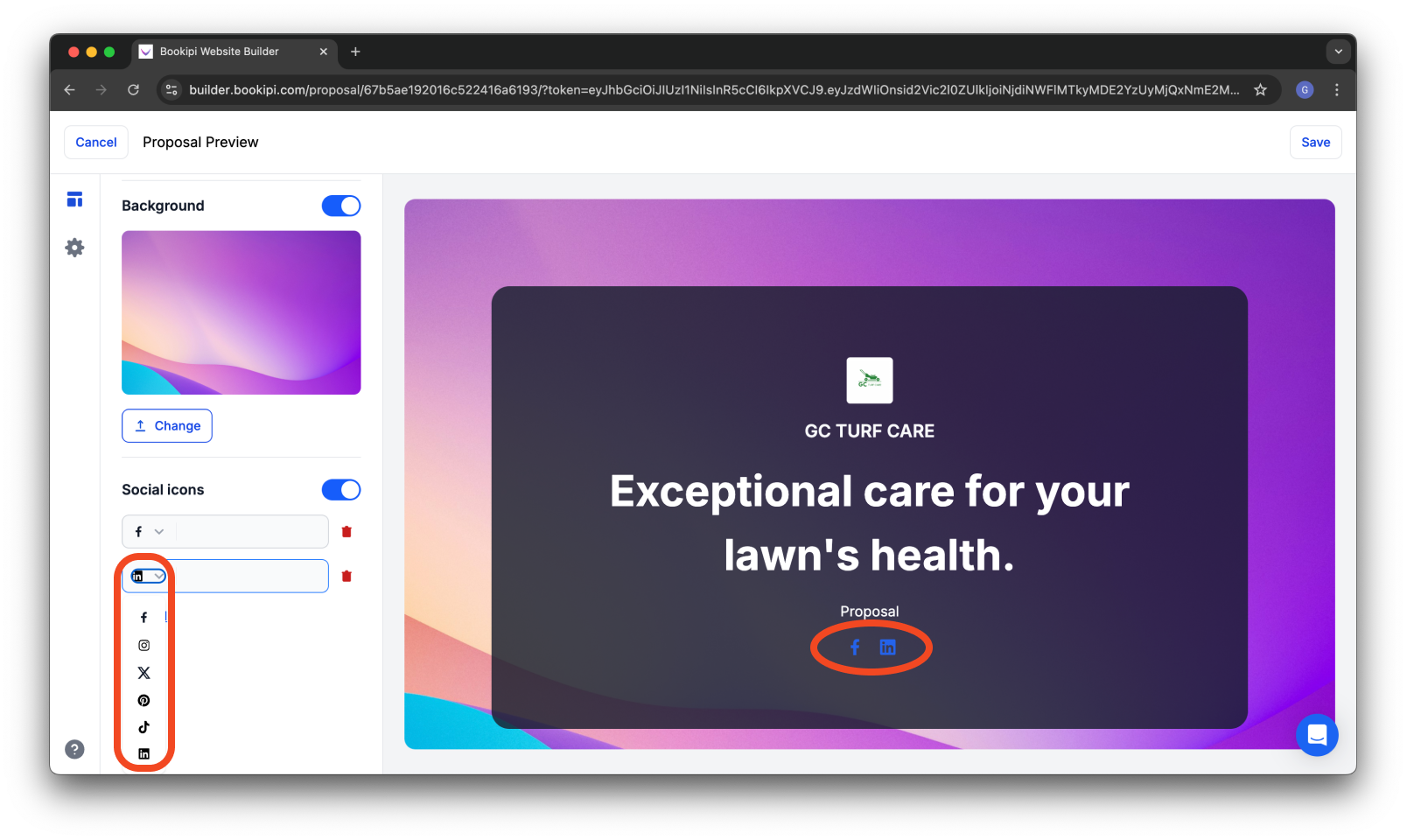
Click ‘+ Add’ to add a social media icon and your social media links.
Supported platforms include Facebook, Instagram, TikTok, LinkedIn, and more.
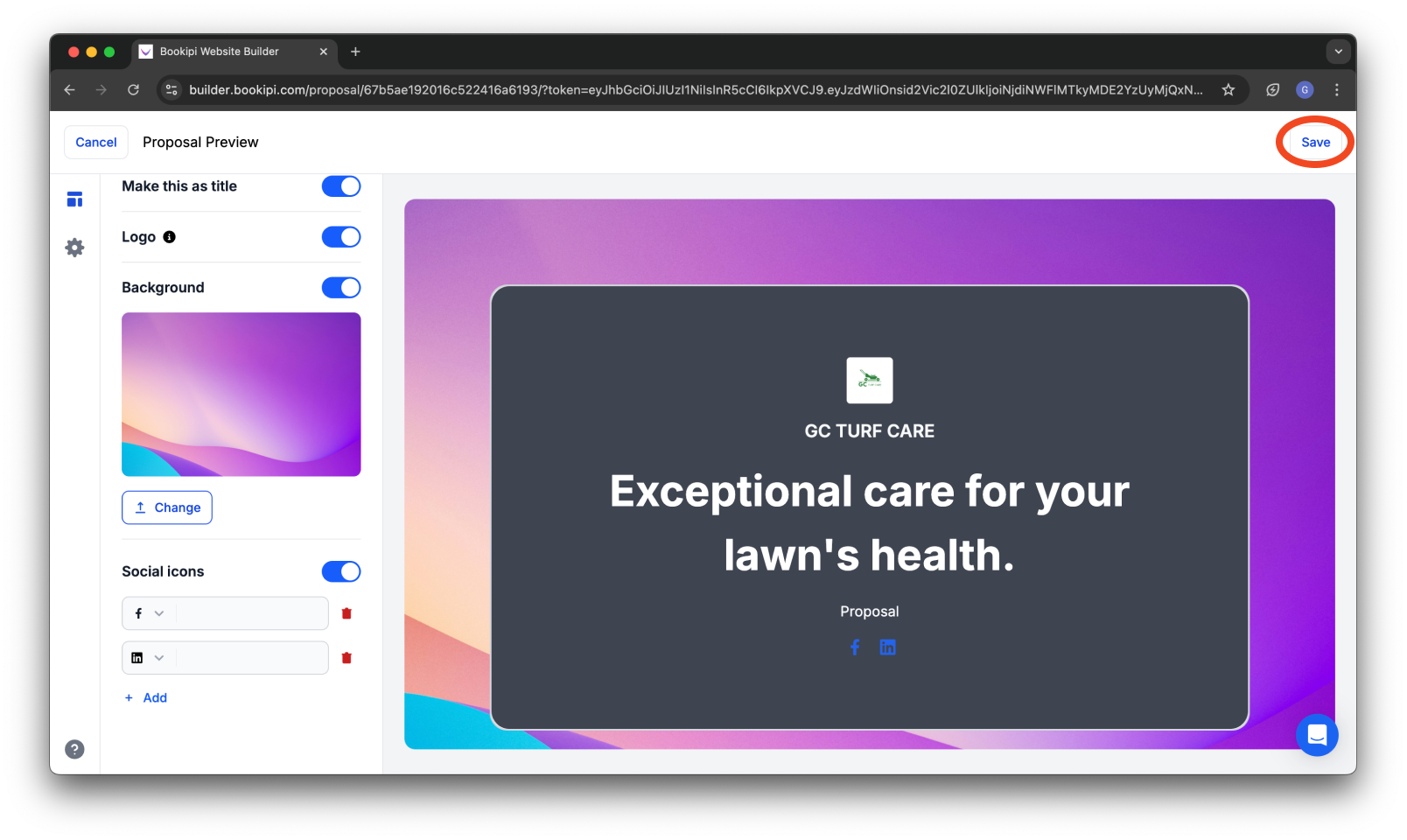
Click ‘Save’ to apply your changes.
Step 8: Send the Proposal
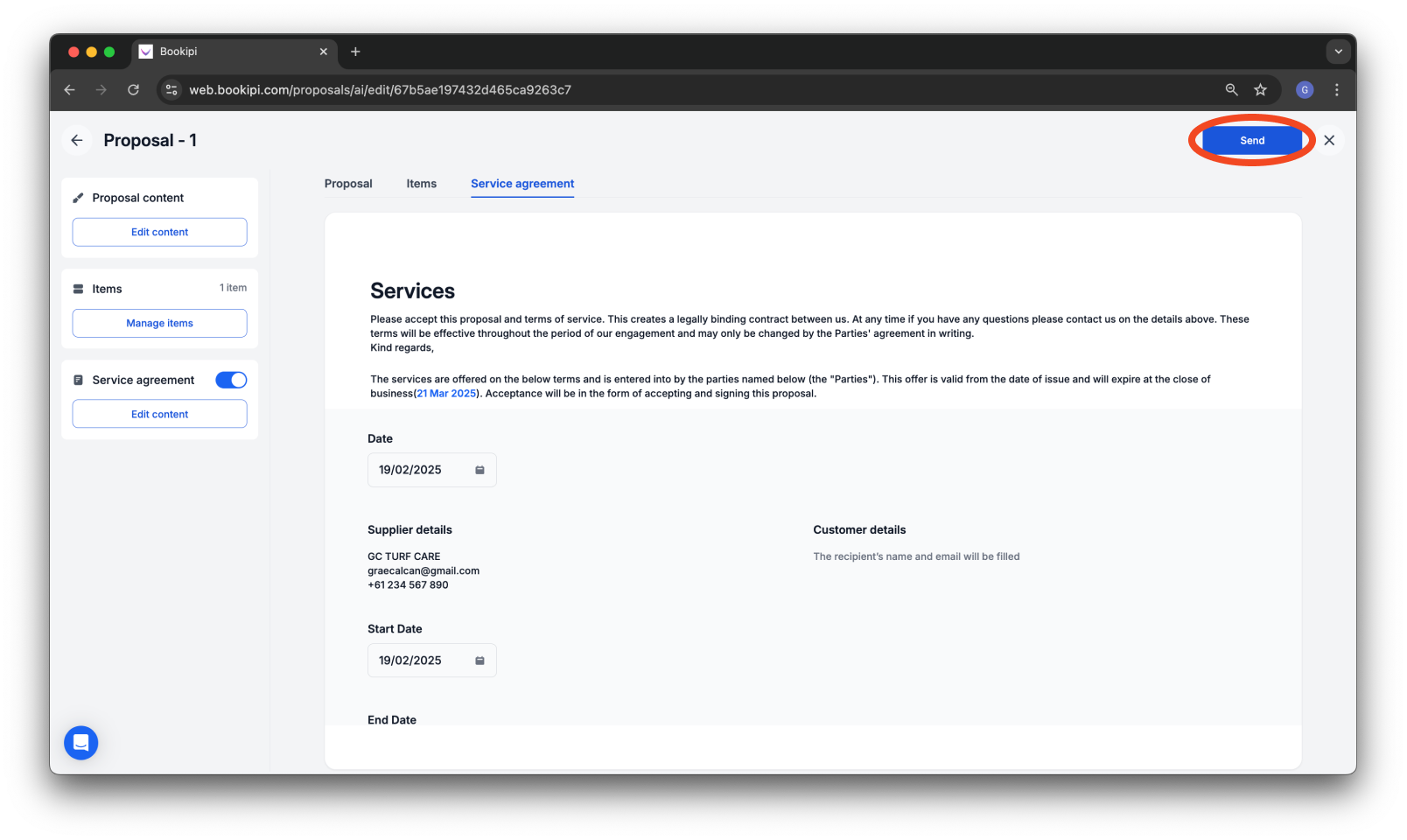
Once satisfied with your proposal, click ‘Send’.
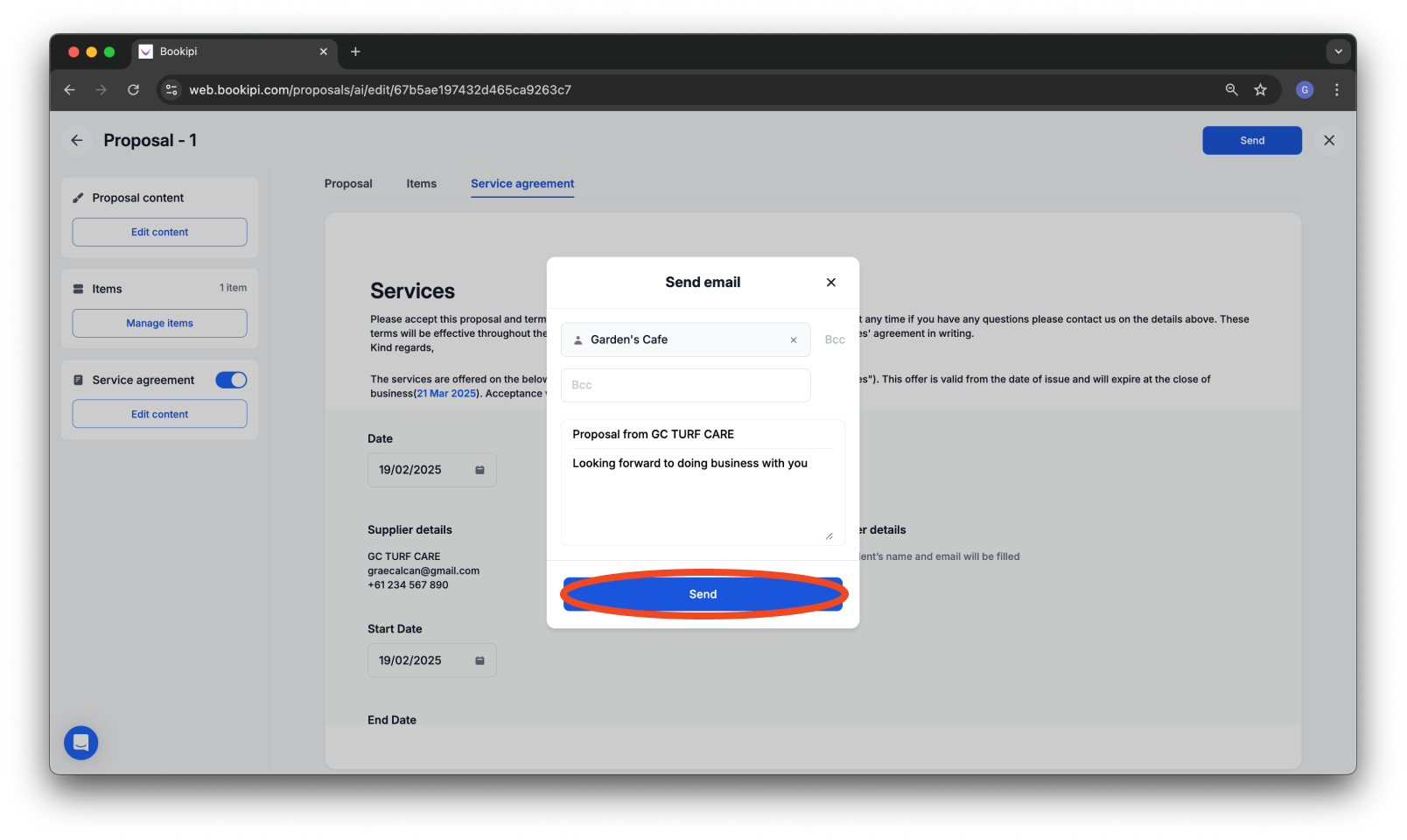
You will be prompted to enter or update customer details, including Email address (if not already on file), Subject line, and Message content.
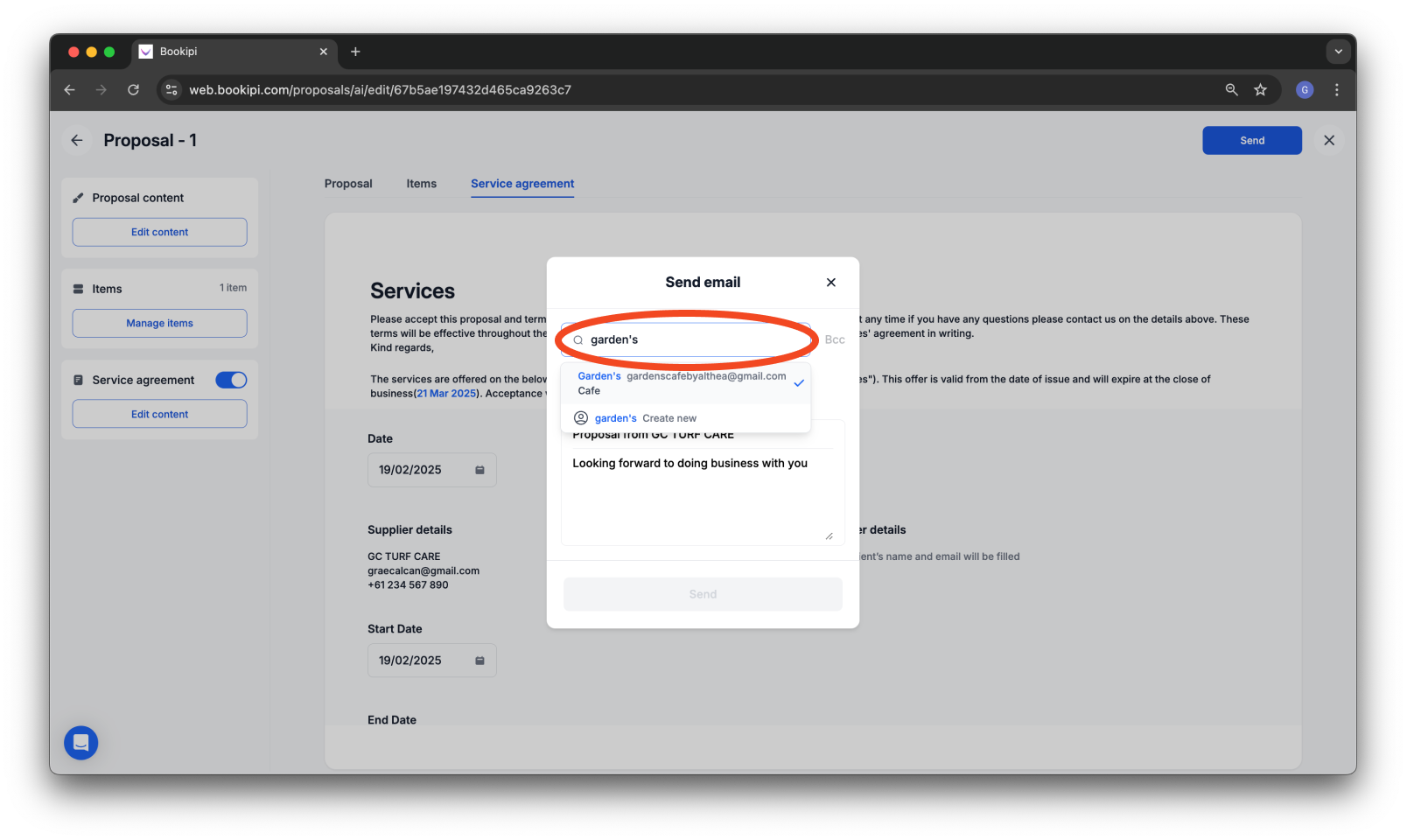
Click ‘Send’ again to finalize and deliver the proposal.
Step 9: Confirmation of Submission
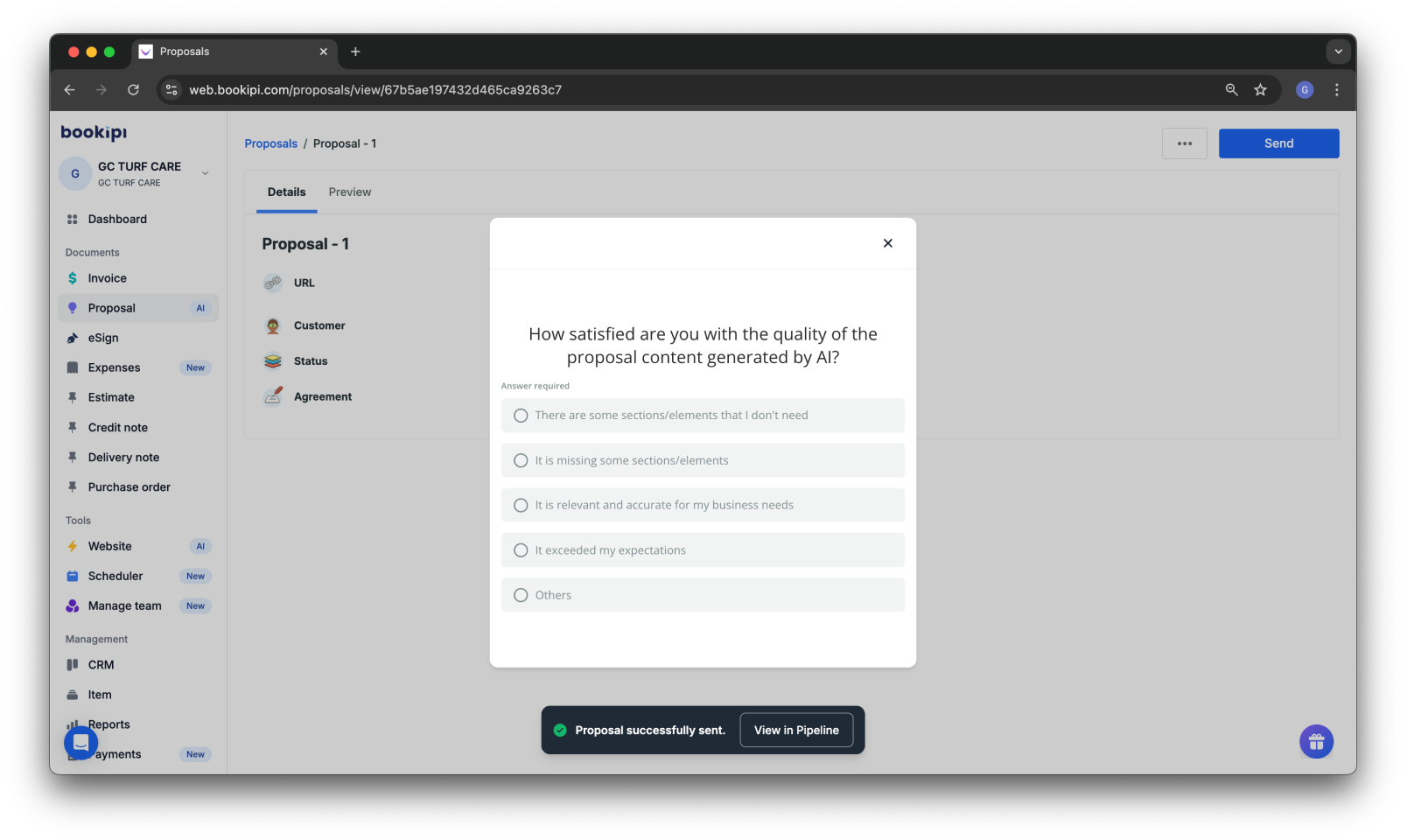
After sending, a confirmation message will appear indicating whether the proposal was sent successfully or if an error occurred.
Frequently Asked Questions (FAQ): Integrating Social Links into a Proposal
Q: What are the benefits of adding social links to the Proposal?
A: Including social media links in your proposals offers several key benefits:
-
Enhanced Credibility – Showcase your work, client testimonials, and industry presence, building trust with potential clients.
-
Improved Engagement – Encourage clients to interact with your brand across multiple platforms.
-
Stronger Networking – Make it easier for clients to stay connected and engage with you beyond the proposal stage.
Integrating these links ensures a seamless experience, making your proposals more compelling.
Q: Can I add additional social media icons beyond the provided options?
A: Currently, adding extra social media icons is not supported.
Q: What social media links should I include?
A: Include links to platforms that are relevant to your business or project, such as LinkedIn (for professional credibility), Twitter/X (for updates and engagement), Instagram (for visual portfolios), and Facebook (for community engagement). Choose platforms that best showcase your expertise.
Q: Can I customize the color of the social media icons?
A: Not at this time. The icon colors are preset by the system.
Q: Are there any best practices for integrating social links?
A: Keep links relevant and minimal—only include platforms where you are active, and ensure all links are up-to-date and functional.
Q: What if my social media presence is limited?
A: If your social media presence is minimal, focus on the most professional and well-maintained platform (e.g., LinkedIn). Alternatively, consider improving your profiles before integrating them into proposals.
Discover more tutorials for Bookipi Invoice on Web v2
Discover more tips on how to get the most out of Bookipi Invoice on Web v2 with our Web v2 guides.
Download the Bookipi Invoice mobile app and check out our mobile app guides to make sending invoices anytime and anywhere even easier.


