
Learn how to make a budget in Bookipi Expense mobile app
How to make a budget
Learn how to make budgets for different wallets with our step-by-step video guide.
Stay on top of your spending as you can also receive notifications when you’re nearing your budget limit.
Make a budget in the Bookipi Expense mobile app with these easy steps:
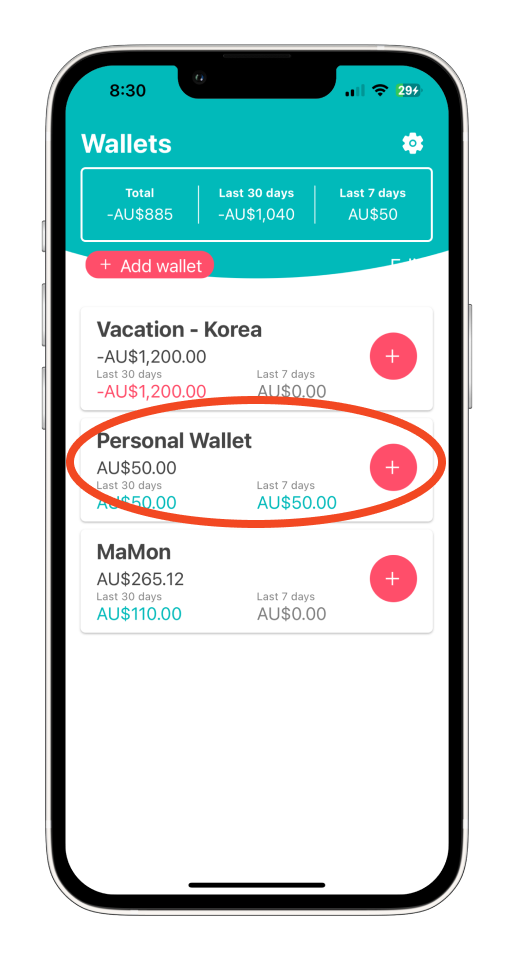
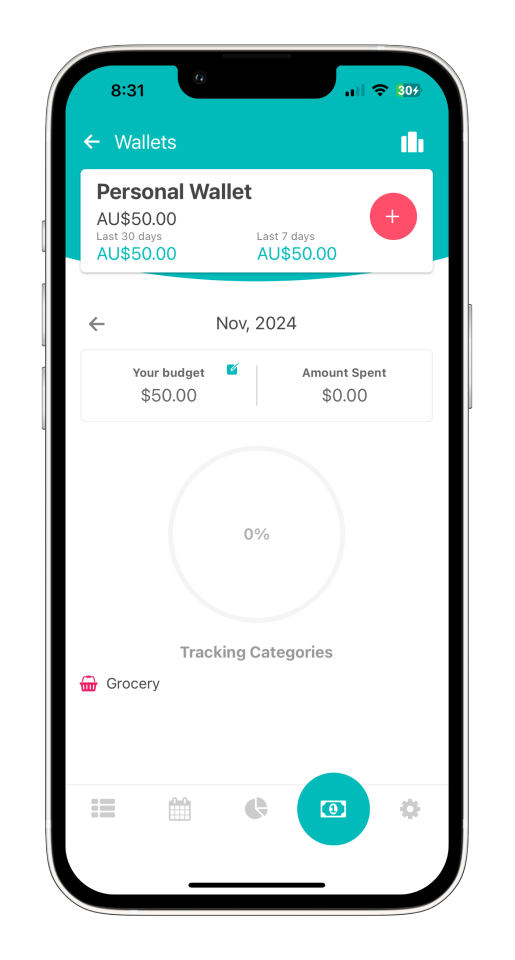
Step 1: Open the Wallet
Tap on the Wallet you want to set a budget for on your home page.
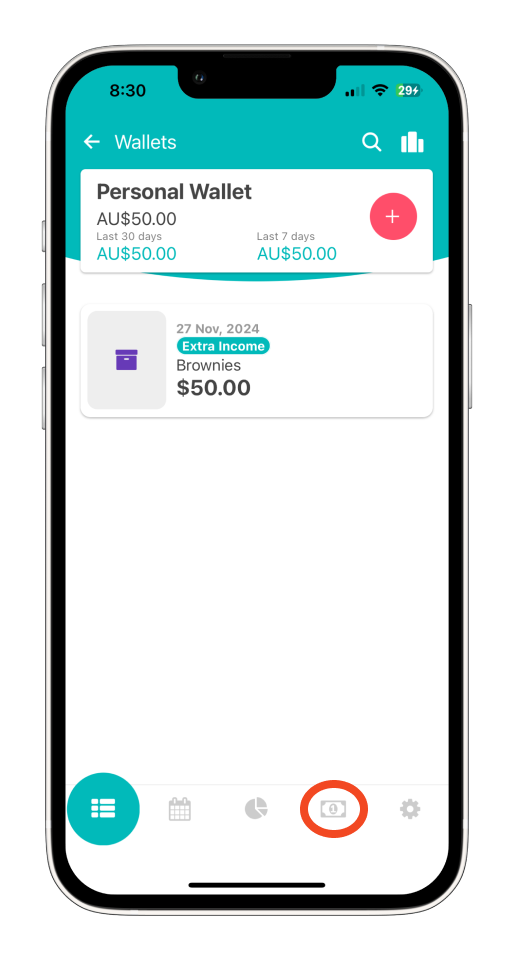
Step 2: Access the Budget Feature
Tap on the ‘Budget’ icon located at the lower right of the screen.
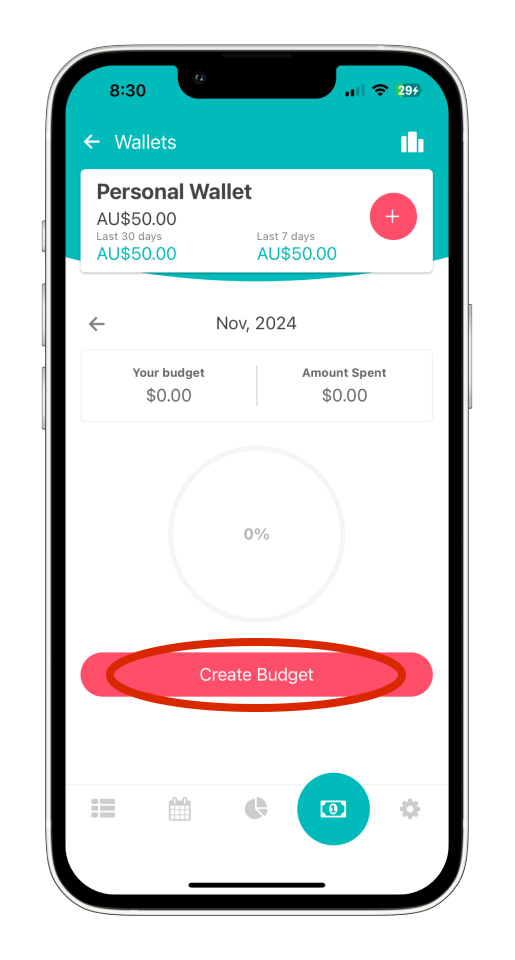
Step 3: Create a New Budget
Tap the ‘Create Budget’ button to start setting up your budget.
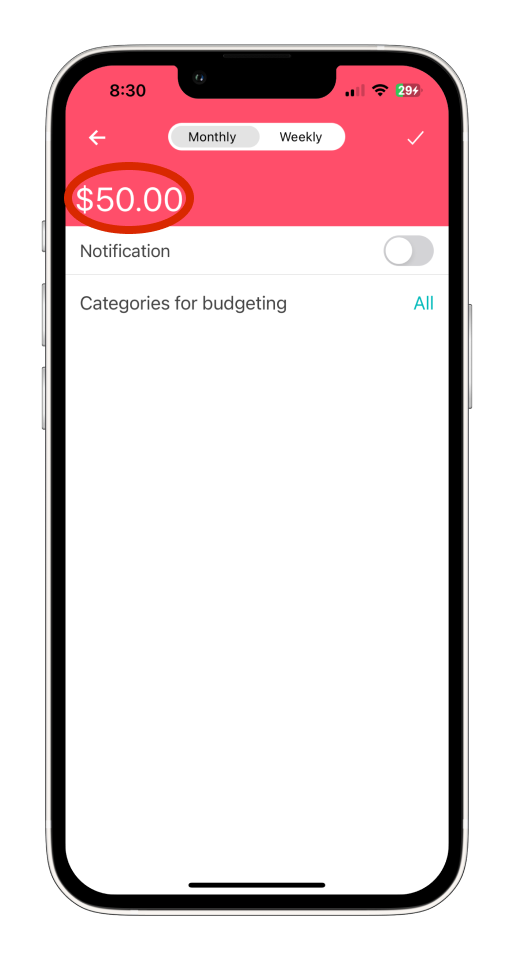
Step 4: Enter Budget Amount
Input the desired Budget amount for your selected category.
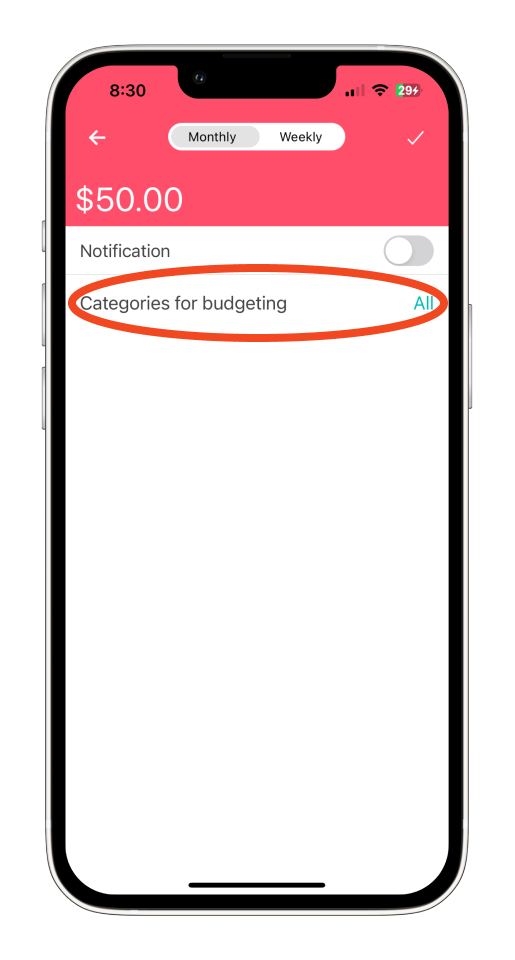
Step 5: Select a Category
Tap ‘Categories for budgeting’ to select a category.
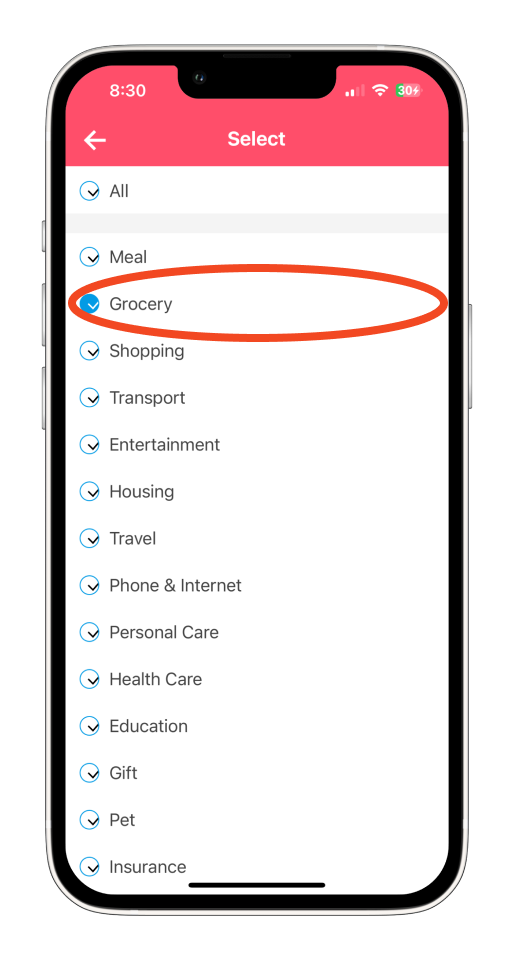
Choose the category for which you want to set a budget (e.g., ‘Grocery’).
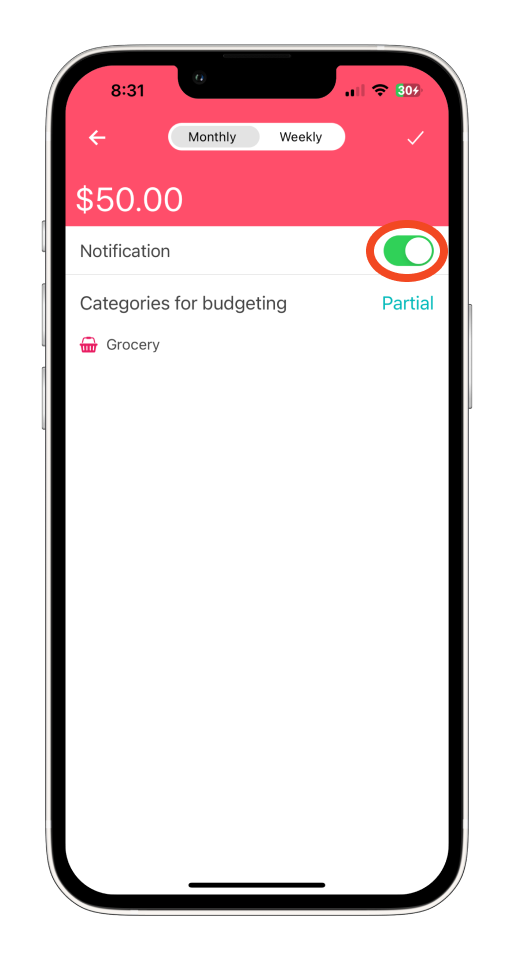
Step 6: Enable Notifications
Turn on the Notification toggle to receive alerts when you’re nearing the budget limit.
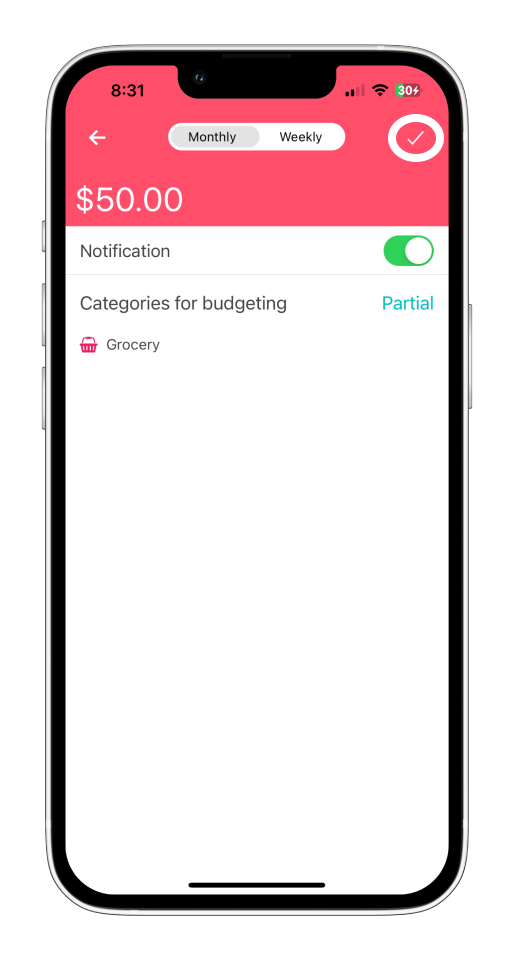
Step 7: Save Your Budget
Once you’ve entered all the details, tap the checkmark icon (✓) at the upper right corner to save your budget.
Your budget is now set and ready to help you manage your spending effectively!
Discover more tutorials for Bookipi Expense mobile app
Discover more tips on how to get the most out of Bookipi Expense mobile app with our Bookipi Expense guides.
Need to send invoices with ease? Download the Bookipi Invoice mobile app and check out our Bookipi Invoice mobile app guides.


